
If you’ve ever wanted to start C programming in 2025 but got intimidated by cryptic compilers, ancient tutorials, or environments that just wouldn’t cooperate—you’re not alone. But here’s the great news: modern C development can be clean, efficient, and even fun when you have the right tools and setup. Whether you’re a college student just getting started, a developer diving back into C for embedded systems, or a curious hobbyist, this guide is your best friend.
By the time you finish reading, you’ll have:
- A complete C development environment for your operating system (Windows, Linux, or macOS)
- The best IDEs, compilers, and extensions
- Debuggers that actually help
- And smart tips to save you hours of pain
Let’s get started on building your killer C dev setup!
Why a Modern C Environment Matters in 2025
C might be a classic, but that doesn’t mean you should suffer with 1990s tooling. In 2025, C is still powering systems from microcontrollers to OS kernels, but now we have better tools to work with.
Key benefits of a modern setup:
- Improved productivity
- Better error messages
- Easier debugging
- Integrated code suggestions
- Cross-platform compatibility
Takeaway: Don’t settle for Notepad and Command Prompt. A modern setup will make your life much easier (and more enjoyable).
1. Choosing the Right Code Editor or IDE
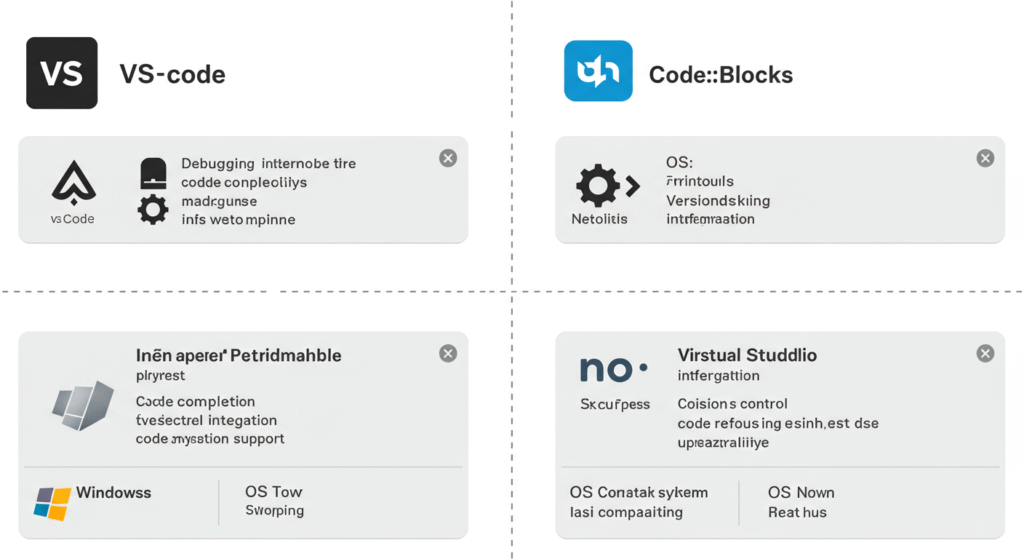
The first step in setting up your environment is choosing where you’ll write your code. Your choices in 2025 are sleek, powerful, and customizable.
Top Picks:
- VS Code (Windows/Linux/macOS) – Lightweight, with powerful extensions
- CLion (Windows/Linux/macOS) – Feature-rich, great debugging, paid
- Code::Blocks (Windows/Linux/macOS) – Classic feel, great for learning
- Visual Studio Community (Windows only) – Heavyweight but powerful for C/C++
Practical Tip:
Install VS Code with the C/C++ Extension Pack for a lightweight, flexible start. It works beautifully across platforms and integrates well with compilers.
2. Installing a Compiler
You can’t compile C code without a compiler (shocker, right?). Here’s what works in 2025:
Windows
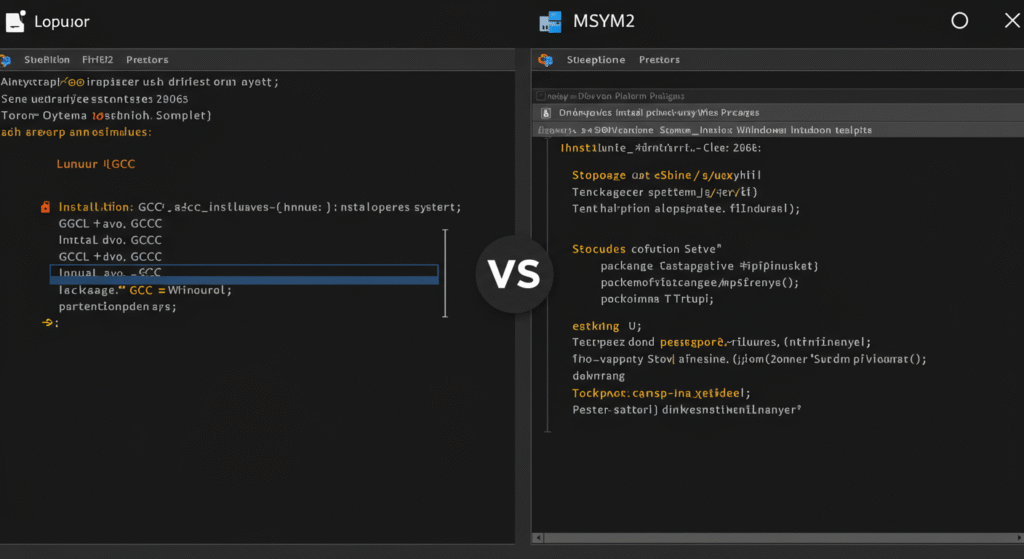
- MSYS2 + GCC: Great UNIX-like environment
- MinGW-w64: Lightweight GCC build for Windows
- Microsoft C++ Build Tools: If using Visual Studio
Linux
- Just run
sudo apt install build-essential(Debian/Ubuntu) orsudo dnf groupinstall "Development Tools"(Fedora)
macOS
- Install Xcode Command Line Tools with
xcode-select --install
Pro Tip:
On Windows, MSYS2 is your best bet for compatibility with modern build tools and UNIX-like behavior.
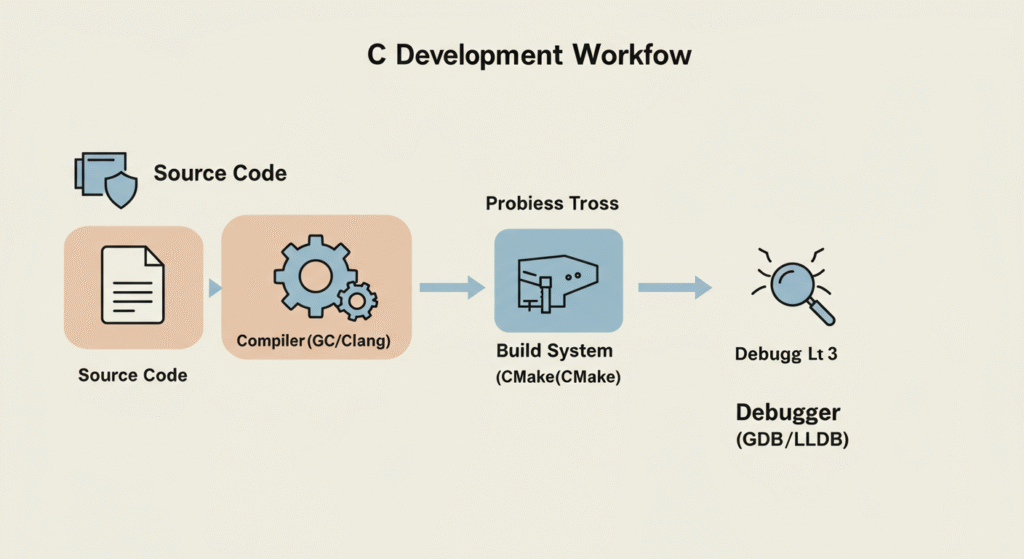
3. Debuggers and Build Systems
Debuggers
Debugging C is no longer a painful, print-statement-only activity.
Recommended Debuggers:
- GDB (GNU Debugger): Available across platforms
- LLDB: Default on macOS
- WinDbg: For Windows-only deep debugging
Build Systems
Avoid writing long gcc commands manually.
Use:
- Make: Traditional and simple
- CMake: Modern, widely supported, integrates with IDEs
Example:
cmake -S . -B build
cmake --build build
Takeaway: CMake + GDB combo will give you power, control, and clean builds.
4. Extensions That Supercharge Your Workflow
If you’re using VS Code or CLion, extensions will take you from good to great.
Must-Have Extensions for VS Code:
- C/C++ by Microsoft: Syntax highlighting, debugging
- CMake Tools: Seamless CMake integration
- CodeLLDB: LLDB support
- Include Autocomplete
- Bracket Pair Colorizer 2: Sanity saver
Bonus Tip: Use Clang-Tidy or Cppcheck extensions for static analysis right inside the editor.
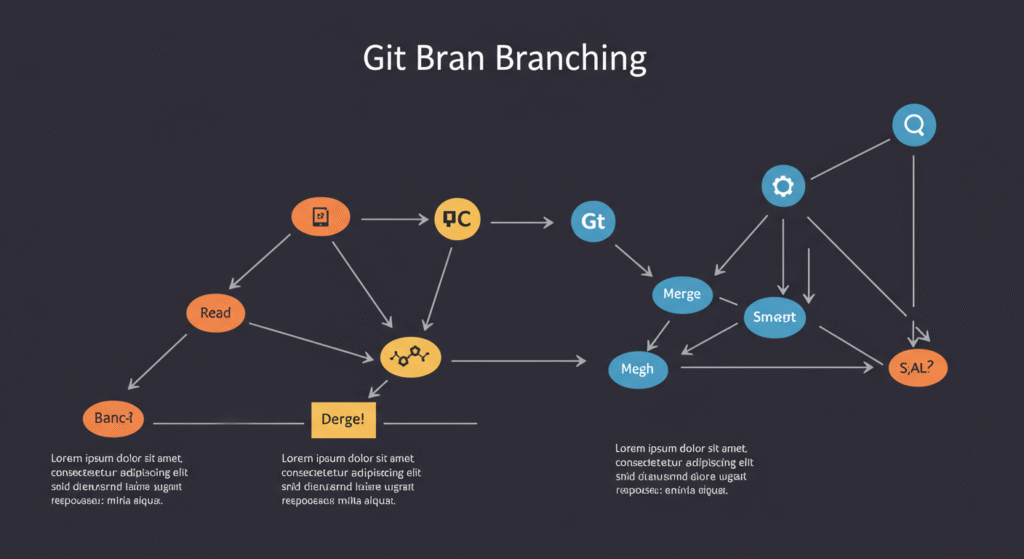
5. Version Control and Git Integration
In 2025, Git is non-negotiable for any serious coding.
Setup Checklist:
- Install Git (
git-scm.comfor Windows/macOS, already on most Linux distros) - Use VS Code’s built-in Git tools or GitKraken GUI
- Connect to GitHub for collaboration
Tip:
Always create a .gitignore for C projects:
*.o
*.out
/build/
6. Terminal Customization for Power Users
A slick terminal isn’t just aesthetic—it makes you faster.
Windows
- Windows Terminal + PowerShell Core or MSYS2 Bash
- Install Oh My Posh for themes
macOS/Linux
- zsh with Oh My Zsh
- Powerlevel10k theme
Tool Highlight:
- tmux for terminal multiplexing
- fzf for fuzzy file search
Takeaway: A good terminal setup turns you into a C ninja.
7. Working with Legacy C Code
Let’s be honest—you’ll eventually have to dive into an old-school C project. Here’s how to survive it.
Tips:
- Use clang-format to reformat without breaking the logic
- Read with a good diff viewer like Meld or Beyond Compare
- Compile with warnings enabled:
-Wall -Wextra -Werror
Practical Tip:
Try compiling with -std=c89 or -std=c99 if the code breaks under modern compilers.
8. Remote Development and Cloud IDEs
Coding on a tablet? Chromebook? No problem in 2025.
Best Tools:
- GitHub Codespaces: Full dev environments in the browser
- Replit: Great for quick C testing
- WSL 2 + Remote VS Code: Windows users can work in Linux without dual booting
Takeaway:
You don’t need a beastly laptop to write C anymore. Remote dev is fast and flexible.
9. Automated Testing and CI for C Projects
Test your code like a pro with automation.
Tools to Know:
- CTest: Comes with CMake
- Google Test: For writing unit tests in C++ (works with C code too)
- GitHub Actions: Automate build + test on every push
CI Example Workflow:
name: Build C Project
on: [push]
jobs:
  build:
    runs-on: ubuntu-latest
    steps:
      - uses: actions/checkout@v3
      - name: Install Dependencies
        run: sudo apt install build-essential cmake
      - name: Build
        run: cmake -S . -B build && cmake --build build
10. Documentation and Code Commenting Tools
Your future self will thank you for this.
Tools:
- Doxygen: Auto-generates HTML docs from comments
- DocSpell / Obsidian: For personal note-taking
- Comment generators for VS Code
Tip:
Use structured comments:
/**
 * Adds two integers.
 * @param a First integer
 * @param b Second integer
 * @return Sum
 */
int add(int a, int b);
11. Bonus: Embedded and Cross-Platform C Development
Want to build for microcontrollers or Raspberry Pi? Here’s your entry point.
Tools:
- PlatformIO: Supports Arduino, ESP32, STM32, and more
- Cross-compilation with GCC
- QEMU: Emulate different architectures
Example:
To build for ARM:
arm-none-eabi-gcc -mcpu=cortex-m4 -o output.elf source.c
Summary: Your 2025 C Dev Setup Checklist
By now, you should have a powerful and enjoyable C environment, regardless of your OS. Here’s your final cheat sheet:
- ✅ Editor like VS Code or CLion
- ✅ Compiler (GCC/Clang/MSVC)
- ✅ Debugger (GDB/LLDB)
- ✅ Build system (CMake/Make)
- ✅ Git + GitHub
- ✅ Useful extensions
- ✅ Terminal tweaks
- ✅ Cloud dev ready
- ✅ Testing + CI
- ✅ Documentation tools
Let’s Hear from You
Did you try one of these setups? Got a favorite tool we didn’t mention? Drop a comment below or share this guide with a fellow coder. Setting up C in 2025 doesn’t have to be a struggle—it can be your launchpad to better, faster coding.
Happy coding! 🚀