

INTRODUCTION
Still copying-pasting from Excel to Outlook manually? Welcome to 2025, where Office automates itself.
If your daily grind still involves toggling between Excel and Outlook like you’re defusing a digital bomb, it’s time to upgrade your workflow mindset. Welcome to the brave new world of Office 365 automation, where time-consuming tasks are handed off to smart scripts, cloud flows, and auto-magical routines that do your bidding while you sip coffee or pretend to be in a Zoom call.
Back in the day, VBA (Visual Basic for Applications) was king. It ruled over Excel dashboards, Word formatting, and Access database manipulation with an iron (albeit outdated) fist. But now, it’s got company. Say hello to Power Automate, the cloud-based, integration-happy, IFTTT-style overlord of modern workflows. And let’s not forget Office Scripts, VBA’s younger, JavaScript-savvy cousin, ideal for web-based Excel magic.
In this blog, we’re going to walk through the key automation tools available in Office 365 in 2025, compare them head-to-head, show you where each shines, and—most importantly—help you decide when to use what. Whether you’re a macro magician, a cloud convert, or an automation apprentice, this guide has something for you.
Why does all this matter? Because in the age of hybrid work, automation isn’t just a nice-to-have—it’s survival. Manual processes slow you down, leave room for error, and honestly, they’re a little 2012. So let’s fast-forward to the future and make your Office suite work smarter, not harder.
Keywords: Office 365 automation, VBA vs Power Automate, Office Scripts, Excel automation 2025
SECTION 1: Understanding the Automation Tools in Office 365
1.1 VBA: The Veteran Scripter
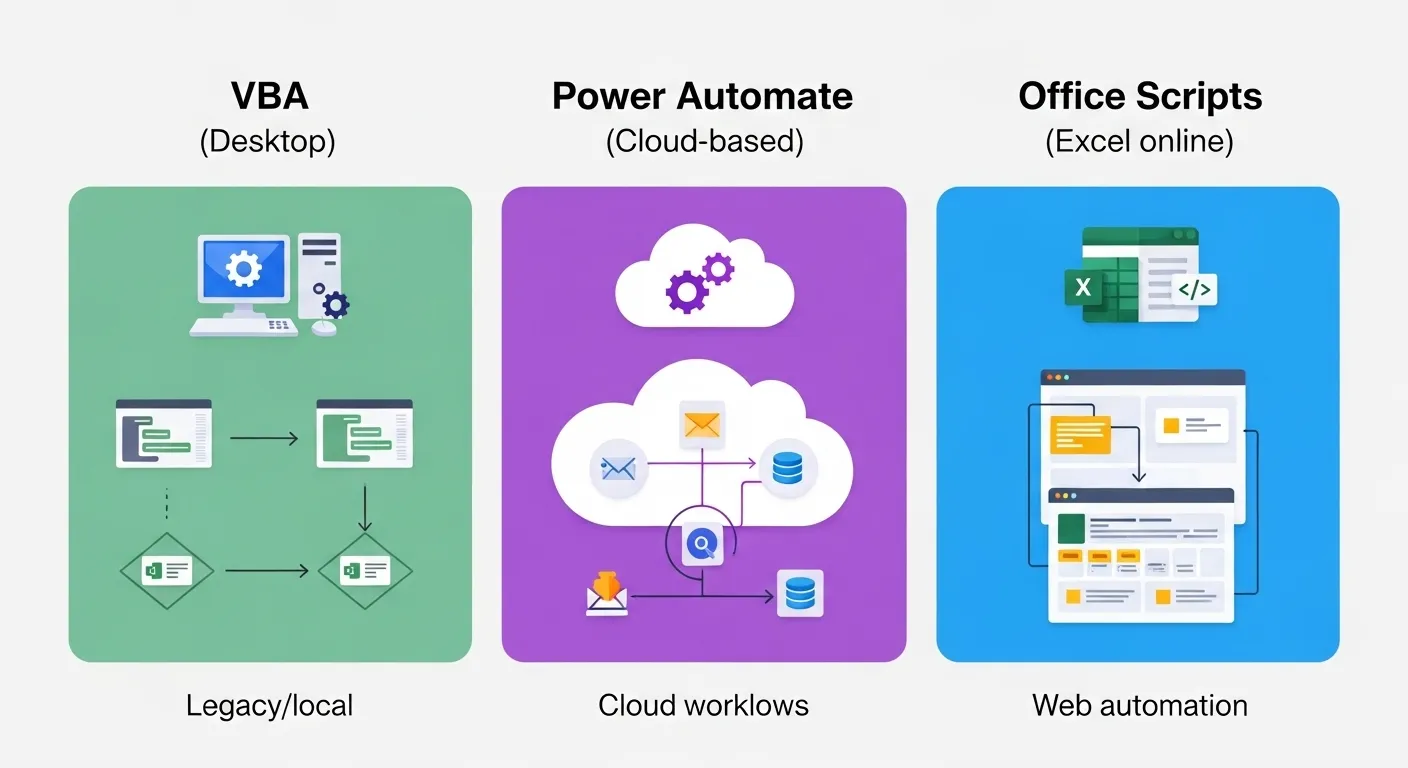
VBA in Excel 2025 is like that reliable coworker who’s been around since dial-up internet and still gets things done. VBA, short for Visual Basic for Applications, is a programming language embedded into Excel, Word, and Access. It’s powerful, customizable, and perfect for local automation.
Use it to:
- Create interactive dashboards.
- Format Word reports.
- Manipulate Access records.
VBA thrives in scenarios where you need complex logic, need to stay offline, or you’re working with legacy systems that haven’t heard of “the cloud.” But it’s not always beginner-friendly, and it doesn’t play well with web-based apps.
1.2 Power Automate: The Cloud-Based Newcomer
Formerly known as Microsoft Flow, Power Automate is like a universal translator for your apps. It connects Excel Online, SharePoint, Outlook, Teams, and even non-Microsoft tools like Dropbox, Twitter, and Salesforce.
Features include:
- Cloud-based triggers and actions
- Multi-step flows
- Approval processes
- Integration with Power BI, Dynamics, etc.
Whether it’s Power Automate Desktop or cloud-based flows, this tool is perfect for modern workflow automation. Think email alerts, scheduled data syncs, or Slack-style notifications in Teams.
1.3 Office Scripts: The JavaScript Cousin of VBA
For Excel Online users, Office Scripts is the newest scripting solution. It uses TypeScript/JavaScript syntax and runs entirely in the browser.
Great for:
- Repeatable web-based Excel tasks
- Scheduling scripts with Power Automate
- Users who love code but hate COM errors
SECTION 2: When to Use VBA vs. Power Automate vs. Office Scripts
2.1 Choosing the Right Tool
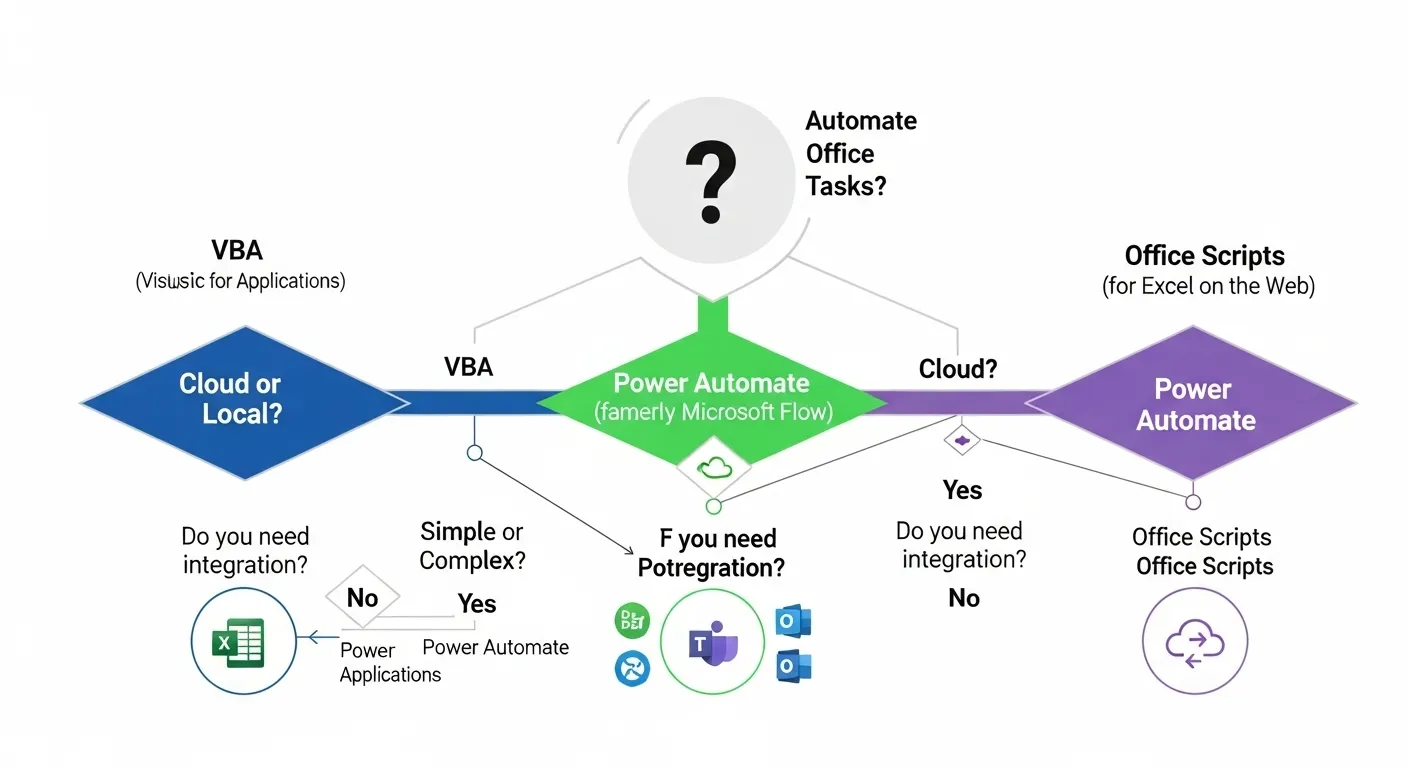
Choosing between VBA, Power Automate, and Office Scripts is like choosing your preferred superpower: do you want strength, speed, or the ability to fly through the cloud?
Here’s a quick decision matrix to help you decide:
| Feature | VBA | Power Automate | Office Scripts |
|---|---|---|---|
| Platform | Local (Desktop apps) | Cloud/Desktop (Hybrid) | Cloud (Excel Online only) |
| Speed | Fast for heavy processing | Medium (depends on flow) | Fast for small tasks |
| Ease of Use | Steep learning curve | Beginner-friendly UI | Medium (requires JS basics) |
| Maintenance | Manual | Cloud-managed | Lightweight and managed |
| Integration | Office only | Office + 100+ other apps | Excel Online + Power Automate |
| Learning Curve | High (VBScript) | Low to Medium | Medium |
TL;DR:
-
Go VBA when you need deep custom logic or offline access.
-
Choose Power Automate for cloud workflows and cross-app tasks.
-
Use Office Scripts for quick, repeatable Excel Online automation.
2.2 Use Cases by Tool
Let’s take a stroll through some real-world examples:
VBA Automation Examples
-
Creating custom Excel dashboards that update on command.
-
Generating bulk Word reports using data from spreadsheets.
-
Updating records in an Access database from Excel inputs.
Power Automate Use Cases
-
Sending daily emails based on an Excel Online sheet.
-
Moving files from OneDrive to SharePoint when uploaded.
-
Creating Teams alerts when new items are added to a Planner bucket.
Office Scripts in Action
-
Automating cell formatting and column filtering in Excel Online.
-
Creating scripts that auto-refresh pivot tables or generate summaries.
-
Scheduling Office Scripts to run daily with Power Automate for dashboards.
Each tool has a unique role in the Office 365 workflow automation ecosystem. The real magic happens when you pick the right tool for the right job—or combine them like automation Avengers.
🔄 SECTION 3: Automating Excel Tasks – VBA and Power Automate Side by Side
If Excel were a superhero, VBA would be its original utility belt, and Power Automate its cloud-powered jetpack. Here’s how they stack up when automating one of the most-used tools in Office 365.
3.1 VBA in Action: Excel Macro Example
Let’s say you’re tired of manually formatting your sales report every Monday morning. You open Excel, bold some headers, color some cells, insert today’s date… and somewhere around your third coffee, realize the robots should be doing this for you.
Here’s a simple VBA macro that formats a report and adds a timestamp: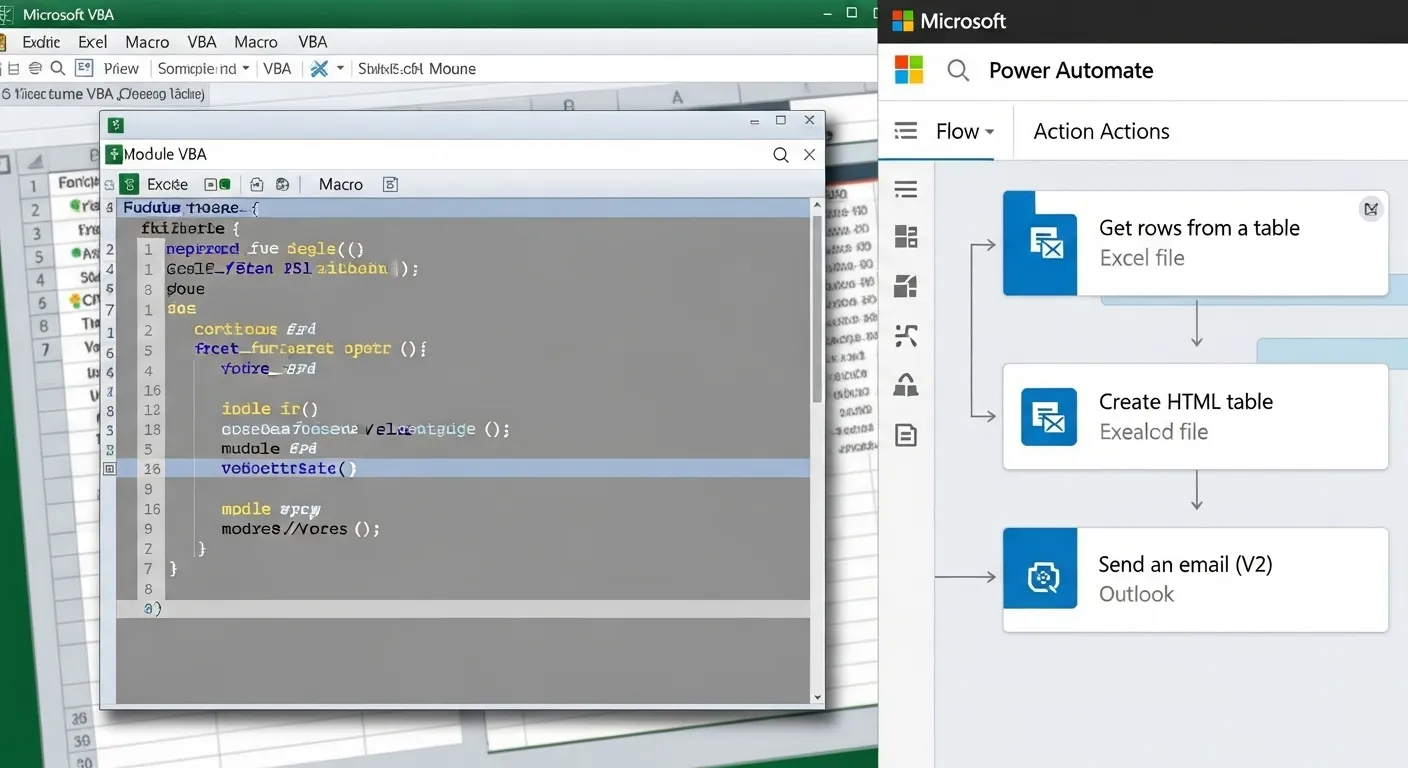
✅ Save this as a macro in your workbook.
✅ Assign it to a button.
✅ Bask in the glory of a one-click report.
This is where Excel macro automation still shines—speed, control, and zero internet required.
3.2 Power Automate Flow: Excel to Outlook
Now let’s say your manager wants a daily summary emailed from Excel. You could write some VBA to open Outlook, build the email, attach the file—but it’s 2025, and cloud flows exist for a reason.
Here’s how to set up a Power Automate flow for that:
Step-by-Step: Automating a Daily Email with Power Automate
-
Trigger: Scheduled — Every weekday at 8 AM.
-
Action 1: Excel Online (Business) – Get rows from a OneDrive or SharePoint-hosted file.
-
Action 2: Filter or summarize data using built-in expressions.
-
Action 3: Outlook – Send an email with:
-
Dynamic subject: “Daily Sales Report – @{utcNow()}”
-
HTML table in the body
-
Optionally attach a file or Excel range
-
💡 Bonus: No need to open Excel. It runs in the background while you’re still snoozing.
3.3 Hybrid Approach: Trigger Power Automate from Excel Using Scripts
Ready to impress your tech team? Use Office Scripts inside Excel Online to trigger flows.
Example:
-
Write an Office Script that cleans up a dataset.
-
Set up a Power Automate flow to:
-
Run that script on demand or on schedule.
-
Email the resulting sheet or post an alert to Teams.
-
Why this is cool:
It combines cloud scale with Excel logic, without touching VBA.
Best use case:
-
Shared spreadsheets in SharePoint/Teams
-
Mobile-triggered flows
-
Reports that need daily automation, but don’t need user interaction
📤 SECTION 4: Automating Outlook, Word, and Teams
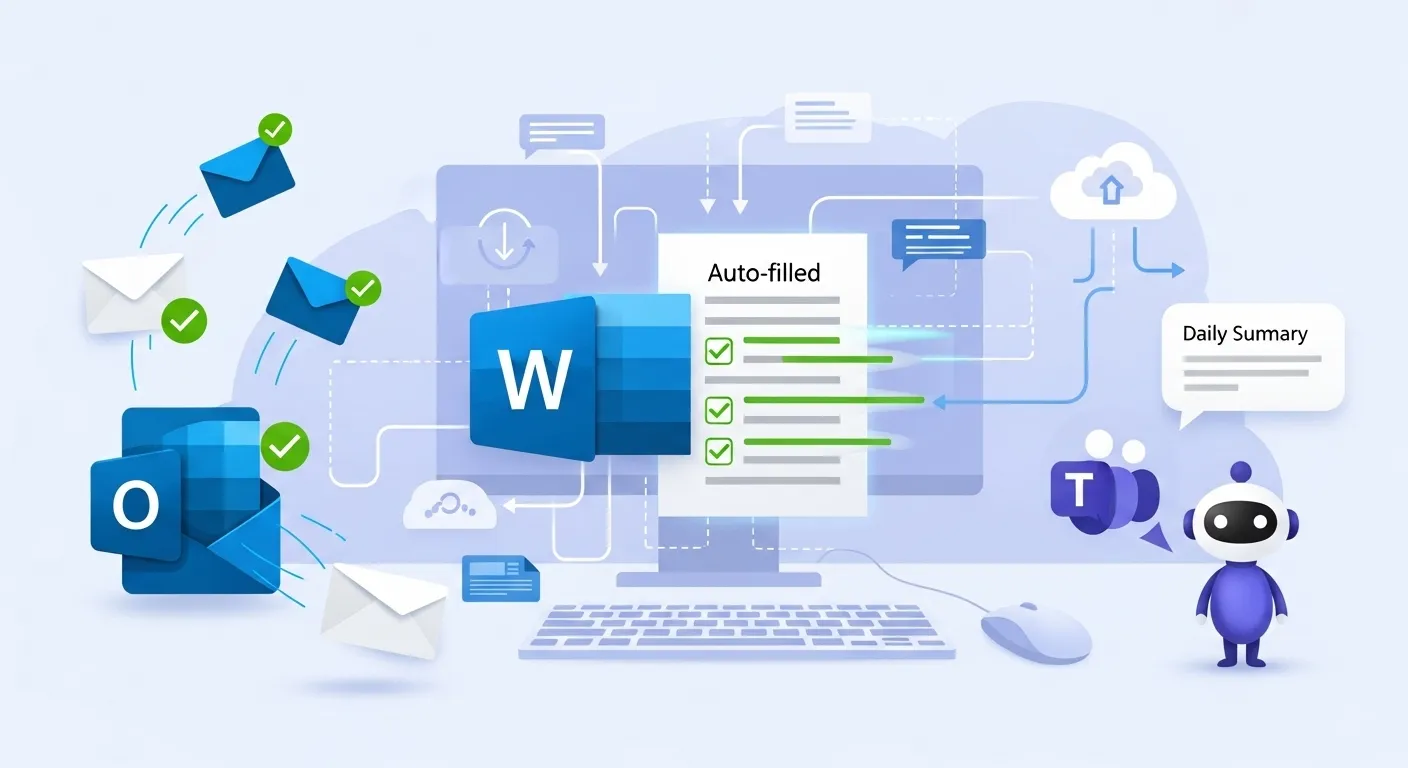
By now, Excel’s looking pretty slick with all its automation. But why stop there? Let’s get the rest of the Office gang—Word, Outlook, and Teams—in on the action.
4.1 Word Automation
VBA: The Document Whisperer
VBA in Word is a dream when you need to auto-generate polished documents using data from Excel or Access.
Say you’re HR and need to generate 50 offer letters.
Here’s a VBA snippet to populate a Word template from Excel data:
Boom: personalized documents at scale with VBA automation examples.
Power Automate: The Cloud Generator
Now flip it: you’ve got a Microsoft Form submission, and you want to auto-generate a Word doc and email it to the submitter.
Power Automate makes this a breeze:
-
Trigger: When a new response is submitted in Microsoft Forms.
-
Action 1: Get response details.
-
Action 2: Populate a Word template from OneDrive or SharePoint.
-
Action 3: Convert to PDF and send via Outlook.
It’s like mail merge on rocket fuel.
4.2 Outlook Automation
VBA in Outlook:
Tired of filtering your inbox every morning? Let VBA do it.
Example:
-
Auto-reply to emails with a specific subject.
-
Move emails with attachments to a folder.
-
Trigger Word/Excel routines based on incoming mail.
Power Automate for Outlook:
You can go far beyond with cloud flows:
-
Move flagged emails to SharePoint.
-
Trigger a Planner task when you get a high-priority message.
-
Auto-send reminders before calendar events.
Plus, everything works even when your computer’s off. #CloudLife
4.3 Teams and Collaboration Flows
Power Automate is where Teams automation really shines.
Examples:
-
When a Microsoft Form is submitted → post a thank-you message in a Teams channel.
-
When a file is updated in SharePoint → notify your team.
-
Daily standup flow: collect input from a Form and post a summary in Teams at 9:00 AM.
These are the flows that make you look like a productivity wizard without lifting a finger.
⚡ Pro Tip: Combine Teams + Planner + Forms + Outlook in one mega-flow. Automate project kickoffs, alerts, and task tracking in one seamless routine.
🗃️ SECTION 5: Real-World Use Cases and Templates
By now, you’re probably wondering: “Cool tech, but how are actual humans using this in the wild?” Let’s peek behind the curtain and see how businesses — big and small — are automating smarter in 2025.
5.1 Business Scenarios
🏢 Small Business: Invoice Automation Made Easy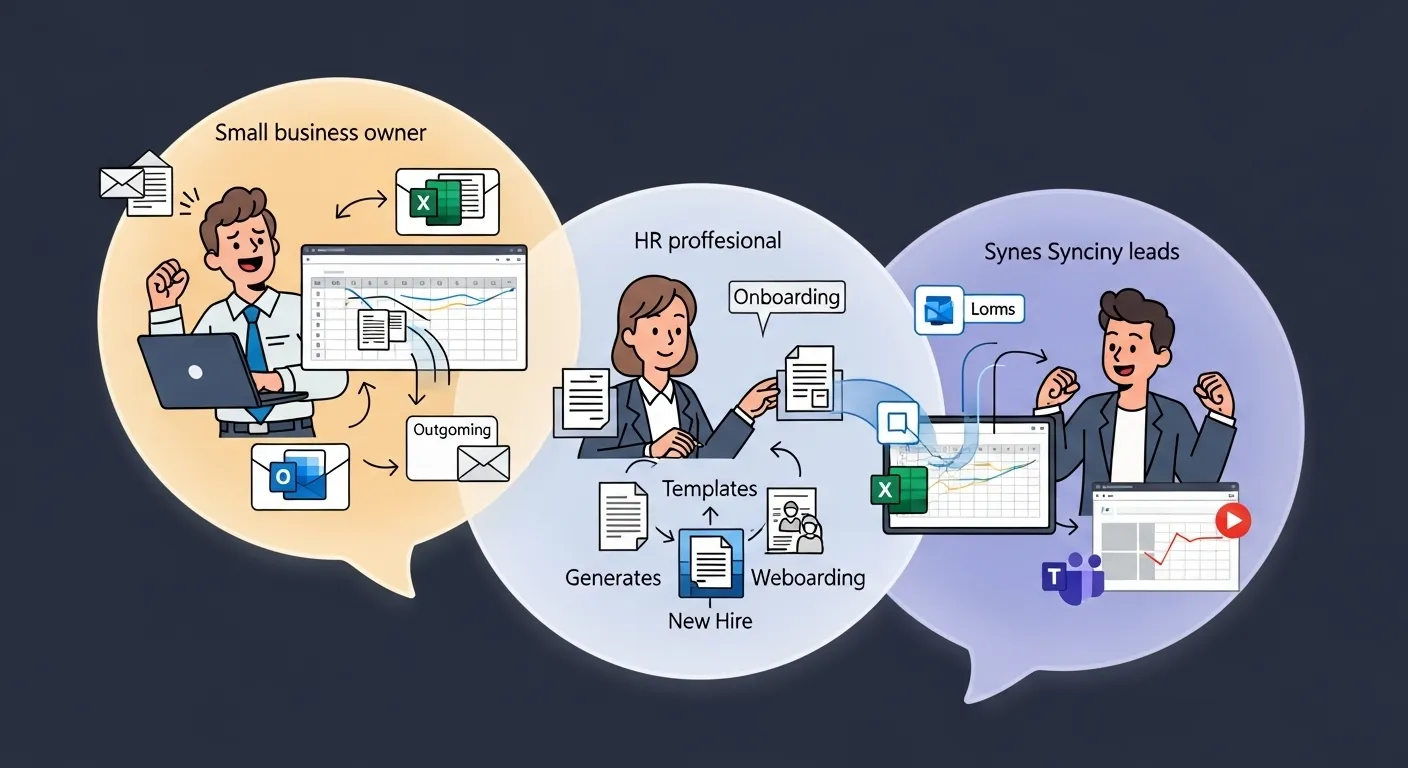
Running a small business means you wear many hats (sometimes all at once). Why spend hours generating invoices when you can:
-
Store client + billing data in Excel.
-
Use Power Automate to:
-
Grab that Excel row.
-
Plug it into a Word invoice template.
-
Convert it to PDF.
-
Email it to the client automatically.
-
Bonus: Store a copy in SharePoint. No more “Oops, I lost the invoice” moments.
👩💼 HR Department: Onboarding Like a Boss
New hire? Power Automate springs into action:
-
Pulls info from an MS Form or SharePoint list.
-
Generates offer letters, NDAs, onboarding checklists (Word + PDF).
-
Sends documents via email.
-
Notifies IT in Teams to set up hardware.
Your new employees will think you have a personal assistant named “Pam the Power Automate Bot.”
💼 Sales Teams: Realtime Lead Tracking
Sales lead submitted through a Microsoft Form?
-
Auto-recorded in an Excel Online tracker.
-
Email alert sent to the regional rep.
-
Teams message pings the sales manager.
-
Follow-up task created in Planner.
That’s Office 365 workflow automation turning your sales pipeline into a well-oiled machine.
5.2 Templates You Can Steal (or Customize)
You don’t have to build everything from scratch — Microsoft already thought of that. Let’s raid the treasure chest:
🔥 Power Automate Templates Gallery:
-
“Save Outlook attachments to OneDrive”
-
“When a new form response is submitted, send an email”
-
“Post a Teams message when a SharePoint file is modified”
-
“Generate a PDF from Word and email it”
Just open Power Automate, go to Templates, and search. (Warning: It’s addictive.)
🧩 Sample VBA Modules You’ll Love:
-
Export a worksheet to PDF with one click
-
Email a personalized newsletter to your mailing list
-
Rename and archive files based on timestamp
Use them as-is, or tweak them for your own evil genius automation plots.
Real Talk: These examples and templates are the difference between knowing automation exists and actually using it to free up your time.
🛠️ SECTION 6: Advanced Tips – Combine VBA + Power Automate for Ultimate Productivity
6.1 Trigger VBA from Power Automate (with Desktop Flows)

Think Power Automate can’t run your precious VBA macros? Think again. Thanks to Power Automate Desktop flows, your macros can now be triggered from the cloud like a remote-controlled productivity drone.
Here’s how:
-
Use Power Automate Desktop to create a flow that:
-
Opens Excel or Access.
-
Runs a macro (yes, you can tell it which one!).
-
Saves/exports the output.
-
-
Add a cloud trigger (e.g., SharePoint file upload, Form submission, etc.).
-
Voila — your local VBA code is now cloud-reactive.
🛡️ Security tip: Make sure your desktop flow environment has:
-
A dedicated VM or PC always on.
-
Trusted macro settings.
-
Proper permissions in Microsoft 365 admin center.
Use case: Client uploads an Excel file → Power Automate cloud triggers desktop flow → Macro runs → Result saved to OneDrive → Everyone wins.
6.2 Embedding Power Automate Inside Access and Excel Dashboards
Why stop at triggering flows externally? Let’s embed those suckers directly into your Office interfaces like it’s Minority Report for data.
✅ Excel + Power Automate Buttons:
Use Office Scripts + Power Automate buttons in Excel’s ribbon (via Script Lab or Office add-ins).
✅ Access + Flows via Forms:
You can embed links or trigger Power Automate flows from a command button in Access:
-
Use the
Shellfunction in VBA to call Power Automate’s desktop agent. -
Or open a URL that kicks off a cloud flow.
Example use case:
-
You’ve got a sales dashboard in Access.
-
You click “Submit to Power BI” → Flow is triggered → Data pushed to Power BI → Chart updated in real time.
It’s like having a personal butler who speaks both “macro” and “cloud.”
6.3 Security, Maintenance & Versioning
Let’s not forget that with great automation comes great responsibility (and the occasional IT audit).
🛡️ Macro Security in 2025:
-
Microsoft now adds a “Mark of the Web” to downloaded files.
-
Use Trusted Locations for macros.
-
Digitally sign important scripts for enterprise use.
📜 Audit Trails in Power Automate:
-
Every run is logged.
-
You can review run history, status, and outputs.
-
Use error-handling steps to catch and email yourself any failures.
🧬 Version Control Tips:
-
Store VBA code in Git using
.basexports. -
Export and document your Power Automate flows (there’s an export option!).
-
Keep a changelog, especially if you share flows with your team.
Why all this matters? Because when something breaks at 4:59 PM on a Friday, Past You better have documented it for Future You. 🕵️♂️
❓ SECTION 7: FAQ – Automation Questions Everyone’s Asking in 2025
Q1: Can Power Automate replace all my VBA macros?
Short answer: Not exactly.
Long answer: Power Automate is incredible for cloud workflows and cross-platform tasks. But if your macro is deeply embedded in Excel, manipulates custom objects, works offline, or relies on legacy data sources like Access or .DBF files — VBA still wins. Think of Power Automate as your event planner and VBA as your line cook. You need both to run the restaurant.
Q2: Is VBA going away in Office 365?
The rumor mill says yes, but the facts say: Not anytime soon.
Microsoft continues to support VBA in Excel, Word, and Access — and even improved macro security in 2025. In fact, many enterprise dashboards still rely on it. However, Microsoft is nudging folks toward Office Scripts for Excel Online and Power Automate for cloud tasks. So while VBA isn’t getting new features, it’s far from dead.
SEO keyword drop: is VBA deprecated 2025?
Spoiler: Nope. It’s “aging gracefully.”
Q3: Can I automate Excel Online with VBA?
Nope — VBA is desktop-only.
If you’re working in Excel Online, your new best friends are:
-
Office Scripts for scripting tasks
-
Power Automate flows for cloud automation
Think of it as:
🖥 VBA = Desktop Excel
🌐 Office Scripts = Excel Online
⚡ Power Automate = Both, plus everything else
Q4: What’s the easiest way to start using Power Automate?
Honestly? Click “Templates” and start playing.
No coding. No stress. Just:
-
Search for something like “Save email attachments.”
-
Click a template.
-
Sign in to your services.
-
Watch the automation magic happen.
Bonus tip: Use Power Automate’s AI Copilot to describe your flow in plain English. It’ll build one for you. Yes, really.
Q5: Are Power Automate flows secure?
Microsoft didn’t skimp here:
-
Flows run in the Microsoft 365 cloud, under your authenticated account.
-
You control permissions, connectors, and data loss prevention (DLP) policies.
-
Admins can monitor flow usage across the org.
Security pro tip: Use service accounts for mission-critical flows and environment variables to manage credentials safely.
Q6: Can I automate legacy Access databases?
You sure can.
Access might be the quiet introvert of Office apps, but it plays surprisingly well with VBA and even Power Automate (via Desktop flows).
Example use case:
-
VBA runs a query to extract data.
-
Power Automate picks up the exported file.
-
It then emails the file, saves it to SharePoint, or kicks off the next workflow.
Q7: What if I want offline automation?
That’s where VBA and Power Automate Desktop come in clutch.
While cloud flows need an internet connection, desktop flows can run locally (perfect for syncing files, running macros, or manipulating files offline). You can schedule them with Task Scheduler or launch them from UI flows.
🧠 Think: Automate your morning tasks before your coffee’s done brewing. ☕
Q8: How does licensing work for Power Automate?
Ah yes — the fun part: licensing. 🙃
Here’s the breakdown in 2025:
-
Free: Basic cloud flows with Microsoft 365 apps (Outlook, SharePoint, Teams, etc.) for users with an Office 365 subscription.
-
Per User Plan: $15/month per user for premium connectors and advanced flows (like approvals, RPA, and on-premise data).
-
Per Flow Plan: $100/month for 5 flows, designed for shared workflows across teams or departments.
-
RPA Add-ons: Extra cost for Power Automate Desktop with unattended RPA (you’re not logged in, but it still runs!).
💡 Pro tip: You probably have access to basic flows right now — go explore them in your Microsoft 365 portal.
🚀 CONCLUSION: Automate Like It’s 2025
Still manually formatting spreadsheets or dragging emails into folders like it’s 2005? Let’s not. You now have VBA, Power Automate, and Office Scripts at your disposal—each a powerful automation sidekick in the mighty Office 365 ecosystem.
Let’s recap:
-
VBA is still the go-to for deep, offline, complex automation, especially in Excel, Word, and Access. It’s old-school, but it’s rock-solid.
-
Power Automate is the future-forward cloud champion, linking Office apps with Teams, SharePoint, Outlook, and even your coffee machine (okay, maybe not yet, but it’s close).
-
Office Scripts brings scripting to Excel Online—clean, simple, and perfect for recurring tasks in the browser.
And the real beauty? You don’t have to choose just one. The true power lies in mixing and matching—automating what makes sense locally, and what makes sense in the cloud. It’s not VBA versus Power Automate—it’s VBA plus Power Automate.
In 2025’s hybrid workplace, where time is your scarcest resource and attention is the new currency, automating repetitive tasks is no longer optional. It’s survival. It’s strategy. Heck, it’s self-care.
So here’s your call to action:
🎯 Pick one task—just one—that annoys you every day. Automate it.
Use a macro. Try a flow. Write a script. Doesn’t matter how you start. Just start.
Because every minute you don’t spend on busywork is a minute you get back—for strategy, creativity, or heck, even just a longer lunch.
Future You is already high-fiving you. Don’t leave them hanging. 🙌
Learn beautiful Animations in powerpoint – https://www.youtube.com/playlist?list=PLqx6PmnTc2qjX0JdZb1VTemUgelA4QPB3
Learn Excel Skills – https://www.youtube.com/playlist?list=PLqx6PmnTc2qhlSadfnpS65ZUqV8nueAHU
Learn Microsoft Word Skills – https://www.youtube.com/playlist?list=PLqx6PmnTc2qib1EkGMqFtVs5aV_gayTHN