
🔥 Introduction: Why Every Team Needs a Knowledge Hub (Yesterday!)
Let’s be honest — we’ve all been there. You’re in the middle of an urgent project, and you just know someone already created the perfect checklist, template, or playbook… somewhere. Maybe it’s in a random Teams chat, buried in OneDrive, or stashed away in someone’s personal notebook. 😵💫
Now imagine a world where all your team’s most valuable info — processes, SOPs, playbooks, training guides, project updates — lives in one place. It’s searchable. It’s up-to-date. And it actually gets used.
✨ Enter: The Internal Knowledge Hub.
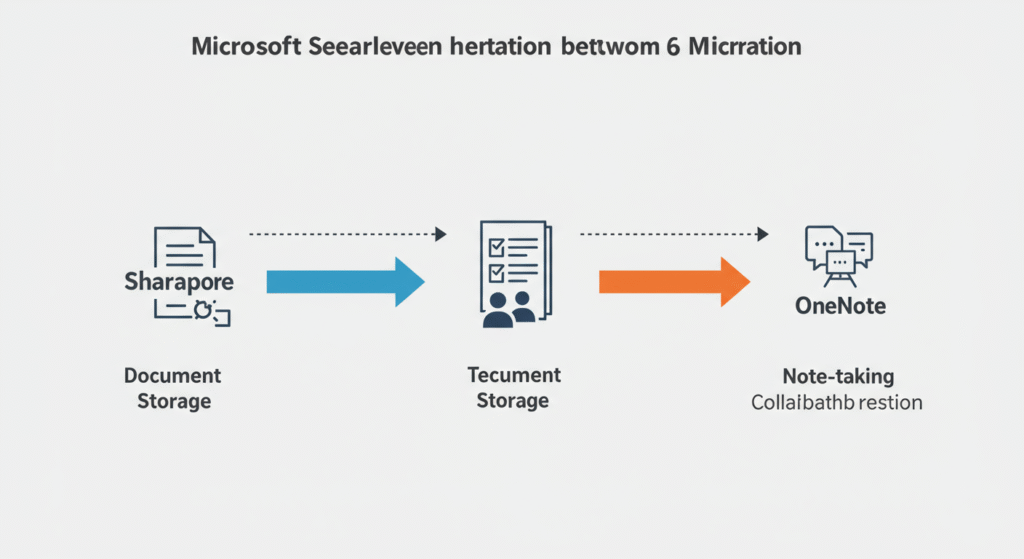
And you don’t need to buy expensive new software to build one. You already have the tools: Microsoft SharePoint, OneNote, and Teams.
Let’s walk through how to build a dynamic, self-sustaining internal knowledge hub that your team will actually use — and thank you for.
🧱 Part 1: Understanding the Role of a Knowledge Hub
A knowledge hub is not just a document library or a glorified wiki. It’s the central brain of your organization — a place to:
- Store and share critical knowledge
- Onboard new team members faster
- Keep everyone aligned
- Avoid reinventing the wheel every quarter
🛑 Without a knowledge hub, you get:
- Lost documents
- Duplicated efforts
- Tribal knowledge stuck in people’s heads
- Slower onboarding
- Endless “Where’s that file?” messages
✅ With a knowledge hub, you get:
- A single source of truth
- Reduced support tickets
- Scalable processes
- Better collaboration
- Instant access to know-how
🏗️ Part 2: Laying the Foundation with SharePoint
If your knowledge hub were a building, SharePoint would be the architecture. It gives structure, security, and access control.
🔑 Why Use SharePoint?
- Centralized and searchable
- Integrated with Microsoft 365
- Supports versioning and permissions
- Web-based and mobile-friendly
🛠️ How to Set It Up:
- Create a SharePoint Communication Site
- Use a clean, user-focused design
- Make it easy to navigate by function, department, or topic
- Define Core Content Areas
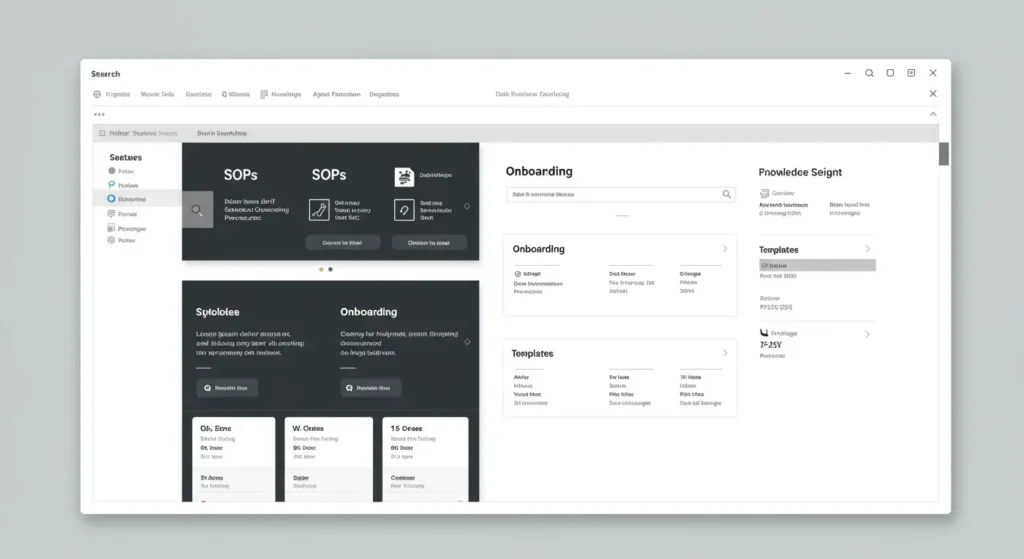
Examples:- SOPs (Standard Operating Procedures)
- Onboarding Materials
- Templates & Checklists
- FAQs & Troubleshooting
- Policies & Compliance
- Build a Smart Library Structure
- Use folders sparingly — go for metadata and tagging instead
- Enable filters (e.g., by team, topic, or content type)
- Add a Search-Powered Homepage
- Embed keyword-based search
- Highlight most viewed/most important content
- Include links to OneNote sections and Teams channels
🧠 Pro Tip:
Use page templates so contributors can quickly build consistent documentation pages (no formatting messes allowed!).
📝 Part 3: Capturing Context with OneNote
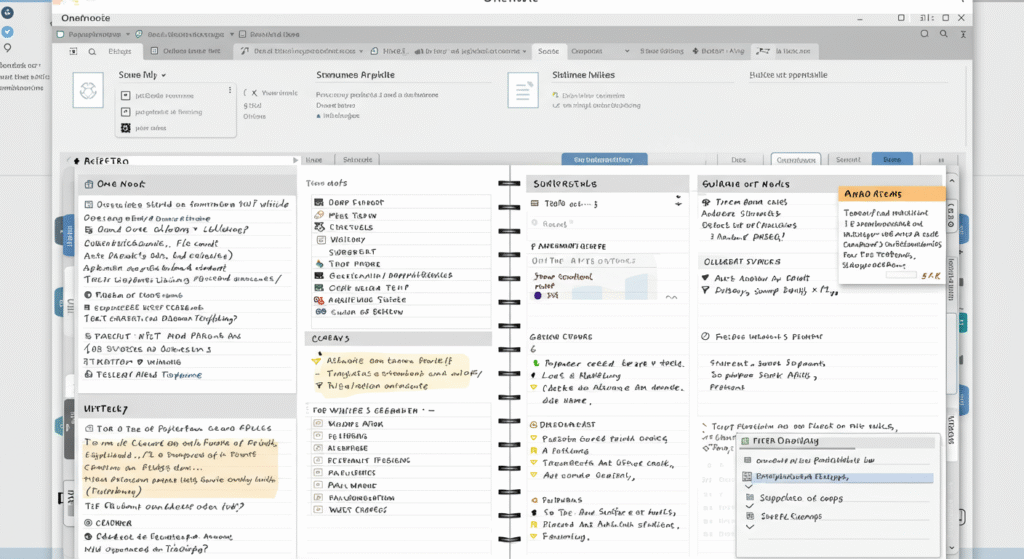
Now that SharePoint’s your structured library, OneNote is your messy-but-brilliant notebook — the brain dump, the meeting notes, the evolving ideas.
📓 Why Use OneNote?
- Fast and flexible note-taking
- Sectioned by topic or team
- Easy to embed links, images, and files
- Fully integrated with Teams and SharePoint
🔄 Use Cases:
- Project retrospectives
- Internal meeting notes
- Research and brainstorming
- Tribal knowledge from senior staff
- Annotated screenshots or walkthroughs
📐 How to Organize OneNote:
- Create a Master Notebook Per Department or Function
- Sections = Topics (e.g., “Hiring Process,” “Tech How-Tos”)
- Pages = Individual documents or discussions
- Link Key Notes into SharePoint
- Don’t upload static versions — link the live OneNote page
- Embed OneNote in SharePoint using the “Embed” web part
- Create an Index Page
- Make a SharePoint page that acts as a table of contents for each team’s notebook
💡 Example:
Instead of uploading a “Sales Playbook” PDF, link to the Sales Playbook OneNote section that gets updated live. That way, it’s always current.
💬 Part 4: Making It Collaborative with Microsoft Teams

Teams is where your people are talking. So why not bring the knowledge hub into the conversation?
🤝 Why Use Teams?
- Real-time communication and collaboration
- Channels can organize conversations by topic
- Tab integration with SharePoint pages and OneNote notebooks
- Great for driving engagement with your hub
🔧 How to Integrate:
- Pin Knowledge Hub Pages to Tabs in Teams
- Use the “Website” tab to pin SharePoint pages
- Add OneNote notebooks directly as tabs
- Create a #KnowledgeHub or #BestPractices Channel
- Encourage team members to post:
- Helpful lessons
- New tips and tricks
- FAQs
- Assign a “Knowledge Champion” to curate it weekly
- Encourage team members to post:
- Automate Reminders with Power Automate
- Remind users monthly to update docs or submit tips
- Set up alerts when content is added or changed
🎯 Real-World Example:
In the Marketing Team’s channel, pin tabs for:
- “Content Style Guide” (SharePoint page)
- “Brand Voice Notes” (OneNote tab)
- “Weekly Wins & Lessons Learned” (Teams post thread)
🔁 Part 5: Keeping It Alive (Because Dead Wikis Are Sad)
A knowledge hub is only valuable if it stays relevant. Here’s how to keep yours alive and thriving:
🔄 Governance Tips:
- Assign content owners for each section
- Review and update content quarterly
- Archive outdated info instead of deleting
- Use naming conventions consistently
📣 Promote the Hub:
- Link it in new hire onboarding emails
- Mention it in team meetings
- Add it to your Teams channel welcome message
- Embed it in your company intranet or homepage
🏆 Recognition:
Celebrate contributors who help keep your hub fresh.
- “Knowledge Contributor of the Month”
- Small prizes or shoutouts in meetings
🚀 Bonus Section: Advanced Features to Explore
If you’re ready to level up, check these out:
📊 Use Lists in SharePoint
- Build a Knowledge Request Form so team members can ask for help or missing documentation
🧩 Use Viva Connections
- Make your Knowledge Hub part of your Microsoft Viva-powered intranet experience
🤖 Integrate Power BI
- Embed dashboards that help visualize usage stats of your knowledge hub
🧠 Add AI Search (Microsoft Copilot)
- Use AI to suggest content or surface related knowledge based on user behavior
📌 TL;DR – The Smart Stack Breakdown
| Tool | Role in Knowledge Hub | Example Use |
|---|---|---|
| SharePoint | Main structure & repository | SOPs, checklists, forms |
| OneNote | Informal knowledge & notes | Meeting notes, tips |
| Teams | Engagement & access | Conversations, pinned tabs |
📣 Conclusion: Build It Once, Use It Forever
An internal knowledge hub isn’t just a fancy digital filing cabinet. When done right, it becomes a living resource that makes your team smarter, faster, and less frustrated.
By combining SharePoint for structure, OneNote for rich content, and Teams for collaboration, you’ll create a hub that works like a well-oiled machine — and becomes part of your company’s culture.
💬 What’s Next?
Have you started building your knowledge hub? What tools or hacks worked best for your team?
👇 Drop your thoughts, wins, or questions in the comments.
📤 Share this with a colleague who’s drowning in scattered info!
🙋♀️ Frequently Asked Questions (FAQs)

❓ What exactly is an internal knowledge hub?
Think of it like your organization’s shared brain. It’s a centralized place where your team can store, organize, and easily access important information — like standard operating procedures (SOPs), onboarding guides, templates, and internal tips. No more digging through email threads or guessing which folder it’s hiding in!
❓ Why use SharePoint, OneNote, and Teams together for this?
These three tools are like the dream team for knowledge management:
- SharePoint gives you structure and searchability
- OneNote captures free-form ideas and notes
- Teams brings it all together in the flow of everyday work
And the best part? If you’re using Microsoft 365, you already have them — no need for extra tools or licenses.
❓ Can I just use OneNote as my knowledge base?
Technically, yes… but realistically, not ideal. OneNote is amazing for quick note-taking and organizing thoughts, but it lacks the search power, permissions control, and metadata tagging of SharePoint. For best results, use OneNote with SharePoint — not instead of it.
❓ How do I keep the knowledge hub from getting outdated?
Great question — this is where most hubs go to die. 🪦
Here are a few ways to keep things fresh:
- Assign owners for key pages or folders
- Schedule a quarterly “content cleanup” day
- Use reminders with Power Automate
- Celebrate team members who contribute useful updates
Make it a team effort, not a one-time project!
❓ What’s the easiest way to get my team to actually use it?
Ah yes, adoption — the eternal challenge! Try these:
- Pin the knowledge hub to relevant Teams channels
- Promote it during team meetings and onboarding
- Share quick “Did you know?” tips about what’s inside
- Make it easy to navigate with a clean layout and search bar
Also: design it like a helpful tool, not a boring intranet.
❓ Is this overkill for a small team?
Not at all! In fact, small teams benefit even more because you’re often wearing multiple hats. Having a centralized place for your processes, playbooks, and checklists will save you tons of time — and brainpower — in the long run.
Even a two-person team can use SharePoint and OneNote to great effect.
❓ Can I use this setup for remote or hybrid teams?
Absolutely — this combo was made for hybrid work! All three tools are cloud-based and mobile-friendly, so your team can access and contribute from anywhere. Whether you’re in-office, at home, or on the go, your knowledge hub travels with you.
❓ What’s the biggest mistake to avoid?
Trying to make it perfect from day one. Start small. Focus on high-impact content first — like your onboarding checklist or top FAQs. Then grow from there. You’ll refine it as your team uses it and gives feedback.
Done is better than perfect. 🌱