

Learn beautiful Animations in powerpoint – https://www.youtube.com/playlist?list=PLqx6PmnTc2qjX0JdZb1VTemUgelA4QPB3
Table of Contents
ToggleLearn Excel Skills – https://www.youtube.com/playlist?list=PLqx6PmnTc2qhlSadfnpS65ZUqV8nueAHU
Learn Microsoft Word Skills – https://www.youtube.com/playlist?list=PLqx6PmnTc2qib1EkGMqFtVs5aV_gayTHN
I. Introduction — Goodbye Cookie-Cutter, Hello Smart Templates
Let’s be honest: the old way of creating Office documents is… a little like using a flip phone in the age of AI. Sure, you can keep doing it, but why would you when your documents could basically build themselves?
Most of us have been stuck in “template déjà vu” — copy-pasting from last month’s report, hunting down that one logo file buried somewhere in the “Final_Version_3_ACTUAL_Final” folder, and praying we didn’t forget to update the client’s name in all the right places. (Spoiler: we did.)
This is where hyper-personalized templates come in — the superhero cape your Word docs, Excel sheets, PowerPoint decks, and Outlook emails didn’t know they needed. Unlike static templates of the past, these personalized office templates are alive with automation, pulling data from CRMs, updating in real time, and flexing to match each recipient’s needs — without you lifting more than a few keystrokes.
So, what exactly are hyper-personalized templates?
In Microsoft Office terms, they’re smart MS Office templates that merge consistent branding with dynamic, data-driven customization. Imagine your reusable Word/Excel templates acting like digital chameleons — adapting text, images, charts, and layouts based on who’s reading, when they’re reading, and where the data’s coming from.
Why should you care?
Because time is money, and branded consistency is reputation. With smart templates, you:
-
Slash prep time — reports, proposals, and presentations take minutes, not hours.
-
Ensure consistency — every document matches your brand’s voice, look, and style.
-
Scale without chaos — templates that work for one project can instantly work for a hundred.
-
Reduce human error — no more embarrassing “Dear [First Name]” slips.
What you’ll learn in this guide
We’re going to walk through the evolution of templates, the core principles of hyper-personalization, and the MS Office features that make it all possible. You’ll learn how to integrate live data, build reusable layouts, and even get a peek at the automation magic (VBA, Power Automate, and beyond).
By the end, you’ll have a step-by-step plan for turning your dusty old templates into sleek, smart MS Office templates that practically run themselves — while you sip your coffee, take credit for your efficiency, and maybe even clock out early.
II. The Evolution of Templates in MS Office
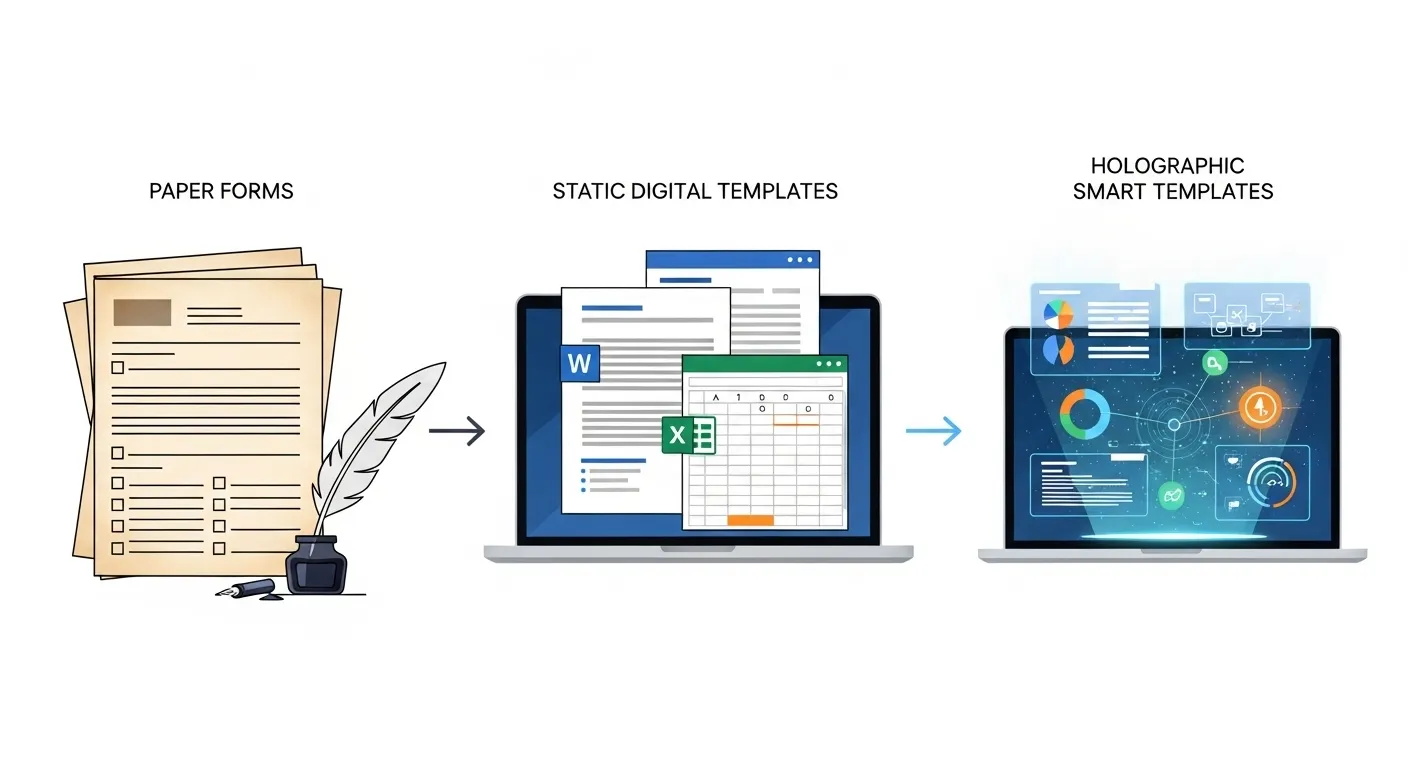
It’s easy to think of Microsoft Office templates as those dusty old Word and Excel files we’ve all reused since the early 2000s. But much like jeans, coffee, and dating apps — templates have had a glow-up. And wow, what a transformation.
Let’s time-travel through three distinct eras of template history.
1. The Early Days: Static, One-Size-Fits-All Files
Back in the early days of Word and Excel, an “advanced MS Word template” was… basically a Word doc you saved as .dot or .dotx and reused. The Excel equivalent? A workbook with some headers, maybe a pre-made table, and a lot of manual data entry.
Pros:
-
Easy to make.
-
Easy to understand.
Cons:
-
Absolutely zero intelligence.
-
Required you to manually update everything — names, dates, logos, data — every. single. time.
Static templates were fine for occasional use, but the moment you needed 100 personalized invoices or 50 tailored proposals, you were drowning in copy-paste hell.
2. The Rise of Dynamic Fields
Then came the aha! moment: dynamic fields. Suddenly, instead of hardcoding everything into a template, you could use:
-
Mail Merge (Word) to pull customer names, addresses, and details straight from Excel or Outlook.
-
Document properties and fields for auto-updating dates, authors, and titles.
-
Linked data sources that meant your “smart Excel documents” could pull in numbers from another workbook without retyping.
This era was a game-changer — your templates were no longer frozen in time. They started reacting to external data, cutting hours off repetitive work.
But still… it wasn’t true automation. You were doing less work, sure, but you were still the conductor of the orchestra, starting every song manually.
3. The “Smart” Era: Templates with Brains
Enter the present day, where “office automation templates” are not just passive shells — they’re living systems integrated into the Microsoft ecosystem and beyond.
Now we’ve got:
-
Power Automate flows that trigger document creation when a CRM entry is updated.
-
Macros and VBA scripts that auto-fill, style, and format content without a single click.
-
Cloud-based content controls that ensure branding and legal text stay locked while the rest of the doc adapts dynamically.
And because these smart templates live in SharePoint, OneDrive, or Teams, you can roll out updates to everyone without sending out “Version 7_Final_REALLY_Final” emails.
Static vs. Dynamic vs. Hyper-Personalized Templates
| Feature/Capability | Static Templates | Dynamic Templates | Hyper-Personalized Templates |
|---|---|---|---|
| Branding Consistency | ✅ Manual | ✅ Semi-Automatic | ✅ Fully Automated |
| Data Integration | ❌ | ✅ Basic (Mail Merge, links) | ✅ Advanced (CRM, APIs, Power BI) |
| User Effort | High | Medium | Low |
| Scalability | ❌ | ⚠️ Limited | ✅ Unlimited |
| Automation Level | None | Partial | Full |
| Adaptability per Recipient | ❌ | Limited | ✅ Tailored in real time |
Why this matters for you:
If you’re still working with static or even semi-dynamic templates, you’re leaving time, money, and sanity on the table. Advanced MS Word templates, smart Excel documents, and office automation templates aren’t just nice-to-have — they’re now essential for teams that need both speed and precision.
And in the next section, we’re going to break down exactly how hyper-personalized templates work, the principles behind them, and how to avoid turning them into a confusing mess.
III. Core Principles of Hyper-Personalization
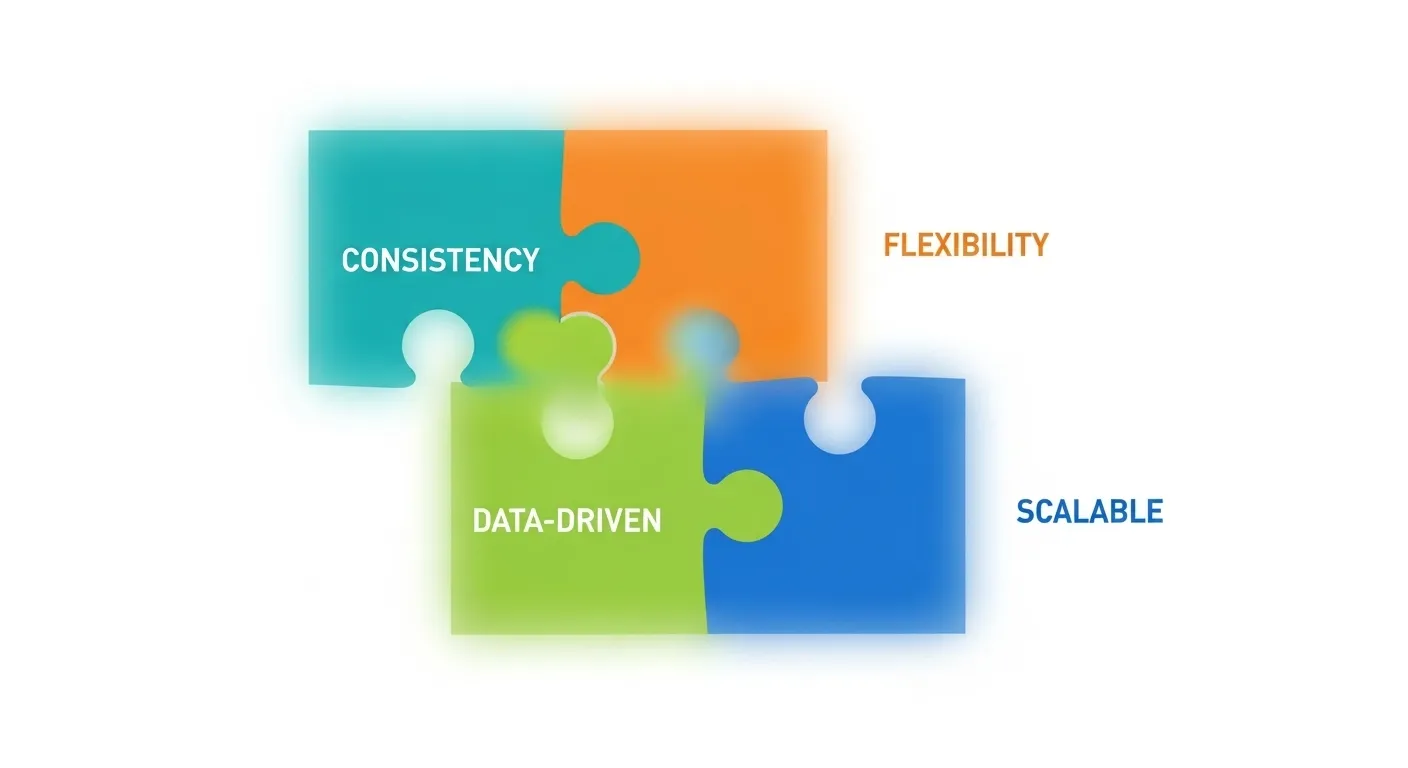
If hyper-personalized templates were a sandwich, they’d be the perfect balance of consistent bread on the outside and whatever delicious, customized filling you need on the inside. The trick is balancing structure with flexibility so you’re not just making pretty documents — you’re making documents that work.
Here are the four principles that separate “just a template” from a data-driven document template masterpiece.
1. Consistency + Flexibility
Branding is non-negotiable. Logos, colors, fonts, and tone need to match across every document, or you risk looking like you borrowed your stationery from three different companies.
But flexibility is just as important. A scalable office template should handle anything from a two-paragraph client update to a fifty-page annual report without breaking its layout. That’s where adaptive placeholders and modular design come in — sections that expand or shrink depending on the content.
Think of it like Lego bricks: the shape stays consistent, but you can build a car, a castle, or a spaceship from the same set.
2. Data-Driven Personalisation
Hyper-personalization isn’t about typing “Dear [First Name]” and calling it a day. It’s about pulling real, live data from CRMs, databases, and APIs into your documents automatically.
For example:
-
Client Proposals: Pull name, company details, last purchase date, and preferences directly from Salesforce or Dynamics 365.
-
Reports: Update KPIs instantly from an Excel dashboard or Power BI dataset.
-
Emails: Insert personalized offers based on actual purchase history, not guesswork.
With data-driven document templates, you turn what used to be manual busywork into a seamless, behind-the-scenes process.
3. Automation-First Approach
When building a template, ask: “How can I make this document create itself?”
This means structuring templates to minimize — or eliminate — repetitive manual edits. Whether it’s using Word’s content controls, Excel’s named ranges, or PowerPoint’s linked charts, automation ensures that your templates adapt automatically when the underlying data changes.
The result? Template automation that saves hours of human labor and drastically reduces the risk of missing a crucial update.
4. Scalability
A true hyper-personalized template is a “build once, use forever” asset. Once you’ve designed and automated it, it should work for hundreds (or thousands) of iterations without you touching the core file.
Scalable templates can:
-
Be updated centrally (e.g., changing a logo in SharePoint updates it for the whole team).
-
Adapt for multiple markets, languages, or product lines without building separate versions.
-
Integrate with workflows that handle distribution automatically.
Bottom line:
The magic of hyper-personalization comes from combining branding consistency, data-driven personalization, automation-first thinking, and scalability. When you nail these four pillars, you get templates that don’t just look professional — they actively do the work for you.
Next, we’ll peek inside Microsoft Office itself to see exactly which tools and features make this possible — and how to use them without needing a PhD in VBA.
IV. Tools & Features Inside MS Office That Enable Smart Templates
When people hear “smart templates,” they often think it requires expensive add-ons or some secret Microsoft subscription tier hidden behind a vault door.
The truth? Most of the power is already built into Word, Excel, PowerPoint, and Outlook — you just need to know where the buttons are (and which ones not to press at 2 a.m.).
Let’s break it down by app.
A. Microsoft Word
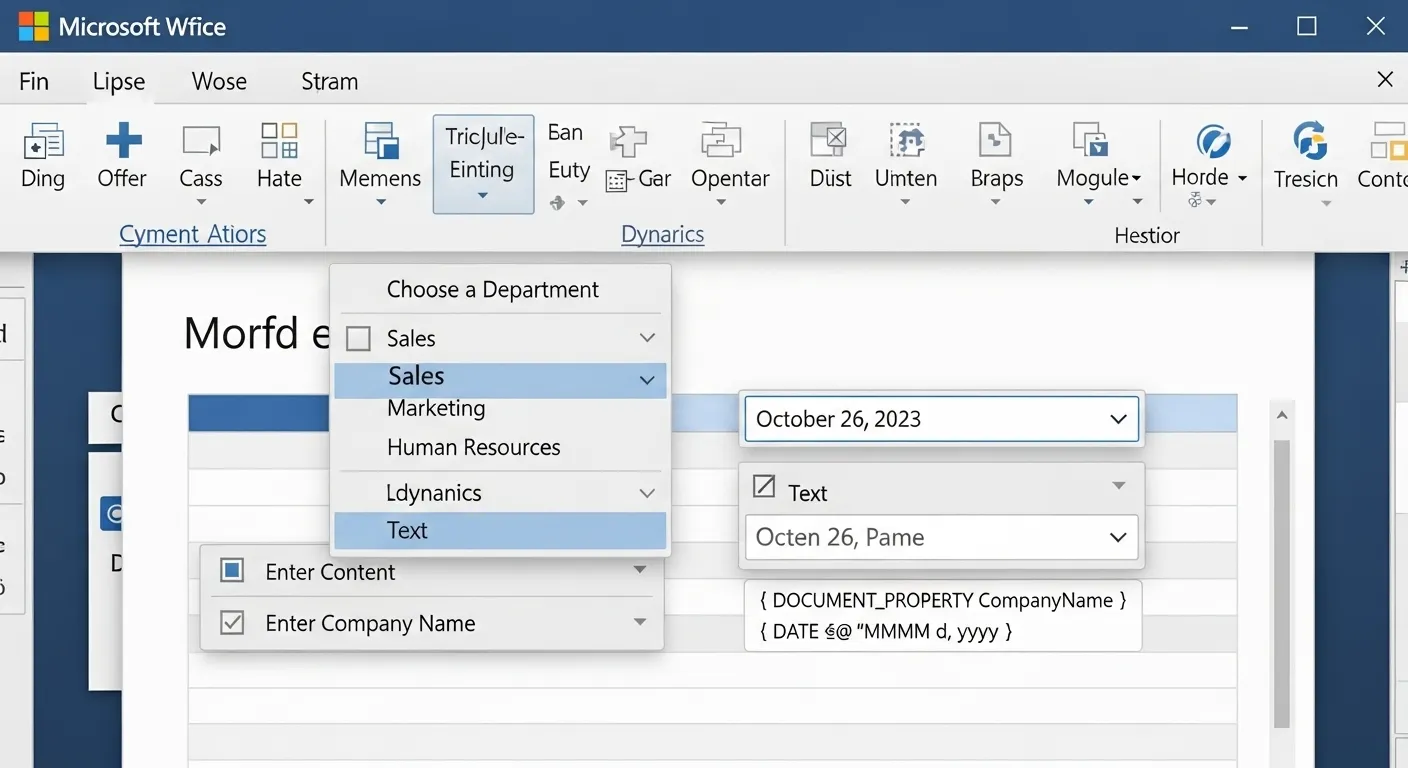
Word is the template powerhouse. If you’re building MS Word content controls or advanced automation, these are your bread and butter:
-
Content Controls – Rich text fields, drop-down lists, and date pickers that let you lock down format while letting users input only what you want them to.
Pro tip: Use “plain text” controls for things like names, so the font matches automatically. -
Quick Parts & AutoText – Reusable text or graphics you can insert with a click (or a couple of keystrokes). Great for boilerplate clauses, standard disclaimers, or that one paragraph your legal department insists on in every document.
-
Dynamic Fields & Document Properties – Auto-update author names, file paths, titles, or dates. Perfect for template automation so your documents never have yesterday’s date in tomorrow’s meeting.
-
Custom Styles – Pre-define headings, body text, and captions so your formatting is bulletproof. This is the secret to brand consistency — and the cure for the “my font changed halfway through” curse.
B. Microsoft Excel
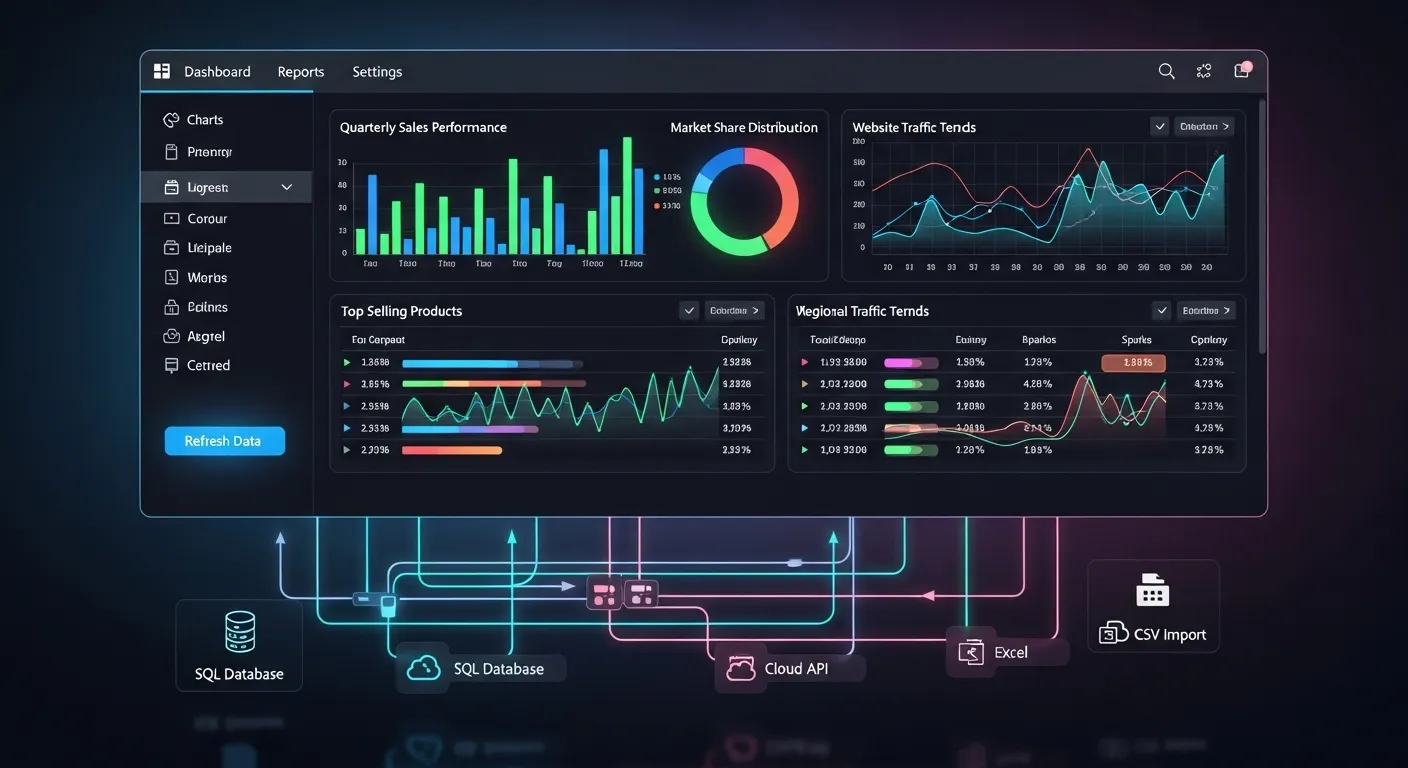
Excel might not look like a personalization tool, but when you build Excel Power Query templates and dynamic dashboards, you’re essentially giving your spreadsheets superpowers.
-
Named Ranges – Assign names to specific cells or ranges, making formulas easier to read and templates easier to update.
-
Advanced Formulas & Conditional Formatting – Change cell content or appearance based on data rules. Perfect for personalized dashboards that adapt instantly when new data is loaded.
-
Linked Workbooks & Power Query – Pull data from other files, databases, or web sources. If you’ve ever dreamed of a report that updates itself, Power Query is the closest thing to magic.
-
Custom Templates with Dashboards – Save your workbook as an
.xltxso every new file starts with your layout, formulas, and branding baked in.
C. Microsoft PowerPoint
PowerPoint is the quiet hero in the PowerPoint master slide automation world. A good master slide design can save you hours of slide-fixing later.
-
Master Slides & Layouts – Lock in your company’s logo, colors, and fonts once, so every new slide is perfectly on-brand.
-
Linked Excel Charts – Instead of pasting static charts, link them to your Excel data. One update to the spreadsheet, and every chart in your deck refreshes automatically.
-
Slide Libraries – Keep a catalog of reusable, pre-formatted slides you can drop into any presentation.
D. Microsoft Outlook
Email templates are where automation meets personal touch — and where mail merge earns its keep.
-
Email Templates with Dynamic Placeholders – Pre-write messages that automatically insert the recipient’s name, company, or other details.
-
Mail Merge Integration – Send bulk personalized emails straight from Word + Outlook, pulling in contact details from Excel or your CRM.
The big takeaway:
Every app in the Office suite has tools for template automation, personalization, and consistency — and when you combine them, you get documents, spreadsheets, slides, and emails that feel tailor-made without the tailor’s workload.
Next, we’ll design these templates for maximum reusability and adaptability — because even the smartest tools fail if the structure isn’t right.
V. Designing for Reusability & Personalization
Think of a hyper-personalized template as a Swiss Army knife — versatile, reliable, and ready for any situation. But unlike the actual Swiss Army knife (where you will stab your finger trying to open the scissors), a great reusable document design should be foolproof.
Here’s how to design templates that can adapt to any scenario, stay on-brand, and remain easy to update.
1. Structure for Modularity
The key to adaptive Office templates is modular design — breaking your template into distinct, swappable sections.
Example:
-
Header & Branding Block (logo, company name, tagline) — locked and uneditable.
-
Dynamic Content Area — where client-specific or project-specific info goes.
-
Optional Sections — that can be shown or hidden automatically (e.g., a pricing table that only appears if certain conditions are met).
Why this works: You can add, remove, or reorder content without breaking the rest of the layout.
2. Use Placeholders & Tokens for Automation
Forget typing “[Insert Name Here]” — instead, use smart placeholders like <<ClientName>> or [[ProjectStartDate]] that are recognized by automation tools such as Power Automate, VBA scripts, or mail merge.
Benefits:
-
Easy for automation to detect and replace.
-
Avoids embarrassing human typos.
-
Works across Word, Excel, PowerPoint, and Outlook.
Pro tip: Keep a glossary of all placeholder names so your team stays consistent.
3. Design Layouts That Adapt
Your template shouldn’t break when the text is longer than expected or the chart has 12 categories instead of 6.
Adaptive design tips:
-
Use Word tables with auto-fit for pricing lists.
-
In PowerPoint, anchor shapes and text boxes so they scale with content.
-
In Excel dashboards, use dynamic named ranges that grow or shrink automatically.
That way, your template survives real-world data without you spending half an hour realigning boxes.
4. Branding Elements: Lock Them Down
Every branded template should have non-negotiable design elements that can’t be accidentally changed:
-
Logos in fixed positions.
-
Predefined color palettes (set in theme colors).
-
Font styles and sizes locked in.
Locking branding doesn’t just protect aesthetics — it protects your reputation. No one wants the “off-brand purple” incident to happen again.
Why This Matters
When you combine modular design, smart placeholders, adaptive layouts, and locked branding, you create templates that are:
-
Easy to personalize for each client or project.
-
Resistant to layout disasters.
-
Quick to update organization-wide.
And that’s the secret to adaptive office templates that don’t just look good, but keep looking good after their hundredth use.
VI. Advanced Data Integration for Templates
A template without data integration is like a fancy coffee machine without beans — it looks great, but it’s not making your life any easier.
Automated document creation is all about connecting your templates to live data sources so they pull, update, and present information without manual input.
Let’s break down the most powerful integration methods for Word, Excel, PowerPoint, and beyond.
1. Pulling Data from SharePoint, OneDrive, and Cloud Databases
If your documents still rely on someone downloading an Excel file from their desktop, it’s time for an upgrade.
When your templates connect directly to SharePoint lists or OneDrive files, you get:
-
Live data that’s always up to date.
-
Version control — everyone works from the latest file.
-
Centralized management — update one source, and it cascades to all connected templates.
Example:
A proposal template in Word that pulls product details and pricing from a SharePoint list. Update the SharePoint list once, and every proposal automatically reflects the new prices.
2. Linking Excel/Word to Power BI Datasets
Power BI isn’t just for flashy dashboards. You can link its datasets directly to Word and Excel for reporting that updates automatically.
How it works:
-
Build your Power BI report with all the relevant KPIs.
-
Connect Excel to the dataset using “Get Data → Power BI Datasets.”
-
Use named ranges in Excel that feed into your Word or PowerPoint templates.
Result:
Your monthly report practically writes itself, with data visualizations pulled straight from Power BI without copy-pasting screenshots.
3. Automating Population via Power Automate Flows
Power Automate templates are the secret to full end-to-end automation. Imagine this workflow:
-
A sales rep updates a lead’s status in your CRM (like Dynamics 365).
-
Power Automate detects the change.
-
It fills in a Word proposal template using the CRM data.
-
The finished document is saved to SharePoint and emailed to the rep — all without anyone opening Word.
Other use cases:
-
Generating contracts when an order is approved.
-
Creating invoices when a project milestone is reached.
-
Building welcome packets automatically when a new client is added to your database.
4. Dynamic Conditional Logic in Templates
Conditional logic means your template can change its content depending on the data it receives — a game-changer for CRM to Word integration.
Examples:
-
If a client’s contract value > $100,000, include a premium service section.
-
If the recipient is in the EU, add GDPR compliance text.
-
If the product category is “Enterprise,” use a different pricing table.
In Word, this can be handled with IF fields. In Excel, formulas like IF(), SWITCH(), or VLOOKUP() can drive the personalization.
Case Study: Sales Proposal Template Auto-Filled from CRM
Problem: A sales team spent hours per week customizing proposals for each client.
Solution:
-
A master proposal template in Word used content controls for client name, product list, and pricing.
-
Power Automate pulled client data from Dynamics 365 and product pricing from SharePoint.
-
Conditional logic added region-specific terms automatically.
Result:
Proposal creation time dropped from 45 minutes to under 5 minutes — and the legal team stopped yelling about outdated terms.
Why this matters:
Integrating your templates with live data transforms them from static shells into living, breathing business tools. You get:
-
Faster turnaround times.
-
Reduced human error.
-
Consistent, up-to-date information every time.
In the next section, we’ll take it even further — automation techniques that don’t just populate templates with data but actively guide users through creating them, step-by-step.
VII. Automation Techniques to Build Truly Smart Templates

At this point, your templates are connected to live data and can adapt like a pro. But now we’re going to take them from reactive to proactive — templates that don’t just update themselves, but actually guide you through the process of creating them.
This is where VBA template automation, office macros for personalization, and a dash of third-party magic come in.
1. Macros to Handle Repetitive Personalization Steps
Macros are the “muscle memory” of MS Office — a recorded (or coded) set of actions that can be triggered with a single click.
Example macro tasks:
-
In Word: Fill in content controls from a user input form, apply specific formatting, and save the file to the correct folder.
-
In Excel: Pull the latest data from Power Query, refresh pivot tables, apply conditional formatting, and export as PDF in one go.
-
In PowerPoint: Update all linked Excel charts and regenerate a table of contents slide.
Benefit: One click replaces a dozen manual actions — and macros never get distracted by incoming emails.
2. Creating Template Wizards with VBA
A template wizard is like a friendly assistant living inside your document. Instead of throwing you into an empty template, it asks questions and fills in the right content automatically.
Example: A “New Project Proposal” wizard in Word might:
-
Prompt for client name, project scope, and start date.
-
Pull relevant case studies from a database based on industry.
-
Insert region-specific legal disclaimers.
How to build one:
-
Use VBA’s
UserFormto collect inputs. -
Write VBA code to replace placeholders (
<<ClientName>>) in the document with the collected values.
This approach not only speeds up creation but ensures dynamic office documents stay consistent no matter who’s using them.
3. Conditional Formatting & Rules for Contextual Changes
Conditional formatting isn’t just for Excel — though it’s particularly powerful there.
In templates, rules can determine:
-
Which sections appear.
-
Which styles or colors are applied.
-
Which attachments or slides are included.
Examples:
-
In Excel, cells turn green or red depending on KPI thresholds.
-
In PowerPoint, slides with low-priority topics are automatically hidden for certain audiences.
-
In Word, IF fields insert alternate text based on data values.
4. Integrating Third-Party APIs for Enriched Personalization
Sometimes Microsoft’s built-in tools are great — but pairing them with external APIs can take personalization to a whole new level.
Examples:
-
Pulling live LinkedIn data into a client briefing document before a meeting.
-
Integrating a weather API to insert location-based forecasts into event schedules.
-
Connecting to your marketing platform’s API to insert personalized discount codes.
These integrations can be handled via Power Automate connectors or custom VBA scripts using web requests.
5. Best Practices for Template Automation
-
Keep automation invisible — end users shouldn’t have to think about the tech under the hood.
-
Fail gracefully — if a data source is missing, your template should still work (maybe with a “data not found” placeholder).
-
Document your automation logic — so someone besides you can update it without crying.
Why this matters:
The leap from smart to truly smart happens when automation becomes proactive — guiding the user, pulling in just the right data, and adapting the document instantly. With VBA template automation, office macros for personalization, and API integrations, your templates become a system, not just a file.
Next, we’ll cover how to maintain, update, and distribute these masterpieces so they keep working for the whole team without you sending endless “new version attached” emails.
VIII. Maintaining, Updating & Distributing Templates
Building a brilliant smart template is only half the battle — keeping it updated, accessible, and error-free is where the real test begins.
Because let’s be honest, the fastest way to ruin all your hard work is to have five different “final” versions floating around in random folders, each with slightly different formatting.
Here’s how to keep your MS Office templates healthy and in sync across your organization.
1. Version Control in SharePoint or Teams
Office template management becomes a lot easier when you store your master templates in SharePoint or Teams.
Why it works:
-
Single source of truth — there’s only one live version.
-
Automatic version history — revert to a previous version if an update goes sideways.
-
Access control — ensure only approved people can make changes.
Pro tip: Use SharePoint’s “Check Out” feature so no one accidentally edits the live template while someone else is working on it.
2. Centralized Template Libraries
A SharePoint template library is the digital equivalent of a supply cupboard — but for Word, Excel, PowerPoint, and Outlook files.
Benefits:
-
Easy access for the whole team.
-
Templates organized by type (e.g., Proposals, Reports, Presentations).
-
Everyone knows where to find the latest version — no more “Can you send me the template?” emails.
Bonus: You can link template libraries directly into the Office app’s “New” file menu for instant access.
3. Automated Updates Without User-Side Rework
One of the biggest frustrations in updating MS Office templates is when an update forces users to redo work.
Solution: Use linked building blocks and content controls stored in a central location, so updates flow into existing documents without overwriting user input.
Example: Updating a legal disclaimer in a centrally stored Quick Part automatically refreshes it in every document that references it.
4. Testing Before Rollout
Never assume an updated template works everywhere. Test in:
-
Different Office versions (especially if you have a mix of 32-bit and 64-bit).
-
Both desktop and web apps.
-
Different user permissions and network conditions.
Catching compatibility issues early saves you from frantic “Why is this broken?” messages after rollout.
Bottom line:
Smart templates are only as smart as their maintenance strategy. With SharePoint template libraries, proper version control, and automated updates, you ensure your templates don’t just start strong — they stay strong.
Next, we’ll talk about common pitfalls and how to avoid them so your automation dreams don’t turn into troubleshooting nightmares.
IX. Common Pitfalls & How to Avoid Them
Even the smartest office automation templates can turn into frustrating messes if you don’t plan for real-world use.
Here are the most common office template mistakes I’ve seen — and how to sidestep them like a pro.
1. Overcomplicating with Too Much Automation
It’s tempting to make your template do everything — pulling from ten different data sources, running macros, and sending itself via email.
But more complexity means more chances for document automation errors when something changes.
Avoid it:
-
Start with the most valuable automation features.
-
Add more only after the basics are rock solid.
-
Keep a “manual mode” fallback so the template is usable even if an integration fails.
2. Neglecting User Training
The smartest template is useless if the team doesn’t know how to use it. I’ve seen beautifully automated documents abandoned because no one took ten minutes to explain them.
Avoid it:
-
Create a short how-to guide or screencast.
-
Run a quick live demo before rollout.
-
Make a “cheat sheet” of placeholders, quick parts, and automation triggers.
3. Poor Data Source Management
If your template pulls from a CRM, SharePoint list, or API, that source becomes your single point of failure.
Outdated, missing, or badly formatted data will break personalization — sometimes in hilarious but disastrous ways (e.g., “Dear NULL”).
Avoid it:
-
Audit data sources regularly.
-
Enforce naming and formatting standards.
-
Build validation checks into your automation flow.
4. Failing to Test in Different Environments
Templates might work perfectly on your laptop but fail on:
-
Older Office versions.
-
The web app version of Word, Excel, or PowerPoint.
-
Different operating systems (Windows vs. Mac).
Avoid it:
-
Test in all environments your users might encounter.
-
Check for permission issues (especially with linked SharePoint files).
Bottom line:
Avoiding template troubleshooting nightmares comes down to three things:
-
Keep it simple at first.
-
Train your users.
-
Maintain and test both your templates and their data sources.
Do that, and you’ll avoid 90% of the “Help, the template is broken!” messages that land in your inbox.
Next, we’ll wrap things up with the future of hyper-personalized templates — and spoiler alert, AI is about to change the game again.
X. Future of Hyper-Personalized Office Templates

We’re already in the age of smart MS Office templates, but the next leap is going to make today’s automation look like a fax machine.
The big driver? AI.
1. AI-Driven Template Generation
With tools like Microsoft Copilot already baked into Office, we’re moving toward templates that:
-
Build themselves from a plain-language request (“Make me a sales report for Q3 with data from Excel and a branded cover page”).
-
Suggest layouts, headings, and visuals on the fly.
-
Auto-fill with live data from your CRM, calendar, and email history — no manual linking required.
AI office templates won’t just be reusable; they’ll be self-assembling.
2. Predictive Content Suggestions
Imagine opening a Word proposal template and having it pre-filled with the client’s preferred service tier, last meeting notes, and relevant case studies — without you lifting a finger.
Predictive templates will use historical patterns to recommend:
-
Which slides to include for certain audiences.
-
Which disclaimers to add based on deal size or region.
-
Which KPIs to display in a report based on the recipient’s role.
3. Real-Time Personalization Using Live Data Streams
Today, templates pull from stored data sources like SharePoint or Power BI. Tomorrow, they’ll pull from live data feeds — adjusting a sales forecast mid-presentation if the numbers change during the meeting.
Example:
-
An AI-powered dashboard in Excel updating as new orders come in.
-
A PowerPoint pitch deck changing the pricing slide mid-call when the CRM detects a competitor discount.
The takeaway:
The future of document automation isn’t just about making templates faster to use — it’s about making them intelligent enough to know what you need before you do.
We’re heading toward a world where AI in MS Word, Excel, and PowerPoint creates, adapts, and even delivers your templates automatically — and your role will be to review, tweak, and approve rather than build from scratch.
XI. Conclusion & Action Plan
If you’ve made it this far, you now know the truth:
Hyper-personalized templates aren’t just “nicer-looking documents” — they’re productivity machines.
We’ve covered:
-
The evolution from static files to smart MS Office templates.
-
The four pillars of hyper-personalization — consistency, data-driven personalization, automation-first, and scalability.
-
The built-in Word, Excel, PowerPoint, and Outlook features that make it possible.
-
How to connect your templates to live data sources, automate them with VBA and Power Automate, and maintain them with centralized version control.
-
The pitfalls to avoid and the AI-powered future that’s right around the corner.
Your 6-Step Action Plan
-
Audit your existing templates — identify which ones can be upgraded for automation and personalization.
-
Define your branding rules — lock down logos, fonts, and colors in your master files.
-
Add smart placeholders (
<<ClientName>>,[[StartDate]]) to prepare for automation. -
Connect to live data sources — start with SharePoint or Excel before moving into advanced integrations.
-
Automate repetitive tasks with macros, VBA, or Power Automate templates.
-
Centralize and maintain your templates in a SharePoint library with proper version control.
Final Thought
The gap between “I make my documents by hand” and “My documents make themselves” isn’t as big as you think.
Start small, automate one step at a time, and build momentum. Before long, you’ll have reusable MS Word documents, Excel dashboards, and PowerPoint decks that run themselves while you focus on the big picture (or just enjoy your coffee while they work).
The future of office automation is here — and now it’s in your hands.
Learn beautiful Animations in powerpoint – https://www.youtube.com/playlist?list=PLqx6PmnTc2qjX0JdZb1VTemUgelA4QPB3
Learn Excel Skills – https://www.youtube.com/playlist?list=PLqx6PmnTc2qhlSadfnpS65ZUqV8nueAHU
Learn Microsoft Word Skills – https://www.youtube.com/playlist?list=PLqx6PmnTc2qib1EkGMqFtVs5aV_gayTHN