
Introduction

If you’re like most professionals, educators, or remote teams trying to keep productivity high and chaos low, chances are you’ve used or at least heard of Microsoft Teams. But let me ask you: are you really getting the most out of it?
With its deep integration into Microsoft 365 and endless features, Teams can feel like both a gift and a puzzle. Whether you’re managing a classroom, coordinating across departments, or leading a virtual team, there are always new tools and strategies to discover. So, let’s dive into the most relevant best practices for using Microsoft Teams like a pro—and not just scratching the surface, but truly harnessing its full potential.
1. Setting Up Teams and Channels the Smart Way
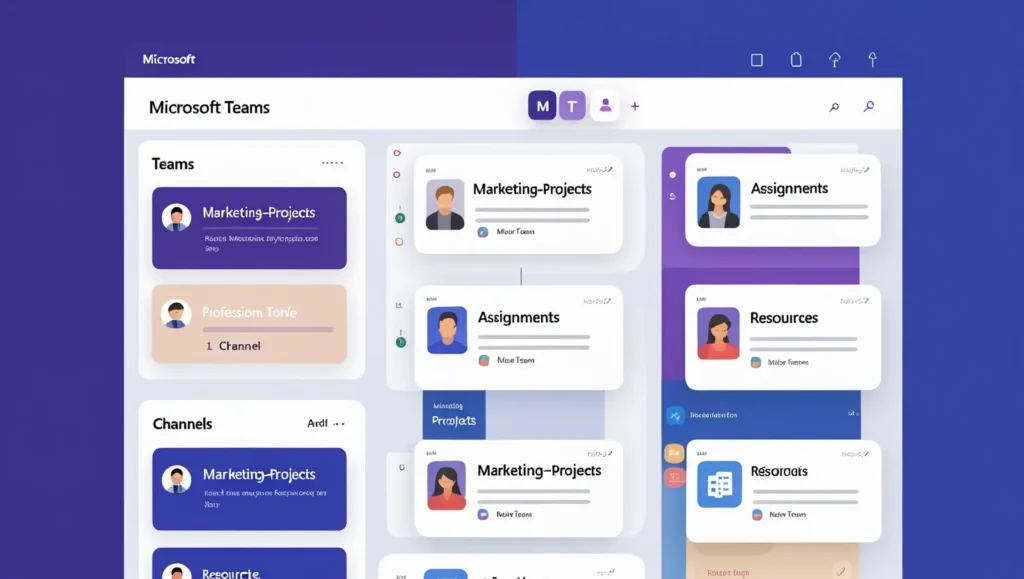
Your Team and channel structure is the foundation of your collaboration environment. When set up correctly, it keeps communication focused, ensures files are easy to find, and promotes clarity in group work.
Best Practice:
- Create Teams by department or function, not by project. Projects can be channels within functional Teams, offering better organization.
- Use standard naming conventions like “Marketing-Projects” or “ScienceClass-10B” to ensure consistency across the organization.
- Private Channels are perfect for sensitive discussions like HR matters, confidential feedback, or grading in an educational context.
Pro Tip:
Use the “General” channel only for official announcements and important info—create additional channels for each topic, task, or unit. For example, in a classroom, you might have “Assignments,” “Discussions,” and “Resources.”
Practical Takeaway:
Think of channels like rooms in a house—everything needs its place. This habit makes your Teams workspace feel structured, clean, and highly navigable.
2. Hosting and Recording Meetings Like a Pro
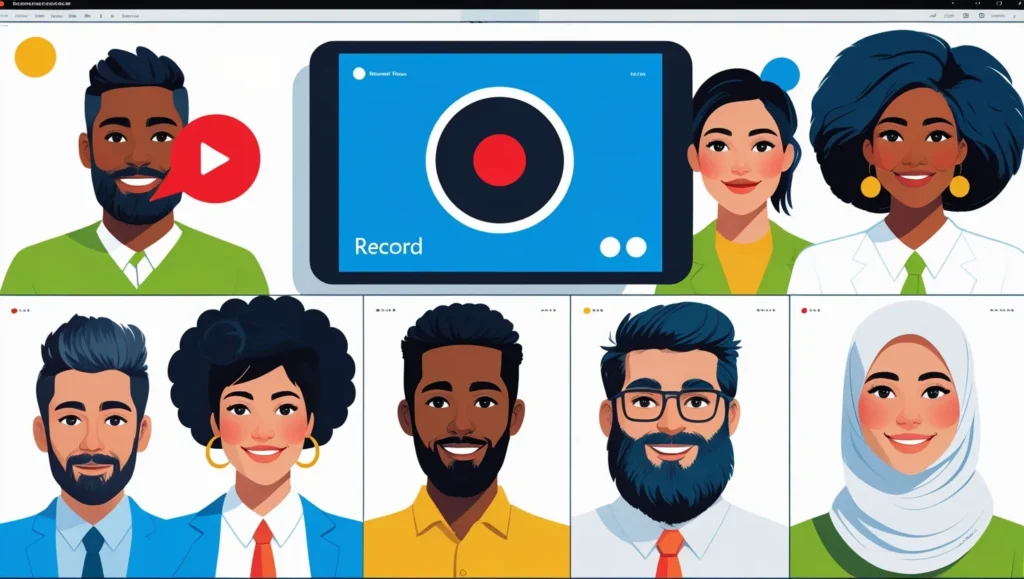
Meetings in Teams are incredibly flexible, but poorly managed meetings can feel like time wasted. Let’s fix that by adding a layer of intention and structure.
Best Practice:
- Always set a clear agenda in the meeting description and send it out ahead of time.
- Use the “Record” feature so no one misses out, even if they can’t attend live.
- Share meeting recordings automatically in the relevant channel so they’re easy to find and review.
Practical Example:
Hosting a parent-teacher meeting? Record the session, and share it with parents who couldn’t attend. For business teams, record strategy discussions so others can rewatch key points.
Bonus Tip:
Use the transcript feature to make recordings searchable, so team members can jump to specific moments without rewatching the entire meeting.
3. Mastering Breakout Rooms
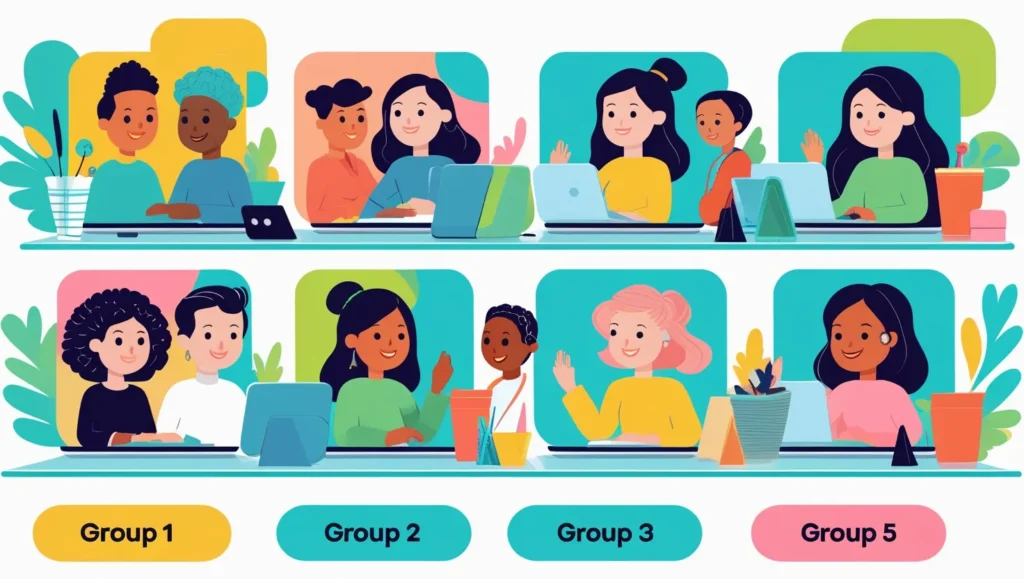
Breakout rooms are like mini-conference rooms within your virtual meeting. They’re ideal for brainstorming, peer-to-peer learning, or departmental focus sessions.
Best Practice:
- Plan your breakout sessions in advance, especially if you’re hosting a workshop or class.
- Assign tasks, questions, or case studies to each room.
- Use Timers to help participants stay on track and respect time limits.
Practical Example:
In a training session, assign different customer scenarios to breakout groups. Let them solve and present solutions when everyone returns to the main meeting.
Advanced Trick:
Use the pre-assign feature for breakout rooms to speed things up and reduce chaos once the meeting starts.
4. Engaging Meetings with Polls
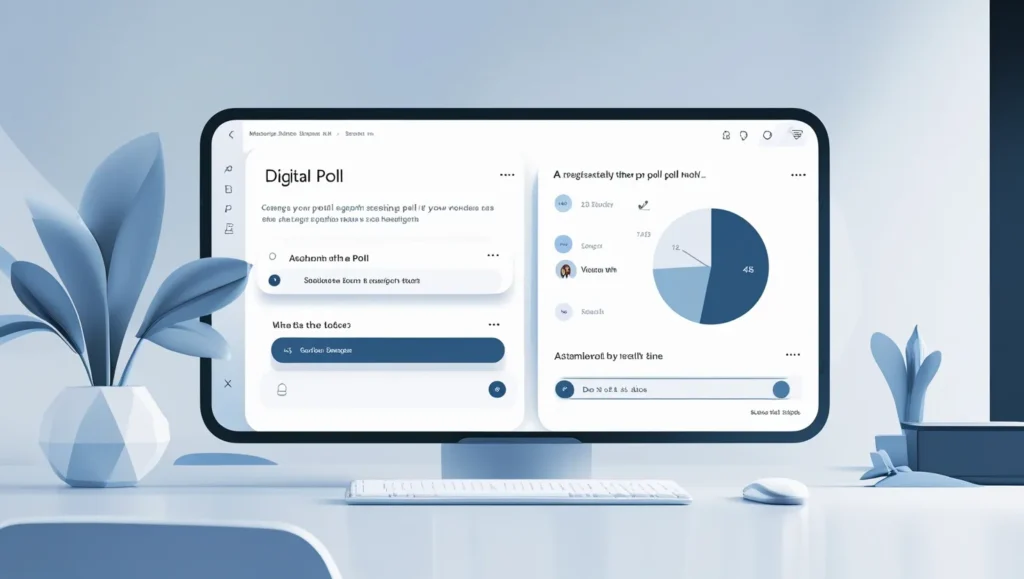
Interactive meetings don’t just keep people awake—they make sure everyone participates. Polls are a simple but powerful way to gather quick feedback, check comprehension, or guide decisions.
Best Practice:
- Use Microsoft Forms integration to create polls before the meeting.
- Drop polls mid-meeting to keep things dynamic and measure sentiment in real time.
Tip:
In educational settings, a quick “How confident are you about today’s topic?” poll can help guide your lesson review. In business, use it to gauge buy-in before a big change.
Bonus Idea:
Create an end-of-meeting poll asking “What’s one thing you’re taking away today?” to drive reflection and accountability.
5. Integrating Microsoft Planner
You don’t need extra project management software when Planner is already built into Teams. It’s visual, easy to use, and works great across devices.
Best Practice:
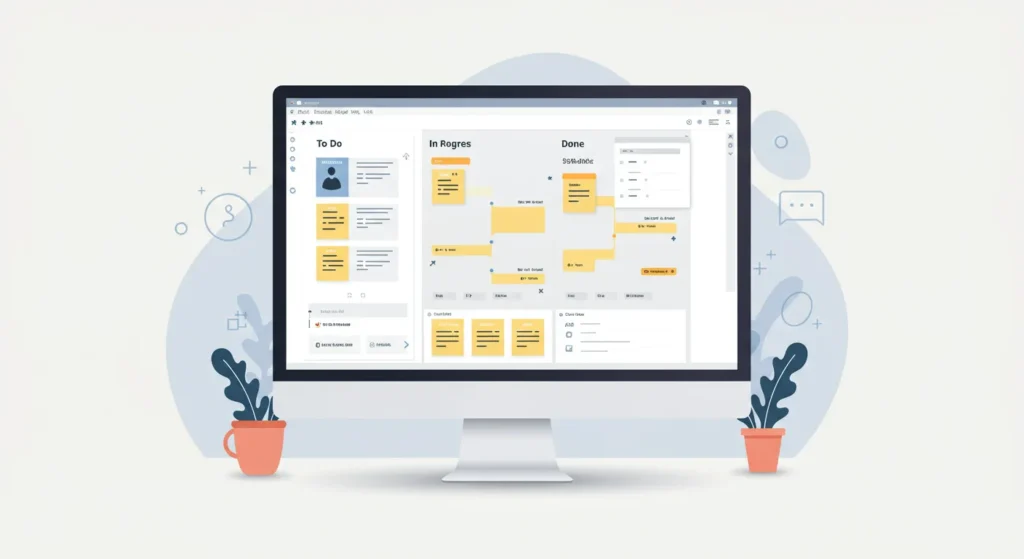
- Create a Planner tab in each relevant Team channel.
- Break down projects into Buckets like “To Do,” “In Progress,” and “Done.”
- Assign owners, due dates, checklists, and even attachments directly to tasks.
Example:
A marketing team can use Planner to manage social media calendars, while a classroom can use it to manage group assignments with deadlines.
Pro Tip:
Use the Charts and Schedule views for a visual status overview. Great for quick updates in meetings.
6. Using OneNote for Shared Note-Taking
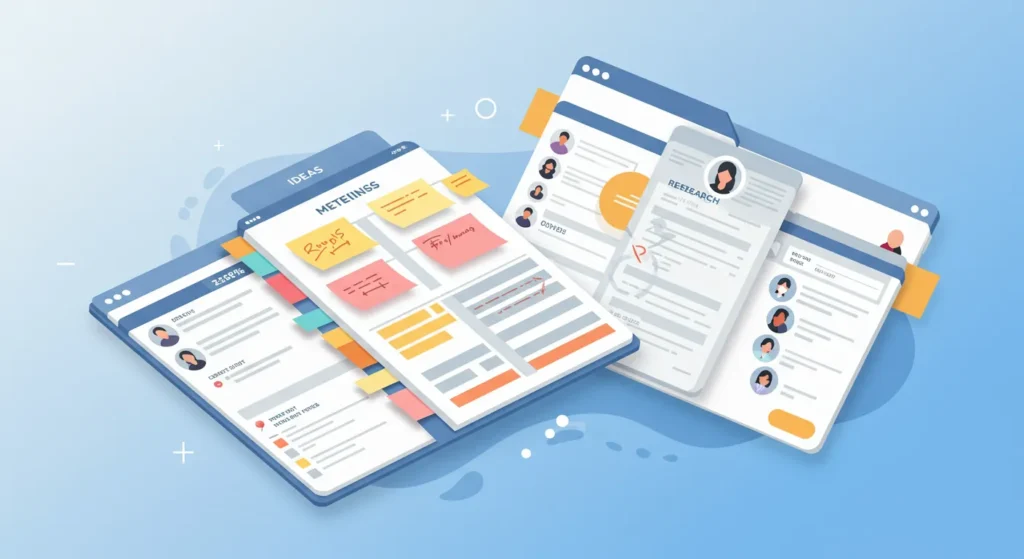
OneNote is the unsung hero of team knowledge management. Integrated into Teams, it becomes a living document where everyone can contribute.
Best Practice:
- Add OneNote as a permanent tab in your channels.
- Create a structured notebook with sections like “Meetings,” “Ideas,” and “Research.”
- Encourage everyone to use tags for action items, questions, or follow-ups.
Example:
In a virtual class, create a shared section where students summarize each lecture in their own words, allowing for peer learning and collaborative reflection.
Bonus:
Link notes from OneNote directly to Planner tasks or Teams chats for full-circle context.
7. Running a Virtual Classroom with Teams
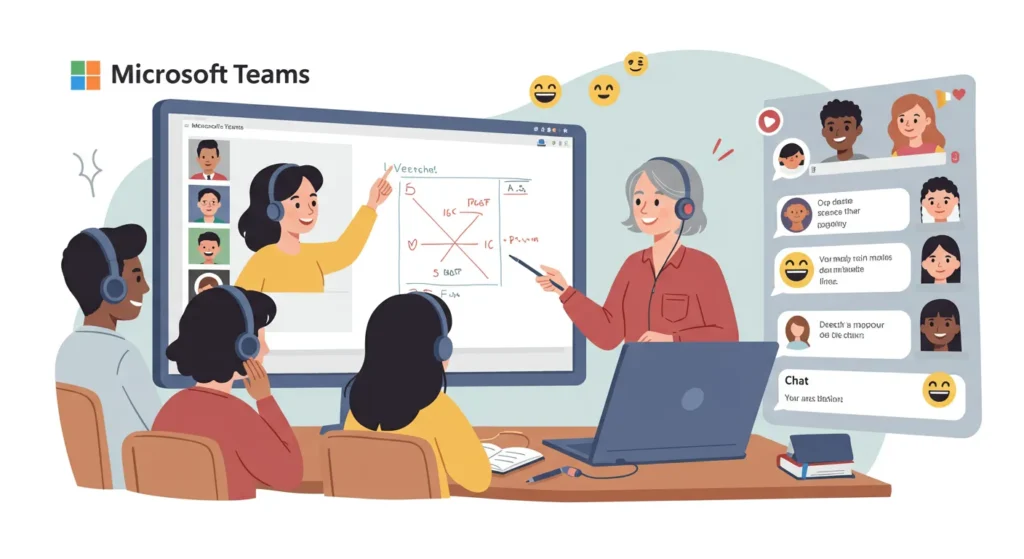
Teams is a classroom in a box when used right. With built-in tools for assignments, grading, and communication, it’s a game-changer for modern education.
Best Practice:
- Use Assignments and Gradebook to manage and track student performance.
- Organize channels by subject, module, or project, not just time-based weeks.
- Encourage students to submit questions through posts rather than cluttered chats.
Teacher Tip:
The Insights app shows you who’s engaging and who might need extra support. Data-driven teaching is the future!
Pro Strategy:
Schedule “quiet hours” and encourage students to respect digital boundaries, fostering digital wellness.
8. Hosting Lectures and Office Hours
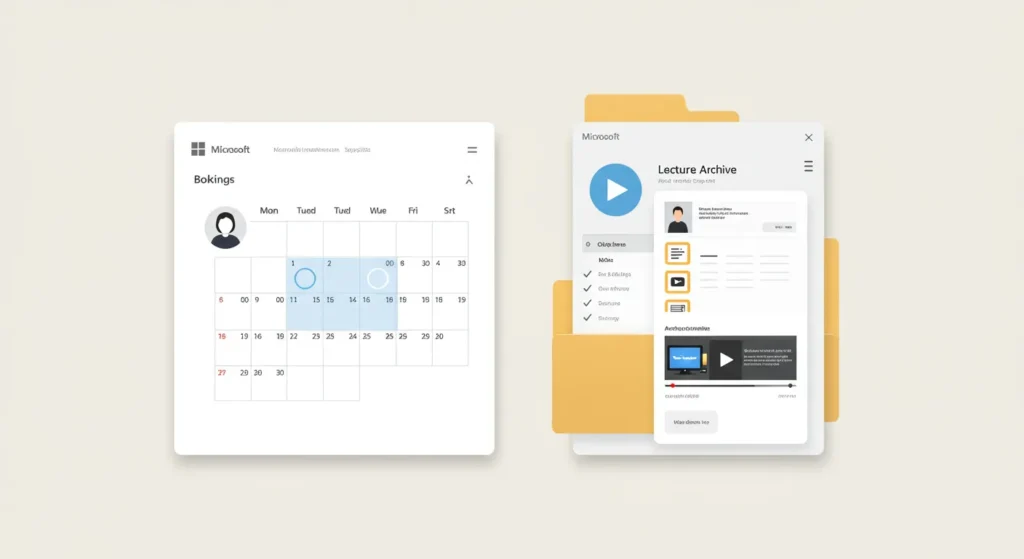
Professors and trainers, rejoice—Teams isn’t just for meetings. It’s a full ecosystem for higher learning.
Best Practice:
- Use Microsoft Bookings to set up office hours so students or colleagues can schedule time easily.
- Record and store weekly lectures in dedicated channels (e.g., “Lecture Archive”).
Example:
Add a “Lecture Notes” OneNote tab where students can collaborate or annotate slides as the lecture progresses.
Extra Tip:
Create a recurring Q&A meeting where students can drop in casually—just like in-person office hours.
9. Managing Guest Access Securely
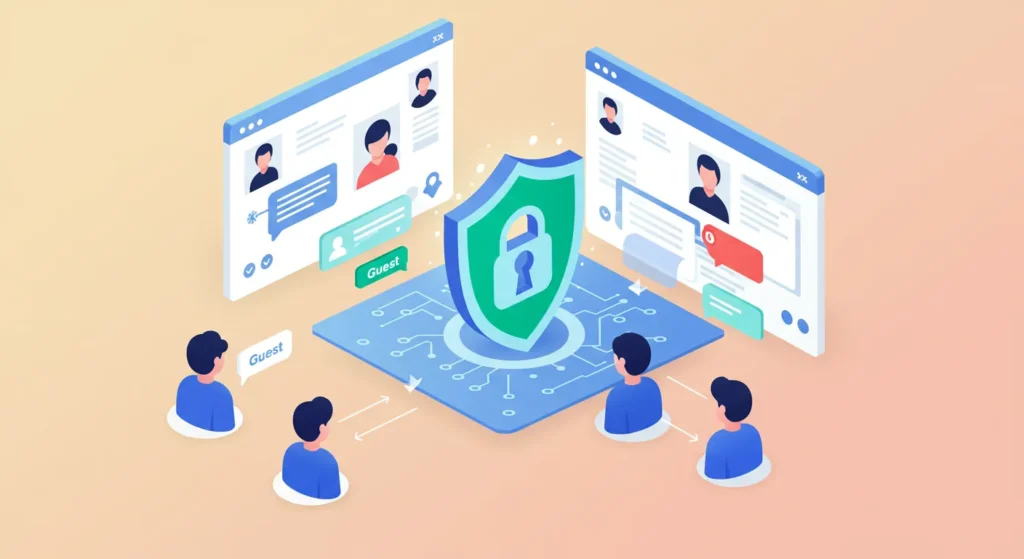
Bringing external collaborators into Teams can open new doors—but also new risks.
Best Practice:
- Regularly audit guest permissions from the Teams Admin Center.
- Disable unnecessary features like private chat or file uploads for guests.
- Use Sensitivity Labels and Microsoft Information Protection for sensitive content.
Tip:
Create a separate Team or channel for all external collaboration. This limits the risk of accidental data leaks.
Advanced Tip:
Enable Conditional Access Policies to restrict where guests can access Teams from (e.g., only trusted networks).
10. Supercharge Efficiency with Chat Commands
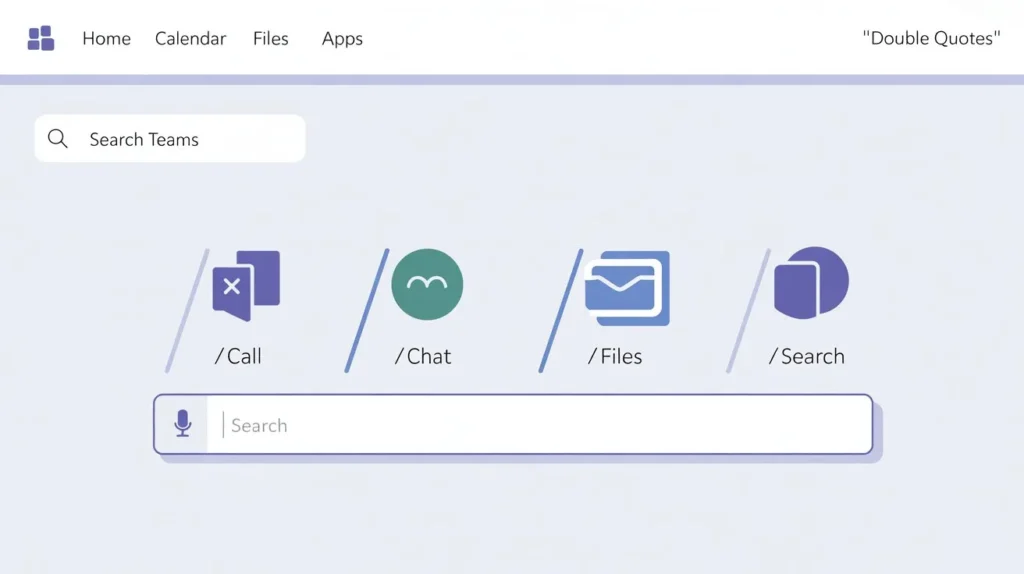
Once you start using slash commands, there’s no going back. They’re a productivity booster hidden in plain sight.
Useful Commands:
/chat [name]— Start a chat instantly/call [name]— Make a quick voice/video call/files— See your recent files/activity [name]— View recent activity/saved— Find your saved messages
Tip:
Have your team pick three favorites and make them second nature. It’ll save hours across a month.
Bonus:
Create a cheat sheet of slash commands and post it in your General channel as a pinned resource.
11. Add Personality with Custom Backgrounds

Virtual doesn’t mean boring. Backgrounds help you express personality or reinforce brand identity.
Best Practice:
- Use on-brand visuals for meetings with clients or stakeholders.
- Choose themed or educational backgrounds for school settings.
- Always test your background for readability—avoid text-heavy or distracting visuals.
Tip:
Rotate your background weekly to keep meetings fresh or match seasonal themes. Think: holiday decor or motivational quotes.
12. Tips & Tricks That Most People Miss

Let’s wrap up with some of the lesser-known but high-impact features in Teams.
- Pin important chats and channels so you don’t lose track.
- Use @mentions for individuals, not entire Teams, to reduce noise.
- Bookmark important messages (click the three dots) to find them easily later.
- Turn on Focus Mode or Do Not Disturb when working on deep tasks.
- Use immersive reader in messages for better comprehension—especially useful for accessibility.
Extra Tip:
Use the Search bar like Google—type a keyword, filter by sender, file type, or date. You’ll find anything in seconds.
Final Thoughts: Your Teams Journey Starts Here
Microsoft Teams is a powerhouse—but only if used the right way. From smart setups and interactive meetings to virtual classrooms and secure guest access, mastering Teams can save you time, reduce friction, and unlock the best in your team.
Remember:
- Be intentional with how you structure your workspace.
- Use features like Planner, OneNote, and Forms to streamline your workflow.
- Encourage team-wide adoption of shortcuts, etiquette, and collaboration habits.
Got a favorite tip that’s helped your team or classroom? Share it in the comments—we’d love to learn from you too! And if you found this helpful, pass it along to a colleague or friend.
Stay productive. Stay connected. Stay brilliant with Teams.
✅ Download this guide as a PDF and share it with your team or students.
📧 Need training for your organization or school? Contact us to get started with a custom Teams workshop.
🚀 More resources: Bookmark our blog or follow us on LinkedIn for fresh updates, templates, and tutorials!