

Imagine this: You open Microsoft Word, type “draft a business proposal for a new product launch,” and within seconds, a polished draft appears, complete with bullet points, headers, and action items—all thanks to a little digital helper named Copilot. No coffee-fueled late nights. No blank-page anxiety. Just you, your idea, and Microsoft’s AI doing the heavy lifting.
Welcome to the age of Copilot—Microsoft’s AI-powered assistant embedded into Office apps like Word, Excel, Outlook, and Teams. It’s not just a tool; it’s a productivity partner. Whether you’re a student, entrepreneur, corporate warrior, or remote worker, Copilot is reshaping how we interact with documents, data, and communication.
This blog dives deep into how AI and Copilot are transforming everyday workflows in Office 365. We’ll unpack how it drafts emails, summarizes meetings, creates charts, analyzes data, and even helps you automate the stuff you never thought could be automated. Sound good? Let’s geek out (in a fun way).
🔍 What Is Microsoft Copilot, Anyway?
Before we zoom into individual apps, let’s get clear on what Copilot is.
Microsoft Copilot is an AI-powered assistant embedded within Microsoft 365 apps. It’s built on OpenAI’s large language models (yes, cousins of yours truly!) and connects with your data—like documents, emails, calendars, chats, and meetings—to deliver context-aware assistance.
This means Copilot isn’t just spitting out generic advice. It’s helping you write, analyze, plan, and create, based on your work and your style. It’s like having a super-efficient digital colleague who never takes a lunch break.
Copilot is currently available in:
- Word
- Excel
- PowerPoint
- Outlook
- Teams
- OneNote
- Loop (yes, even this new collab tool!)
- Microsoft Viva and more
✍️ Word + Copilot: Goodbye Blank Page, Hello Draft Mode
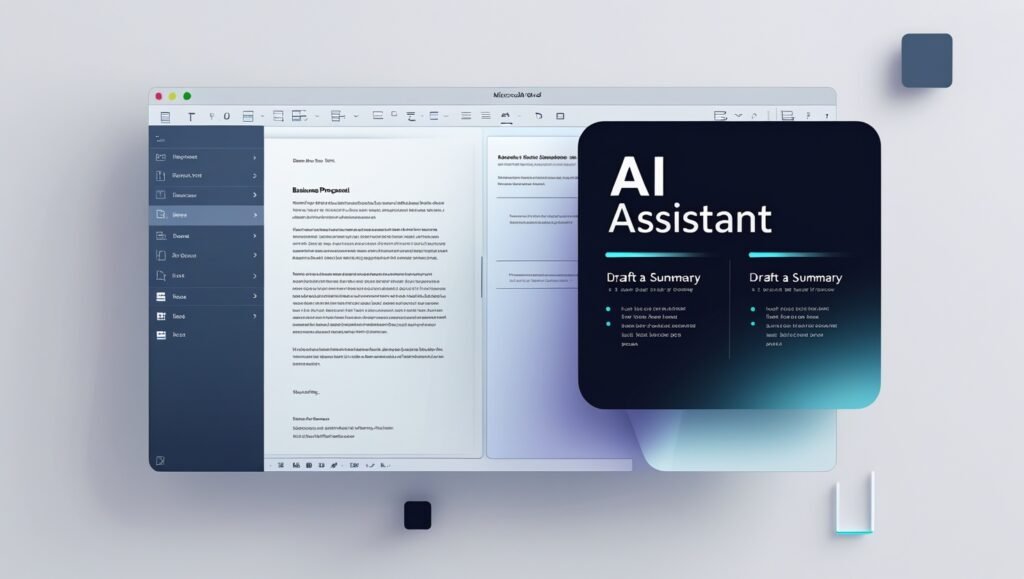
One of the most daunting parts of any project? Getting started. And that’s where Word’s Copilot is a game-changer.
How It Works:
Just type a simple prompt like:
- “Write a two-page proposal for a marketing strategy.”
- “Draft a thank-you letter for a recent job interview.”
- “Summarize this 20-page report in bullet points.”
Copilot instantly produces a draft, giving you a structured head start. You can then edit the tone, length, or focus with additional prompts—like “make it more formal” or “add stats from recent report.”
🎯 Practical Takeaway:
Prompt tip: Try “Summarize this document and suggest 3 improvements.” Copilot will read the entire document and give you feedback like a smart editor.
✨ Use Cases:
- Proposal writing
- Report summarization
- Blog post drafts (yep, meta!)
- Contracts and legal templates
- Resume creation and cover letters
📊 Excel + Copilot: From Rows to Revelations

Excel can be intimidating—even for power users. Luckily, Copilot turns spreadsheet analysis into a conversation.
How It Works:
You can now ask Excel things like:
- “What are the top-selling products this quarter?”
- “Highlight any anomalies in revenue.”
- “Create a chart comparing sales by region.”
Instead of endless clicking through PivotTables and formulas, you can just ask Copilot in plain English.
It can:
- Generate formulas
- Identify trends
- Create visualizations
- Suggest what data you might be missing
🎯 Practical Takeaway:
Prompt tip: “Generate insights from this dataset and suggest three potential actions.” Excel Copilot will go beyond the numbers to help you act on the data.
✨ Use Cases:
- Budget forecasting
- KPI dashboards
- Data clean-up
- Performance reviews
- Sales and financial analysis
📧 Outlook + Copilot: Taming the Inbox Beast
Inbox zero? Sounds nice in theory—until you’re drowning in a hundred unread messages. Copilot is here to help.
How It Works:
With a quick prompt, you can:
- Summarize long email threads
- Draft professional replies instantly
- Prioritize messages based on tone and urgency
- Generate meeting follow-ups and action lists
🎯 Practical Takeaway:
Prompt tip: “Summarize this email chain and draft a polite decline.” Perfect for diplomatically bowing out of meetings you don’t really need.
✨ Use Cases:
- Customer service
- Sales outreach
- Internal communications
- Email clean-up and triage
- Daily task generation from emails
💬 Teams + Copilot: Your AI Meeting Whisperer

Meetings—love them or loathe them—they’re here to stay. But Copilot makes them smarter, not longer.
Copilot in Teams Can:
- Summarize meetings in real time
- Generate meeting recaps
- Identify key action items and decisions
- Highlight speaker contributions
- Suggest follow-ups
Even if you miss a meeting (hello, back-to-backs), Copilot has your back. You can literally ask, “What did I miss?” and get a concise summary.
🎯 Practical Takeaway:
Prompt tip: “Summarize key takeaways and next steps from today’s strategy sync.” Instant clarity.
✨ Use Cases:
- Team alignment
- Project kickoff recaps
- Sales calls and notes
- Weekly standup summaries
- Client meeting documentation
🧠 Saving and Reusing Favorite Prompts
One of Copilot’s underrated powers? Reusability. You don’t have to reinvent the wheel every time.
You can now:
- Save your favorite prompts
- Customize them to your work style
- Use templates for repeatable tasks
- Share prompts with your team
🎯 Practical Takeaway:
Power move: Create a prompt library. Label them like “Weekly Report,” “Client Follow-up,” or “Proposal Template.” Use them to train new employees too.
💡 Examples:
- “Summarize last week’s sales performance and suggest talking points for the client meeting.”
- “Draft a response rejecting an application, keeping it friendly and encouraging.”
- “Analyze this table for outliers and create a chart.”
🔁 AI-Driven Automation of Repetitive Tasks
Let’s talk real time-saving. Copilot thrives at cutting the fluff from your to-do list.
Examples of Tasks Copilot Can Automate:
- Writing repetitive emails (like scheduling or reminders)
- Generating project timelines in Word or Excel
- Converting meeting notes into action items
- Creating charts from data
- Summarizing articles or reports
- Preparing slide outlines in PowerPoint
Instead of doing these tasks manually over and over, let AI take the reins.
🎯 Practical Takeaway:
Start looking for patterns in your week. What’s something you do every week that Copilot could automate? Try feeding that task to it.
🧩 Copilot in PowerPoint: Slides with Style
Making slides is one of those things that’s deceptively time-consuming. Copilot makes it a breeze.
Features Include:
- Drafting presentations from Word docs
- Rewriting slide content for clarity
- Suggesting design layouts
- Creating visuals from prompts (via Designer + AI)
You can say, “Create a 5-slide deck summarizing this document” and boom—done.
🎯 Practical Takeaway:
Prompt tip: “Make this slide less text-heavy and more visual.” Copilot will auto-adjust and even recommend graphics.
📓 Copilot in OneNote: Smarter Notes, Faster Recall
Note-taking just got an upgrade.
What Copilot Can Do:
- Summarize messy notes
- Create to-do lists
- Pull out important dates or deadlines
- Convert notes into outlines or action plans
Perfect for students, project managers, and anyone juggling multiple threads.
🎯 Practical Takeaway:
After a meeting or brainstorming session, prompt: “Summarize this note and extract action items.” No more digging through paragraphs to find the goods.
🔄 The Loop Effect: Copilot Meets Collaboration

Microsoft Loop is like Notion meets Teams—and with Copilot, it becomes a real-time co-creator.
Loop + Copilot Helps You:
- Brainstorm with your team
- Generate dynamic lists and content
- Summarize group discussions
- Keep track of who said what and what’s next
🎯 Practical Takeaway:
Use it as a digital whiteboard for fast-paced collaboration—especially with distributed teams.
⚖️ Is AI in Office Secure?
Great question. Microsoft Copilot is built on a foundation of enterprise-grade security, compliance, and privacy. Your data stays within your Microsoft 365 environment and isn’t used to train the AI models.
So yes—your business data, confidential reports, and sensitive emails stay protected.
🧠 Bonus Tips: How to Write Better Prompts
To get the best out of Copilot, you’ve got to speak its language. Here’s how:
Use Clear and Specific Prompts:
✅ “Summarize this report in 3 bullet points.”
❌ “Help me.”
Set the Tone:
- “Make it friendly”
- “Make it sound like a CEO wrote this”
- “Use professional language”
Tell It What You Want to Do:
- “Analyze this”
- “Rewrite for clarity”
- “Create a timeline”
The more you practice prompting, the more fluent you become. Soon, it’s like having your own mini creative director.
🏁 Wrapping It Up: The Future of Office Is Copilot-Powered

We’re not just talking about shortcuts or gimmicks here. We’re witnessing a productivity revolution. AI and Copilot are transforming the way we write, analyze, collaborate, and present.
No more copy-pasting. No more tab overload. Just focus, flow, and follow-through.
So, what should you do next?
- ✅ Start experimenting with prompts in Word, Excel, and Outlook.
- ✅ Save your best Copilot workflows for reuse.
- ✅ Look for those repetitive tasks and see how AI can take over.
And hey—don’t keep the magic to yourself. Share this post with your team, your boss, or that friend still clinging to Office 2013. Let’s bring everyone into the future.
💬 Got Thoughts?
Have you tried Copilot yet? Got a favorite prompt or a crazy AI success story? Drop it in the comments below—we’d love to geek out with you. And if you found this helpful, give it a share or bookmark it for later.
Let’s make office work… a little less work.
🤖 Frequently Asked Questions (But Asked in a Fun Way)
1. Wait, what exactly is Microsoft 365 Copilot? Is it a robot coworker?
Basically, yes—minus the coffee addiction and awkward watercooler chats.
Copilot is Microsoft’s AI assistant baked into your favorite Office apps like Word, Excel, PowerPoint, Outlook, and Teams. It uses advanced language models (like GPT-4) to help you:
- Draft content
- Crunch numbers
- Summarize meetings (even the ones you “accidentally” missed)
- And avoid writer’s block on a Monday morning.
It’s like Clippy got a PhD, moved to the cloud, and learned manners.
2. How do I even get Copilot? Do I need to summon it with a ritual?
No candles or Latin chants required. You just need:
- A Microsoft 365 subscription (with Copilot access—usually for business/enterprise users)
- One of the supported apps (Word, Excel, etc.)
Once you’ve got it, you’ll see a little Copilot icon pop up—just like a helpful genie that lives in your toolbar. 🧞
3. Can I use Copilot with my personal Microsoft account?
Not yet for most of us casual users. As of 2025, Copilot is rolling out primarily to enterprise, business, and education accounts. Microsoft is playing the long game, so keep an eye on your dashboard—or bribe your IT department (kidding… sort of).
4. Does Copilot work offline? Asking for my Wi-Fi-less vacation cabin.
Sadly, no. Copilot lives in the cloud and needs a solid internet connection to work its magic.
Without Wi-Fi, it’s just a very polite button doing absolutely nothing.
📡 TL;DR: No internet = no Copilot.
5. Is Copilot snooping through my files like an AI spy?
Nope. Copilot follows Microsoft’s strict enterprise-grade privacy standards. It doesn’t:
- Train on your data
- Sell your secrets
- Judge your messy file names
Your info stays in your Microsoft 365 “house” and is used only to help you. Basically, it’s helpful but doesn’t gossip.
6. Can I train Copilot to make it sound more like… me?
Sort of! You can’t teach it new tricks like a puppy, but you can make it smarter with:
- Your existing files, emails, and data
- Saved prompts (like “Write this in a sassy tone”)
- Templates you create in Word, Outlook, or Excel
Copilot gets better the more it works with your unique style and business content. So yes, it can eventually sound like a more focused version of you.
7. Is Copilot always right? Can I just copy-paste and go?
Whoa there, cowboy! Copilot is smart, but it’s still AI. Think of it like a clever intern:
Great at drafts, decent at data, but please—double-check before hitting “Send” or “Publish.”
📝 Copilot = Assistant
🧠 You = Final Boss
8. What can I actually say to Copilot?
Oh, you’ll be amazed. It’s basically your productivity whisperer. Try things like:
- Word: “Turn these notes into a client proposal.”
- Excel: “Explain this data like I’m five. Or tired.”
- Outlook: “Write a friendly but professional follow-up email.”
- Teams: “Give me a recap of this chaotic meeting.”
- PowerPoint: “Make me slides that won’t put people to sleep.”
Honestly, if you can type it, Copilot probably understands it (and won’t roll its eyes).
9. Can I speak to Copilot in other languages? ¡Por supuesto!
Yes! Copilot is multilingual and fluent in several languages (English being the MVP).
But keep in mind, the full range of features is best supported in English right now. Other languages are catching up fast—so if Copilot responds with “¿Qué?” you’ll know why.
10. So… is Copilot in Microsoft Office the same as GitHub Copilot?
They’re cousins, not twins.
- Microsoft 365 Copilot = your productivity sidekick. Great with documents, emails, meetings, and charts.
- GitHub Copilot = your coding buddy. Lives inside Visual Studio and helps write code, not memos.
Different vibes, same superbrain under the hood.
💡 Bonus Question: Can I tell Copilot jokes?
Please do. It’s surprisingly good at dad jokes.
Try:
🗨 “Tell me a joke about spreadsheets.”
It may not laugh—but you might.