

🙋♀️ Frequently Asked Questions About Microsoft 365 Copilot (Supercharged Edition)
Q1: Is Microsoft 365 Copilot available to everyone now, or do I need a secret handshake?
Short answer: It’s not quite universal—yet.
Real talk: Copilot started with enterprise customers who pay for Microsoft 365 E3 or E5 plans and has slowly been expanding its reach. Think of it like getting invited to a new club—at first, it was just VIPs and early adopters, but now Microsoft is handing out more invites. As of mid-2025, many business and education plans include Copilot, and select personal subscriptions are starting to get access too.
If you’re using Microsoft 365 Business Standard or Premium, check with your admin or go to the Microsoft 365 admin center. If you’re using Office 2019 or other non-subscription versions… sorry, no AI party for you (yet).
Q2: Does Copilot replace the need for VBA macros, Power Query, or Power Automate?
Short answer: Sometimes yes, sometimes no. It depends on your vibe and complexity.
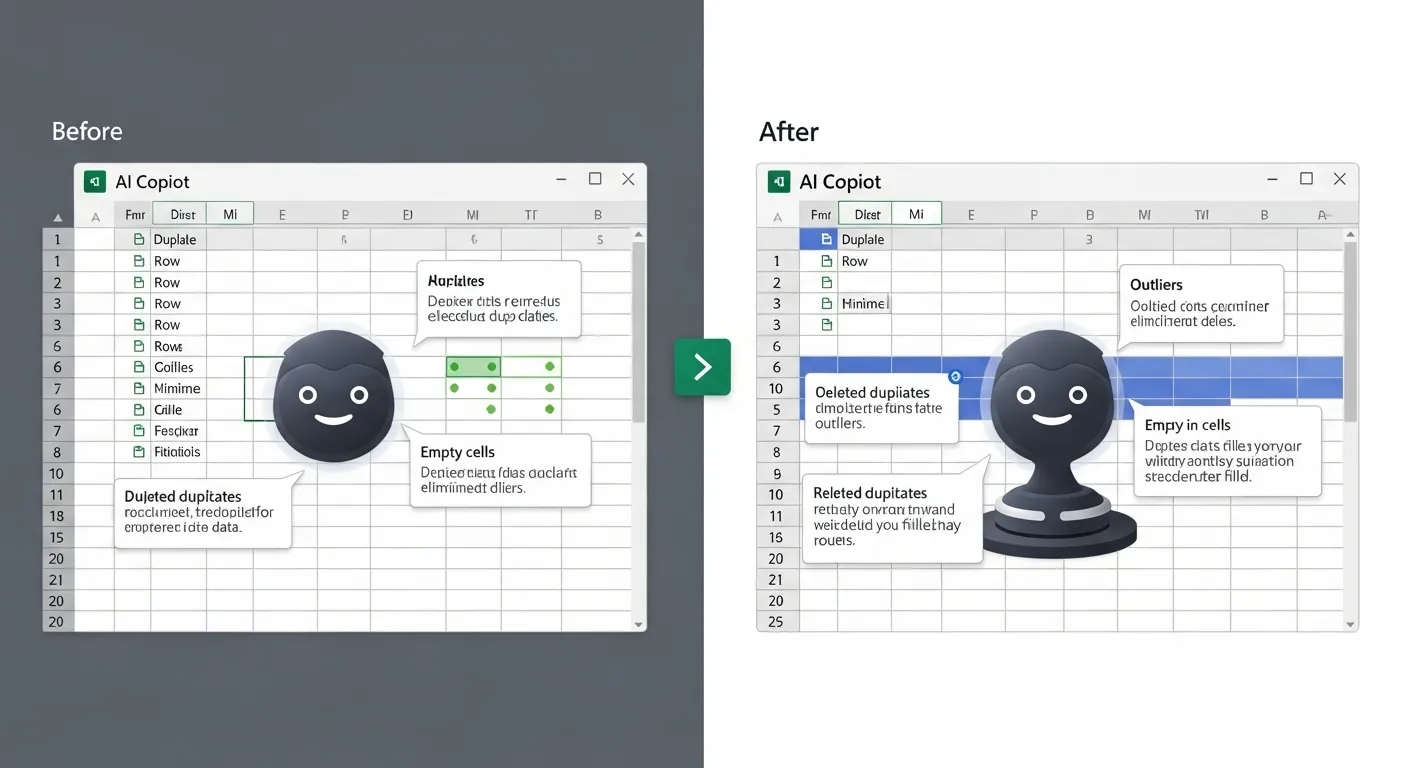
Long answer: Let’s say you normally write a VBA script to clean up 500 rows of wonky Excel data with weird date formats and empty cells. Copilot can now understand your intention and auto-suggest Power Query transformations or even write a Power Automate flow for repetitive tasks like approvals or email alerts. That’s bananas-level useful.
But if you need highly complex logic, such as a macro that loops through multiple sheets, sends conditional emails, and interfaces with legacy systems? You’ll still need to keep your scripting chops—or hire a macro wizard.
Think of Copilot as a smart intern who knows 90% of what you need but might still ask, “What’s the difference between relative and absolute references again?” when things get nerdy.
Q3: Can Copilot work offline? Like, if I’m on a flight or stuck in a mountain cabin without Wi-Fi?
Short answer: Nope. It’s like a high-end espresso machine—it needs power (aka cloud).
Real talk: Copilot runs on Microsoft’s cloud-based AI infrastructure, not locally on your device. That means if your internet drops out, Copilot takes a nap. You can still work in Word, Excel, and PowerPoint the old-fashioned way, but the AI goodness disappears until you reconnect.
So if you’re planning a disconnected work session (say, on a train or in a “focus bunker”), do your AI-heavy lifting beforehand, then tweak manually offline.
Copilot is basically a cloud brain—it lives on the internet and sends smart replies back to your app. No Wi-Fi = no brainwaves.
Q4: How do I write good prompts for Copilot? Is it like talking to a robot?
Short answer: Nope! It’s like talking to a really smart assistant. Just be clear, kind, and specific.
Prompting tips from the trenches:
-
Be clear on the goal – Instead of “make this better,” say “summarize this in 3 bullet points for execs.”
-
Use tone hints – Add “make it persuasive,” “friendly,” “formal,” or “gen-Z meme style” (yes, it tries!).
-
Add structure – Ask for “an introduction, 3 arguments, and a conclusion.”
-
Use personas – Like “explain this to a marketing manager who hates spreadsheets.”
📌 Example prompt:
“Turn this Excel sales data into a one-slide PowerPoint with insights for the CEO. Use a professional tone and highlight risks.”
Result? A crisp, snappy deck that makes you look like you worked all night.
Copilot responds best when you treat it like a junior team member—give it instructions and context, and it’ll impress you.
Q5: How is Copilot different from ChatGPT? Aren’t they both just AI tools that talk?
Short answer: ChatGPT is your all-purpose AI buddy. Copilot is your file-savvy, Office-integrated teammate.
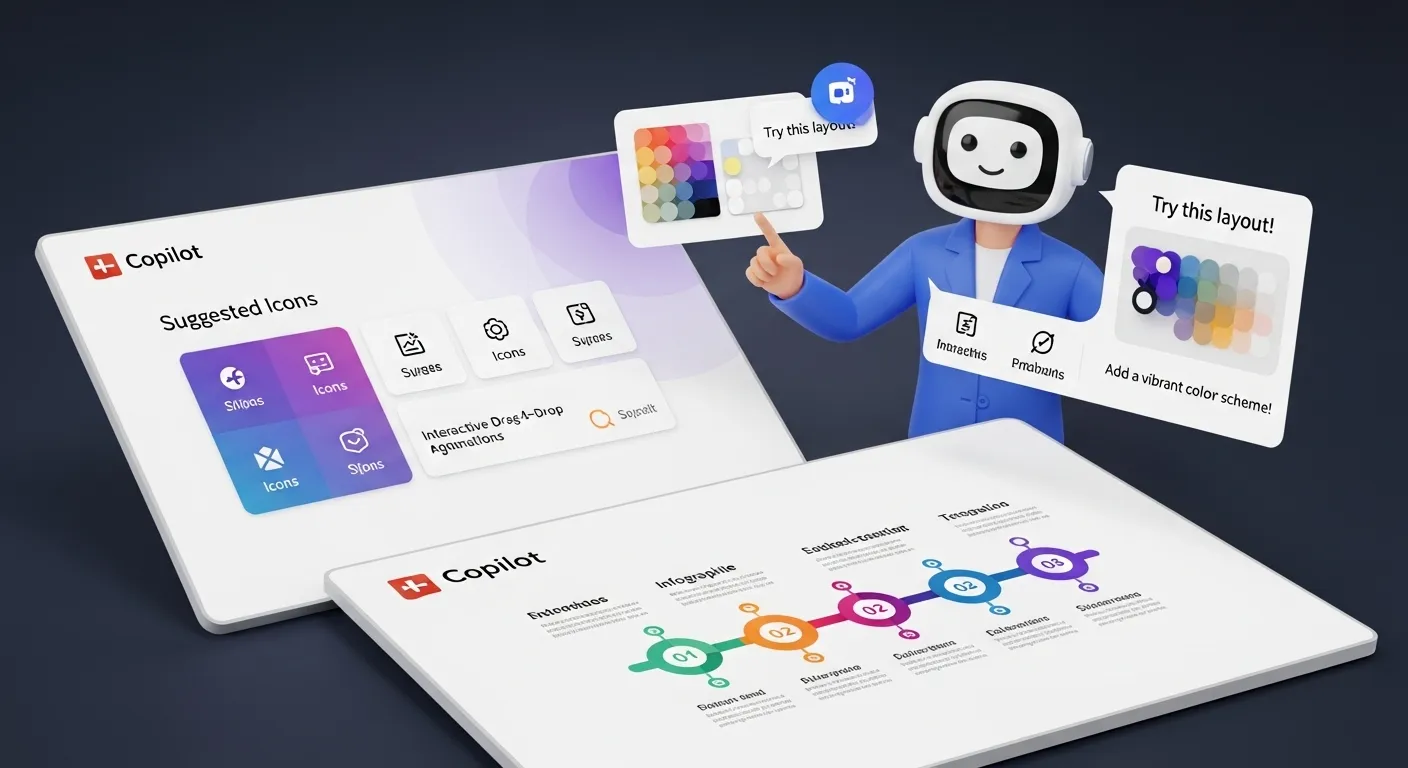
Real talk: ChatGPT is fantastic when you’re brainstorming ideas, writing essays, or coding in isolation. But Microsoft 365 Copilot is deeply embedded inside your documents. It reads your Word files, analyzes your Excel spreadsheets, and transforms your PowerPoint decks from within.
Copilot lives inside your workflow. It knows:
-
Your file names
-
Your slide layouts
-
Your spreadsheet formulas
-
Your Word styles and references
While ChatGPT is great for “explain quantum physics like I’m five,” Copilot is better at “summarize this 14-page performance report and highlight missed targets.”
Use both! But use them strategically.
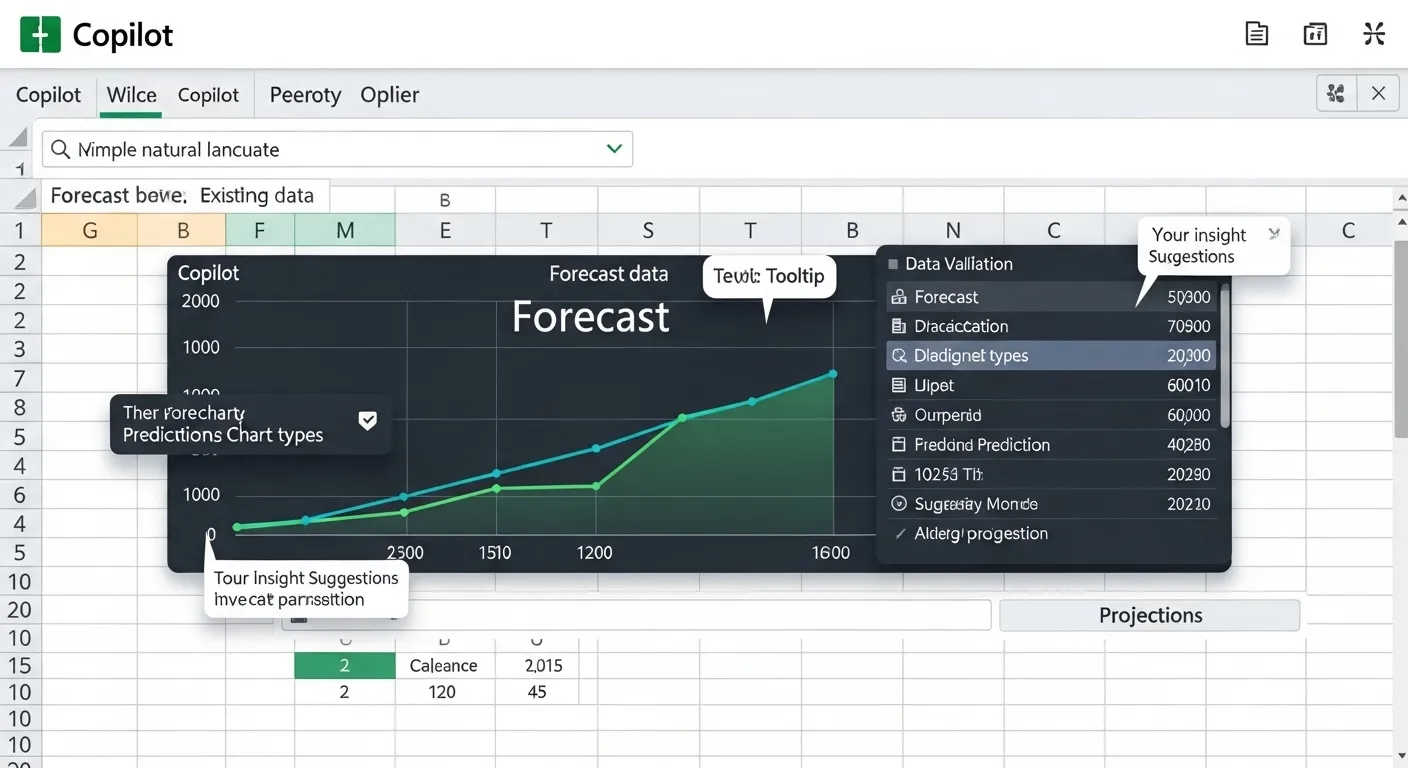
Q6: Can Copilot really help me create charts and dashboards in Excel—even if I have zero idea where to start?
Short answer: Yes, and it’s mind-blowingly good.
Story time: One user gave Copilot a messy sheet with 12 columns of marketing data and said, “Create a dashboard that shows website traffic trends, bounce rate comparisons, and ad campaign performance.”
Ten seconds later? It generated pivot tables, suggested a combo chart, applied conditional formatting, and even wrote a one-paragraph insight summary.
You don’t need to know what a waterfall chart is—you just need to ask for the story you want to tell.
Pro tip: Add clarifiers like “compare month-over-month growth,” or “show only top 5 categories.” It’ll clean up your visual noise automatically.
Q7: Can I trust Copilot with sensitive documents and internal business data? Or is Big Brother watching?
Short answer: Microsoft takes data security seriously. But you need to do your part too.
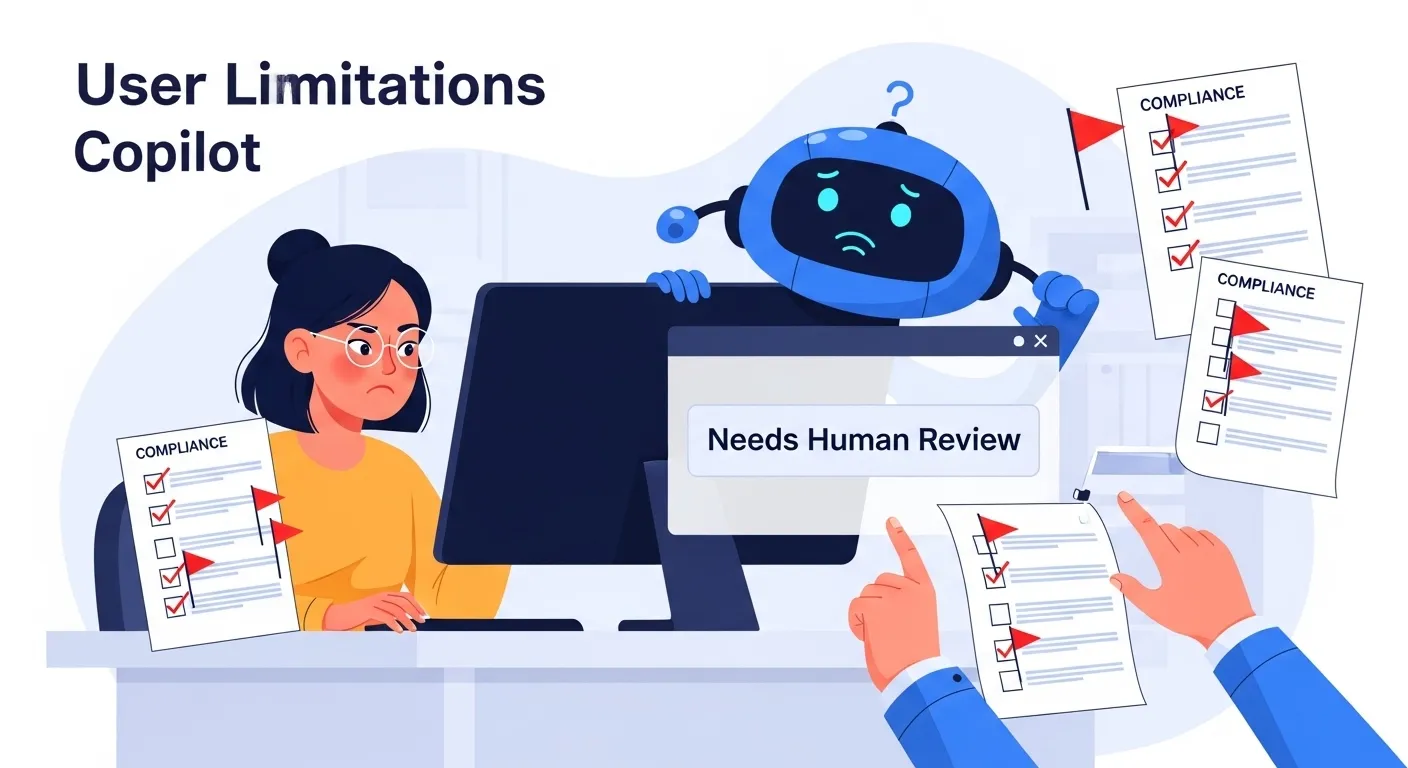
Copilot operates within your organization’s Microsoft 365 compliance framework. That means it respects:
-
Role-based access
-
SharePoint and OneDrive permissions
-
Data loss prevention policies
In short: It won’t expose your secret formula to your whole org. If you don’t have access to a document, neither does Copilot.
BUT—if you feed Copilot sensitive data and ask it to summarize, it still exists in the cloud. So:
-
Don’t paste confidential info into a shared file unless needed.
-
Avoid prompting Copilot with sensitive client names or legal content unless your security team gives the thumbs up.
-
Always double-check what Copilot outputs before sharing—no one wants a rogue summary showing up in the wrong inbox.
Copilot is safe if your admin sets it up with the right guardrails. So, yes—you can trust it. But trust it like you trust an intern with NDA clearance: supervised and accountable.
Q8: Does Copilot work on both the desktop and web versions of Microsoft 365? Or is one better than the other?
Short answer: Yes to both—but desktop still wins for power moves (for now).
Copilot runs on:
-
Word, Excel, and PowerPoint for desktop (2021 and up)
-
Word, Excel, and PowerPoint on the web (Microsoft 365)
-
Outlook (web and desktop)
-
Teams, Loop, and OneNote (in preview and rolling out)
Some advanced Excel and PowerPoint features still feel smoother on desktop—especially when dealing with macros, heavy charts, or offline work. But the web apps are catching up fast, especially for collaborative editing and real-time prompts.
If you’re hybrid or remote, the web version is magical—you can collaborate live and ask Copilot to tweak the doc mid-call. It’s like coworking with a robot editor.
Q9: Is Copilot free with my Microsoft subscription, or do I have to sell a kidney?
Short answer: It’s not free, but you won’t need to take out a second mortgage.
As of 2025, Copilot is an add-on license. For businesses, it’s priced per user per month (last seen around $30/user/month). But Microsoft is bundling it into some enterprise licenses and educational programs—so check your plan!
If you’re a small business or an individual user, you might need to:
-
Upgrade to a Microsoft 365 Business Premium plan
-
Add Copilot as a paid extra
-
Wait for broader rollout (Microsoft is expanding access regularly)
Think of it this way: If Copilot saves you 5 hours a week, that’s 20 hours a month. What’s that worth to you? For most professionals, it’s a time ROI dream.
Q10: Can Copilot help non-technical users pull off complex, technical tasks? Or do I still need to Google everything?
Short answer: Yes. It’s like having a tech-savvy buddy on speed dial.
Scenario: You want to do a VLOOKUP in Excel, but your brain says “nope.” You just tell Copilot:
Prompt:
“Match product IDs in this sheet with names in another sheet and show the matched names in column C.”
Copilot builds the formula and explains it.
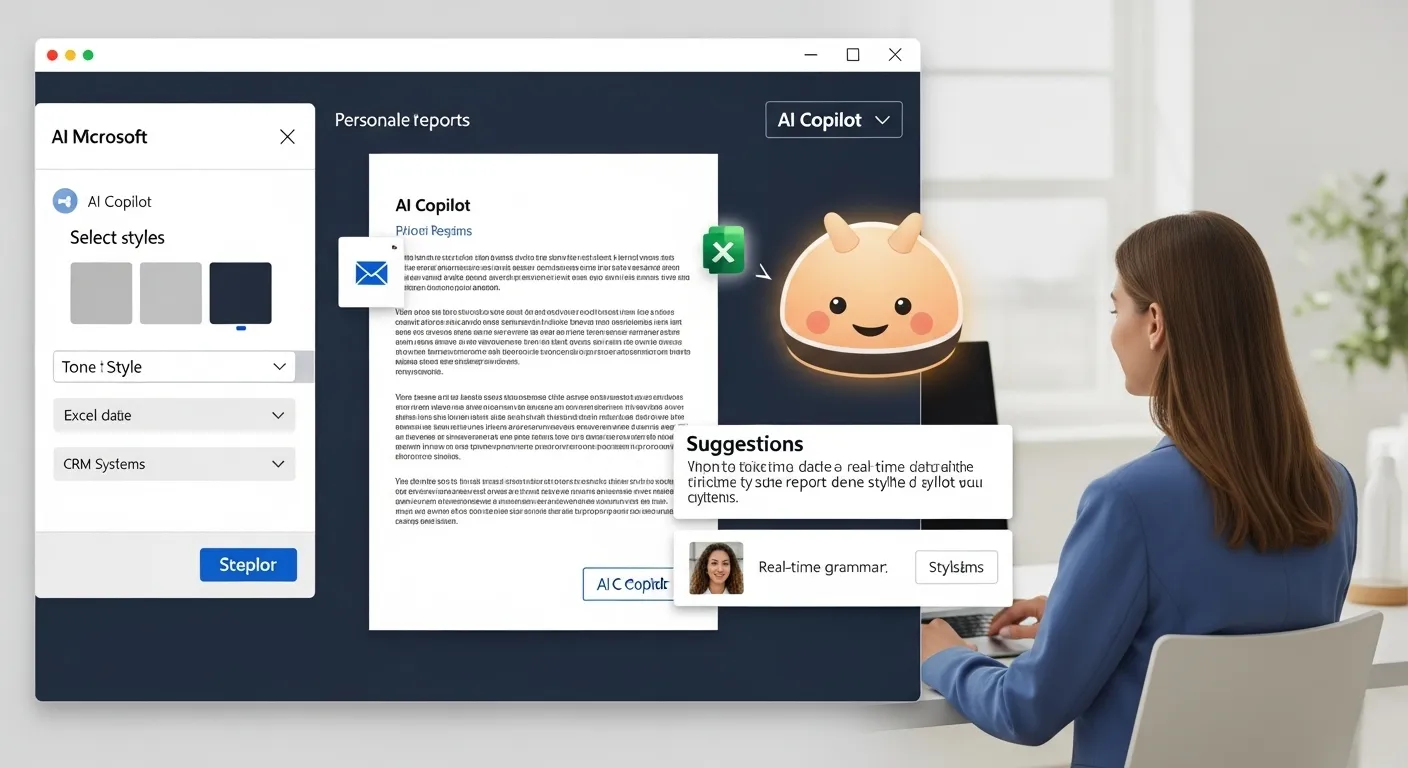
In Word, say: “Turn this paragraph into a persuasive call to action for a donation page.” Boom—it rewrites with emotional appeal and formatting.
It even helps with things like:
-
Explaining what a pivot table actually does
-
Translating complex emails into “just tell me what I need to do” summaries
-
Rewriting legalese into human English
You don’t need to be a data analyst or a copywriter. You just need to know what you want. Copilot handles the rest—with a side of flair.
Q11: Can Copilot replace my actual assistant or marketing writer or analyst?
Short answer: Not exactly—but it’s a brilliant sidekick.
Let’s be honest: Copilot is not a person. It doesn’t truly “understand” your brand, your tone, or your boss’s strange slide preferences. But it can do 70–80% of the grunt work in:
-
Drafting
-
Formatting
-
Analyzing
-
Visualizing
It’s best used as a force multiplier—you + Copilot = 3x output.
-
Writers can use it to kill writer’s block.
-
Analysts can use it to build visual dashboards quickly.
-
Admins can use it to clean data and draft reports faster.
It’s not replacing people—it’s elevating people.
Q12: What are the weirdest, coolest things people have done with Copilot?
We’ve seen users:
-
Use Word Copilot to write wedding vows (yes, really).
-
Ask Excel Copilot to simulate fantasy football league outcomes.
-
Build product launch decks with memes in PowerPoint.
-
Write 3 versions of the same document—serious, sarcastic, and Shakespearean.
Try this:
Prompt: “Write a performance review in pirate voice.”
(You may not need it, but you’ll laugh your way through quarterly reviews.)
Final Words: Copilot Isn’t Magic—But It’s Close
Copilot won’t make you coffee (yet). But it will help you work smarter, faster, and more creatively than ever before. And once you know how to talk to it, it’s like unlocking an Office superpower you never knew you had.
Keep experimenting, keep prompting, and keep asking weird questions—because that’s how you go from “using Copilot” to mastering it.
Learn beautiful Animations in powerpoint – https://www.youtube.com/playlist?list=PLqx6PmnTc2qjX0JdZb1VTemUgelA4QPB3
Learn Excel Skills – https://www.youtube.com/playlist?list=PLqx6PmnTc2qhlSadfnpS65ZUqV8nueAHU
Learn Microsoft Word Skills – https://www.youtube.com/playlist?list=PLqx6PmnTc2qib1EkGMqFtVs5aV_gayTHN