
Welcome, data wrangler! Whether you’re a small business owner, an office hero keeping everything organized, or an ambitious learner diving into the wonderful world of databases, you’re in the right place. Microsoft Access might not have the glitz of some of the newer platforms out there, but when it comes to getting the job done for small to mid-sized data tasks, it punches well above its weight.
In this friendly, in-depth guide, we’re going to walk through the basics of MS Access and take you into intermediate territory—without the techy jargon that makes you want to throw your keyboard out the window. By the end, you’ll feel confident designing relational tables, creating powerful queries, crafting sleek forms, building insightful reports, and even dipping your toes into automation with VBA. Ready? Let’s go!
1. What is Microsoft Access and Why Should You Care?
Microsoft Access is a relational database management system (RDBMS) that combines the power of a database with the simplicity of a graphical user interface. Think of it as Excel’s more powerful cousin—one that knows how to handle relationships, enforce rules, and help you scale as your data grows.
Why should you care?
- You can manage a lot more data than Excel can comfortably handle.
- It’s great for repetitive tasks: input once, query or report many times.
- It integrates beautifully with other Microsoft products.
- Perfect for small business inventory, customer tracking, and operational management.
Example: If you run a bakery, you can use Access to track customers, orders, ingredients, suppliers, and delivery routes—all in one place. You can even set alerts for inventory levels or see which items are your top sellers.
2. Designing Relational Tables: The Backbone of Your Database
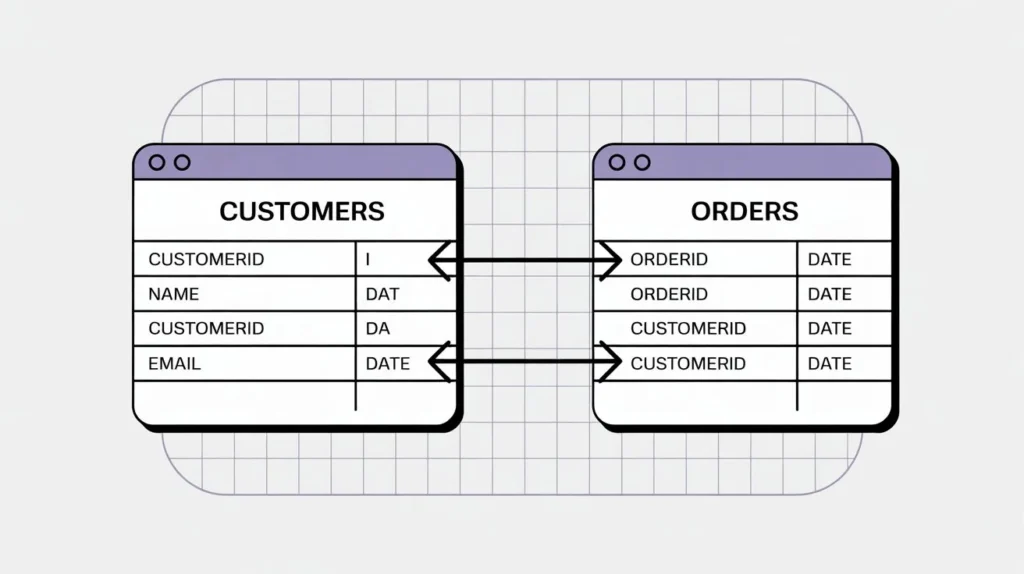
This is where it all starts. In Access, data is stored in tables, and relational databases are all about how those tables relate to one another. Designing well-structured tables is critical to making your database powerful and flexible.
Tips for designing great tables:
- Use meaningful table names (e.g., “Customers,” not “Table1”)
- Avoid repeating data across tables (redundancy = future headache)
- Each table should represent one entity (e.g., one for products, another for orders)
- Add description fields to explain the purpose of each column if others will use the database
Key concept:
- Use Primary Keys to uniquely identify each record
- Use Foreign Keys to link one table to another
- Enforce Referential Integrity to prevent orphan records (e.g., an order without a customer)
Practical Example: A “Customers” table might have a CustomerID as the primary key. The “Orders” table would then include CustomerID as a foreign key to link orders to customers. This setup ensures you can run reports showing all orders for a particular customer and maintain data consistency.
3. Creating Queries: Your Data, On Demand

Queries are how you ask your database questions and get answers in seconds. They allow you to filter, sort, calculate, and analyze data with ease. Access gives you two ways to build queries: visually or by writing SQL.
Visual Query Example: Want to see all orders from last month? Drag your “Orders” table into a query, add criteria for the order date, and boom—done! You can even add multiple tables and join them on related fields.
Basic SQL Example:
SELECT FirstName, LastName FROM Customers WHERE City = 'Dallas';Advanced Query Tip: Use calculated fields, such as:
SELECT ProductName, Quantity, Price, Quantity * Price AS TotalCost FROM Orders;Takeaway: Queries are your best friend for filtering, calculating, and combining data. Learn both visual and SQL approaches for maximum flexibility. Don’t be afraid to experiment—you can always go back and tweak.
4. Building Data Entry Forms: Making Input Easy (and Error-Free)
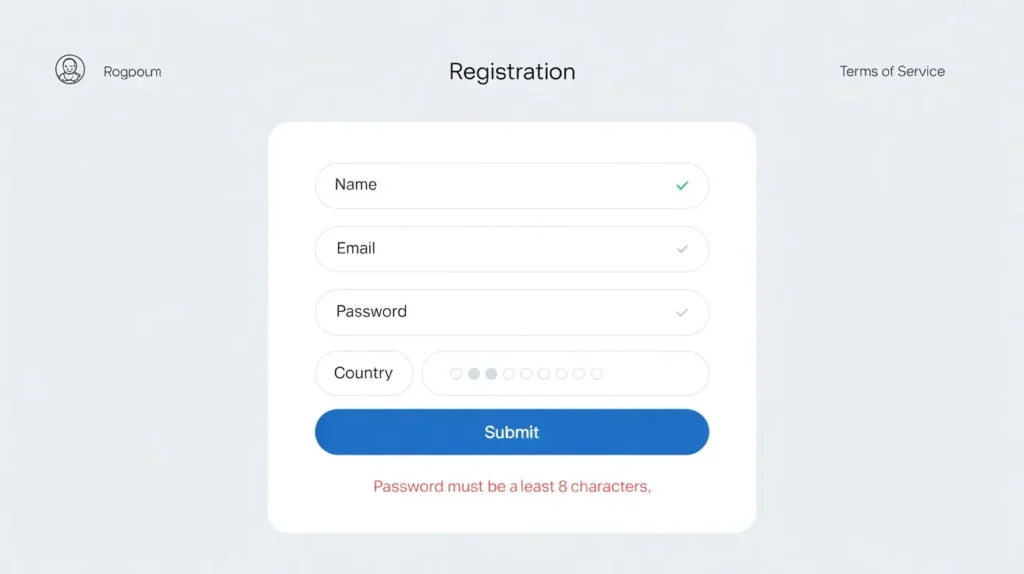
Let’s be honest: data entry isn’t glamorous, but it is critical. Forms make it easy and reduce mistakes. They also make your database more user-friendly for non-tech-savvy colleagues.
Why use forms?
- Easier for non-tech users to input data
- Lets you control what fields people see and how they input data
- Reduces risk of messing up raw tables
- Lets you add instructions, formatting, and validation
Form Features to Explore:
- Combo boxes (dropdowns) to restrict choices
- Default values and input masks
- Subforms to show related records (e.g., customer + their orders)
- Navigation buttons for smoother user experience
Pro Tip: Use combo boxes for fields like state, product name, or category to avoid typos and mismatches. Also, hide system fields like IDs from users who don’t need them.
5. Generating Reports: Turning Data Into Decisions
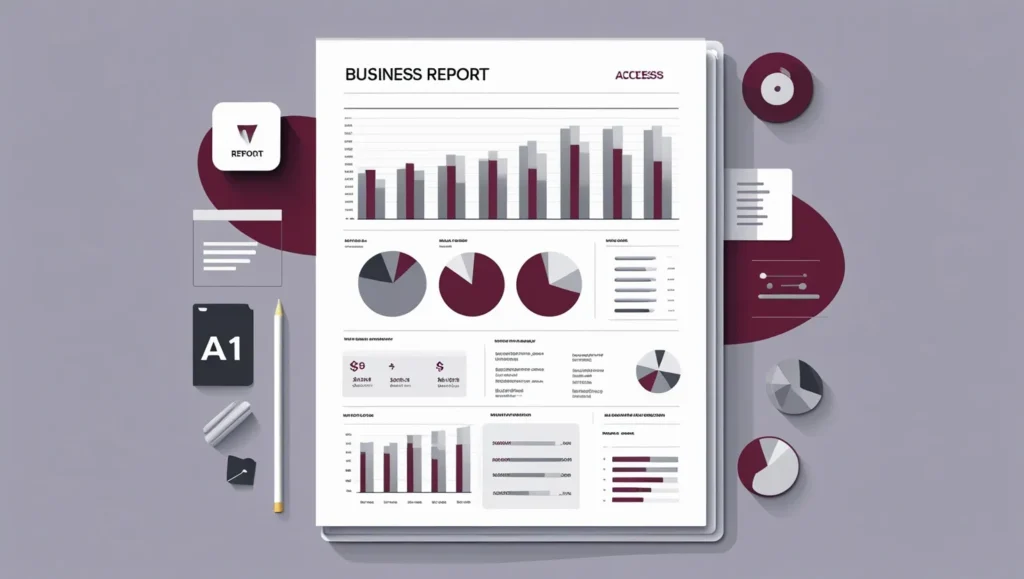
Reports are your way of saying, “Look, here’s what the data is telling us.” They allow you to summarize, present, and print your data in a professional-looking format.
Great for:
- Sales summaries
- Inventory status
- Customer histories
- Employee performance tracking
- Financial summaries
Quick Win: Use the Report Wizard to instantly generate a printable report from a table or query. Then, customize it with branding, charts, conditional formatting, or grouping options.
Example: A report showing total monthly sales by region with a pie chart at the top, followed by a detailed table showing product breakdowns, order counts, and subtotals.
Advanced Tip: Use expressions to calculate running totals or percentages inside reports, and create dashboard-style reports using subreports.
6. Importing and Exporting Data with Excel and SharePoint
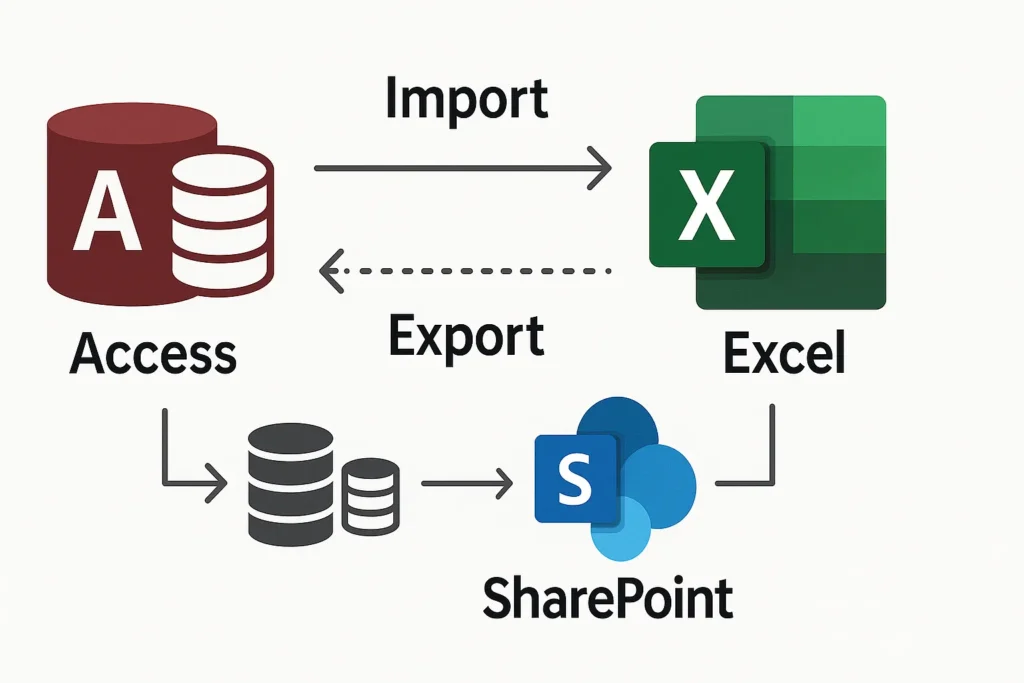
No Access database is an island. Often, you’ll need to get data in or out to collaborate with others or update external systems.
Import from Excel:
- Use the External Data tab
- Follow the wizard to bring in your spreadsheet as a new table or append to an existing one
- Review field types and primary keys during import to avoid issues later
Export to Excel or SharePoint:
- Perfect for sharing with stakeholders or creating dashboards in Excel or Power BI
- Use “Export” options under External Data tab
- Schedule exports using VBA or Task Scheduler for recurring updates
Tip: If using SharePoint, you can link lists directly to Access for real-time data sync. Changes in SharePoint reflect in Access and vice versa.
Bonus Tip: Use Linked Tables to keep your Access database updated with external data sources like SQL Server, SharePoint, or another Access database.
7. Data Normalization: Keeping It Clean and Organized
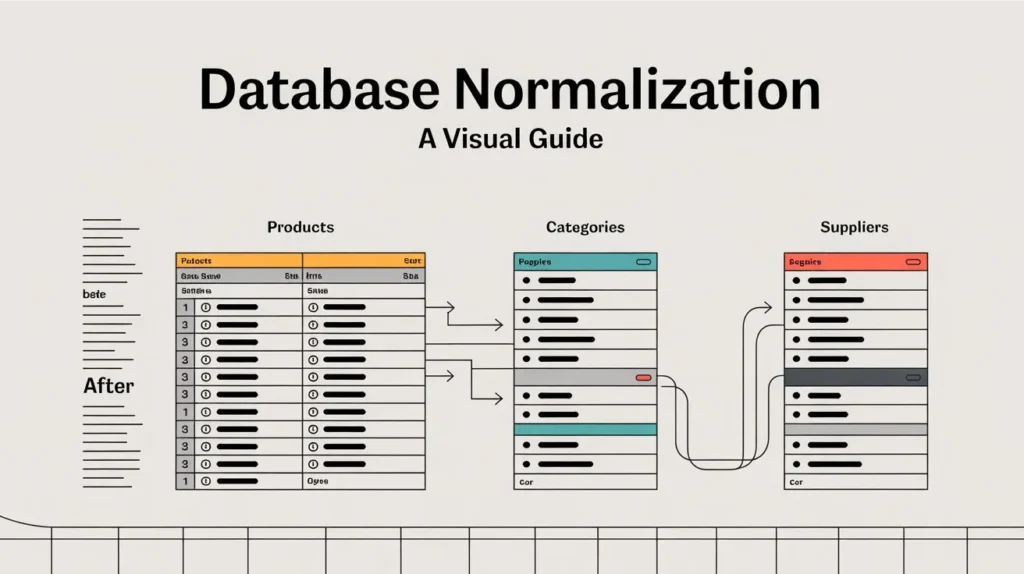
This is the part that sounds scary but isn’t. Normalization is just the process of organizing your data to reduce redundancy and improve integrity. It’s a must-know for any intermediate Access user.
Basic principles (for intermediate users):
- 1NF (First Normal Form): Each field contains only one piece of data (e.g., split “John Smith” into FirstName and LastName)
- 2NF (Second Normal Form): Eliminate partial dependencies (data that depends only on part of the primary key)
- 3NF (Third Normal Form): Remove transitive dependencies (non-key fields shouldn’t depend on other non-key fields)
Example: Instead of storing a supplier’s address on every product, create a “Suppliers” table and link it with a foreign key. That way, when the supplier moves, you only need to update one record.
Normalization Bonus: Use lookup tables for things like categories, departments, or payment methods. This keeps your main tables tidy and ensures consistency across records.
8. Introduction to VBA in Access: Making Your Database Smarter
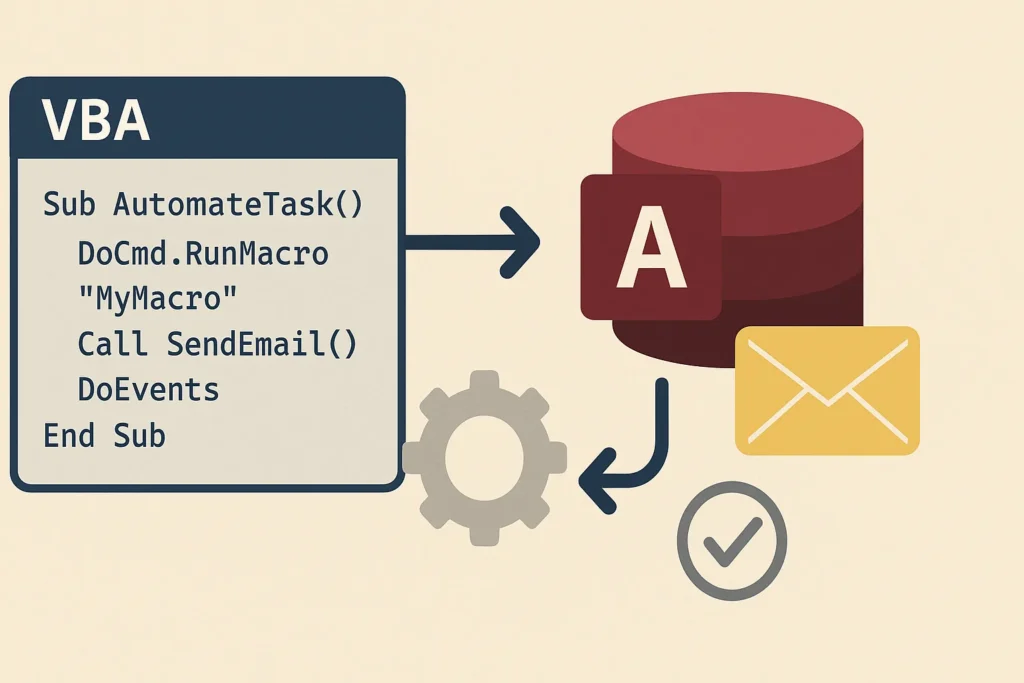
If you find yourself doing the same thing over and over, VBA (Visual Basic for Applications) is your new best friend. It lets you add smart behavior and automation to your database.
What can VBA do?
- Automate tasks (like emailing a report or generating backups)
- Validate data entry (e.g., prevent saving a record with missing required info)
- Customize how forms behave (e.g., auto-fill fields, pop-up messages)
- Build custom buttons that trigger actions or macros
Simple Example: Auto-fill today’s date in a field when a new record is added:
Private Sub Form_Load()
    Me.txtDate.Value = Date
End Sub
Intermediate VBA Example: Send an email when an order total exceeds $1,000:
If Me.Total > 1000 Then
    MsgBox "High-value order! Consider priority processing."
End If
Takeaway: Start small. Use macros first, then graduate to VBA when you need more flexibility. There are tons of templates and examples online to help you get started.
Wrapping Up: Your Next Steps in Access Mastery
You made it! We’ve covered:
- Why Access is still valuable
- How to design relational tables
- The magic of queries
- The power of forms and reports
- Import/export essentials
- Normalization 101
- Intro to VBA
Microsoft Access might not be trendy, but it’s a powerhouse when used right. Especially for managing small business data, it offers just the right blend of flexibility and structure. It helps you build practical, powerful solutions without needing to become a full-time developer.
Ready to take the next step? Try building a simple customer/order database using what you learned here. Set up a few forms, run a query, and export a report to Excel. Challenge yourself to use a subform or try writing a basic SQL statement.
Have any questions, tips, or “aha!” moments? Drop them in the comments below or share this post with a fellow data-wrangler. Let’s make data make sense—together! And hey, if you’ve built something cool in Access, we’d love to hear about it!