Introduction: Is Microsoft Access the Fax Machine of Databases—or Is There More to the Story in 2025?
Let’s address the elephant in the server room: Is Microsoft Access still a thing in 2025—or is it the fax machine of databases, quietly collecting dust in the corner of your Start Menu? If you’ve ever inherited an Access file titled FINAL_final_version_v7.accdb, then congratulations—you’ve seen the beast in action.
Table of Contents
ToggleMicrosoft Access has been around since the floppy disk era (yes, that long) and has powered countless small business workflows, employee tracking tools, and budget apps. It’s been your trusty sidekick for building simple relational databases without needing a PhD in SQL or a thousand-dollar dev team.
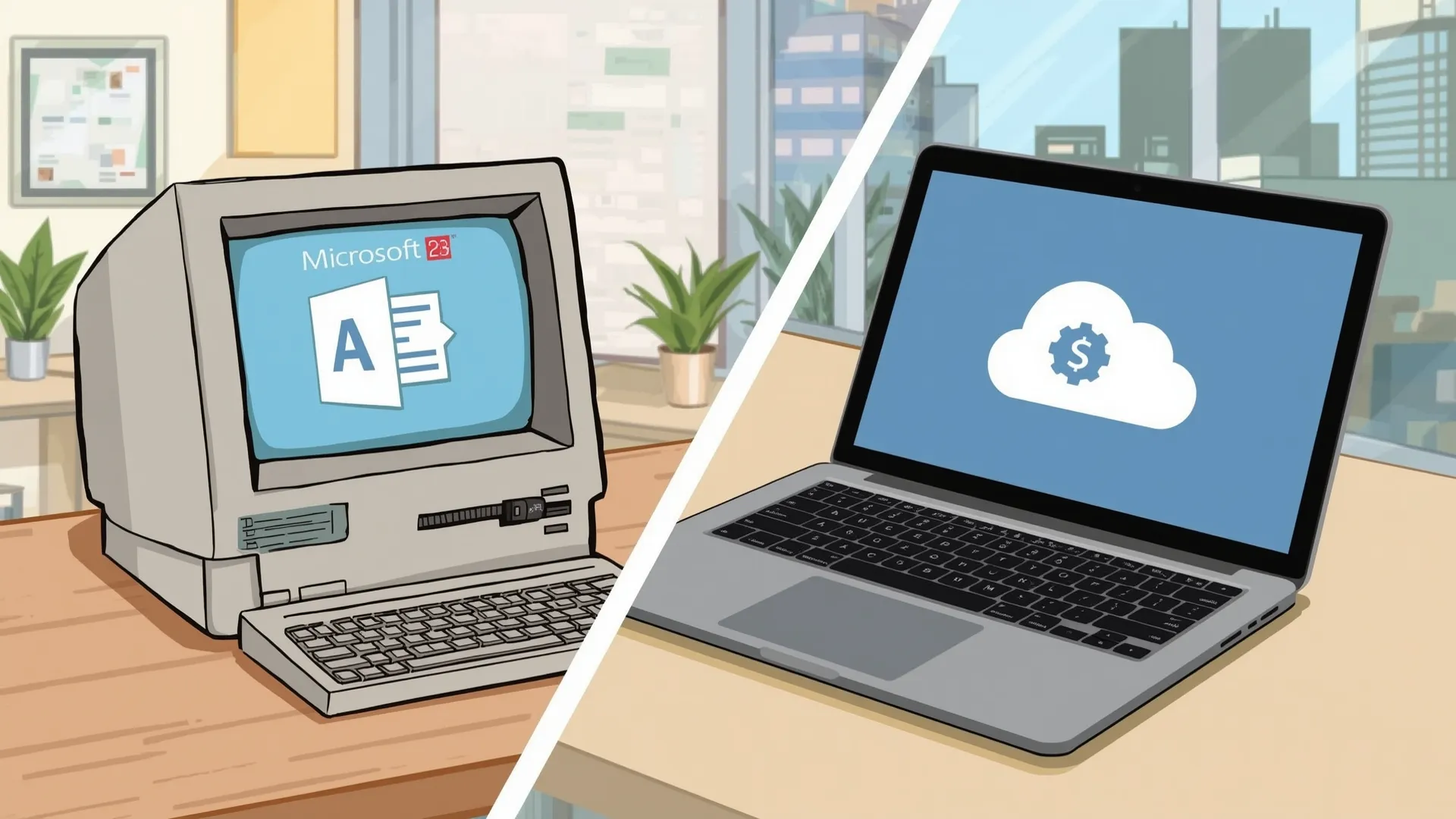
But here’s the catch: we now live in the cloud era. Your team is remote, your data is everywhere, and your clients want dashboards that look like they were made this decade. Enter the shiny new world of cloud-based database tools—like Airtable, Power Apps, Notion, SharePoint Lists, and Google Tables. They promise real-time collaboration, sleek UI, and access from any device (even your smartwatch, if you’re feeling fancy).
So where does that leave good ol’ Access?
That’s the million-row question.
This matters, especially if you’re a small business owner, IT manager, data analyst, or even a Microsoft 365 power user who just wants to know: Should I keep using Access? Upgrade it? Migrate away? Or throw my laptop into the sea and start a goat farm?
You’re in the right place. Let’s cut through the nostalgia and the tech jargon to figure out what Access can (and can’t) do for you in 2025.
Section 1: A Quick History of Microsoft Access
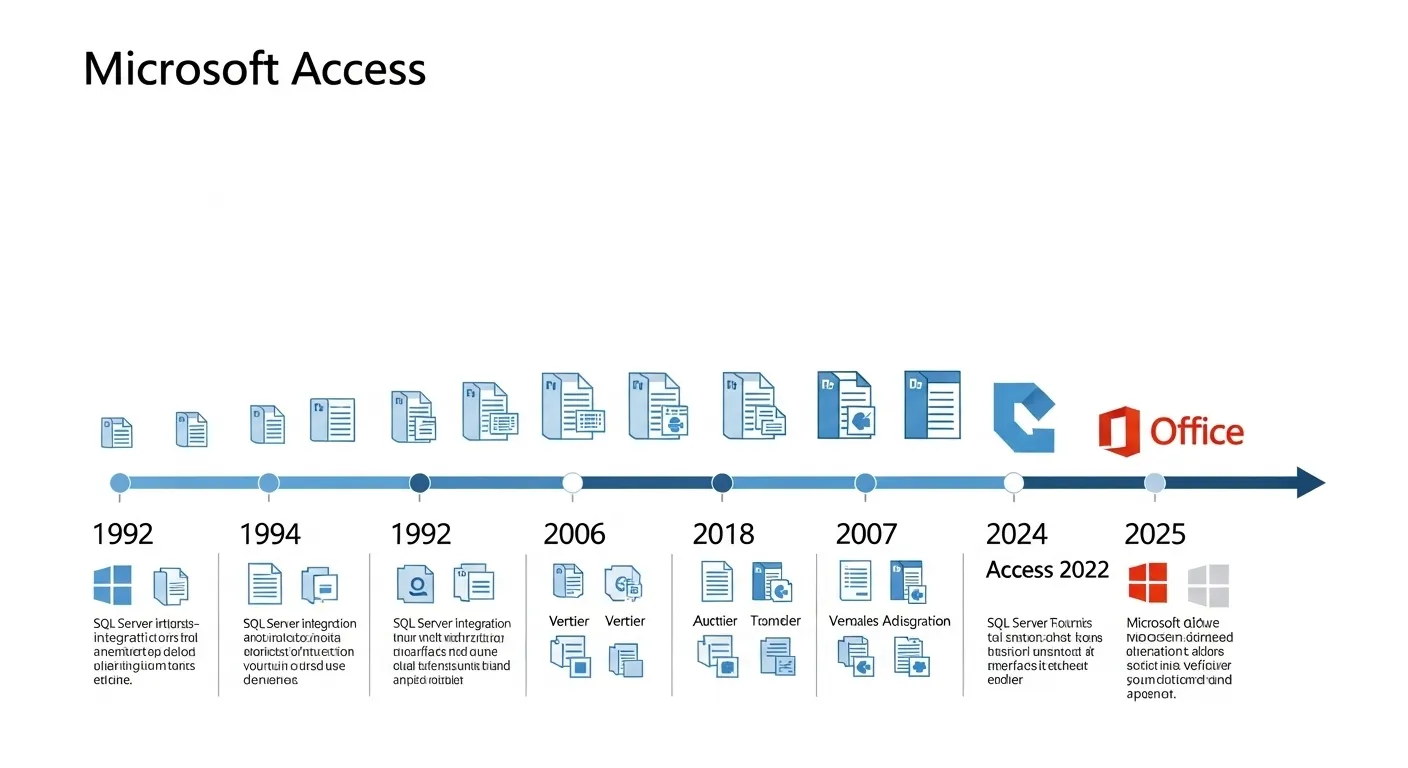
Once upon a time, in a pre-cloud era far, far away (the 1990s), Microsoft Access was revolutionary. Back then, your options were clunky enterprise databases like Oracle or writing everything by hand in Excel (don’t lie—we’ve all done it). Access arrived as the simple-yet-powerful tool for building databases with forms, tables, reports, and queries, all without needing to learn advanced programming.
By the early 2000s, Access was the go-to for small business data management. Inventory systems? Access. Client records? Access. A complicated formula built by a guy who left the company 8 years ago? Definitely Access.
Its biggest strength? Tight integration with Microsoft Office. You could link your Excel sheets, embed Access reports into Word, and even email outputs via Outlook. For a while, it was like the Swiss Army knife of Office productivity.
But then… the web happened.
And the mobile revolution.
And suddenly, people wanted to work on their phones, collaborate in real time, and never see a .mdb file again. Access, designed primarily for desktop use, didn’t evolve fast enough.
Its lack of mobile and browser support made it feel clunky compared to newer tools. Plus, let’s be honest, explaining VBA macros to a modern team is like teaching someone Morse code at a 5G conference.
Still, even as shinier tools emerged, Access quietly chugged along—used by niche industries, internal teams, and legacy systems that just wouldn’t die. Microsoft never pulled the plug, and in fact, Access kept getting subtle improvements.
So, no—it’s not dead. But it’s not exactly trendy, either.
Think of it as the vinyl record of databases: not mainstream, but still beloved by loyal fans who swear it sounds better than streaming.
Section 2: The Cloud Has Changed Everything
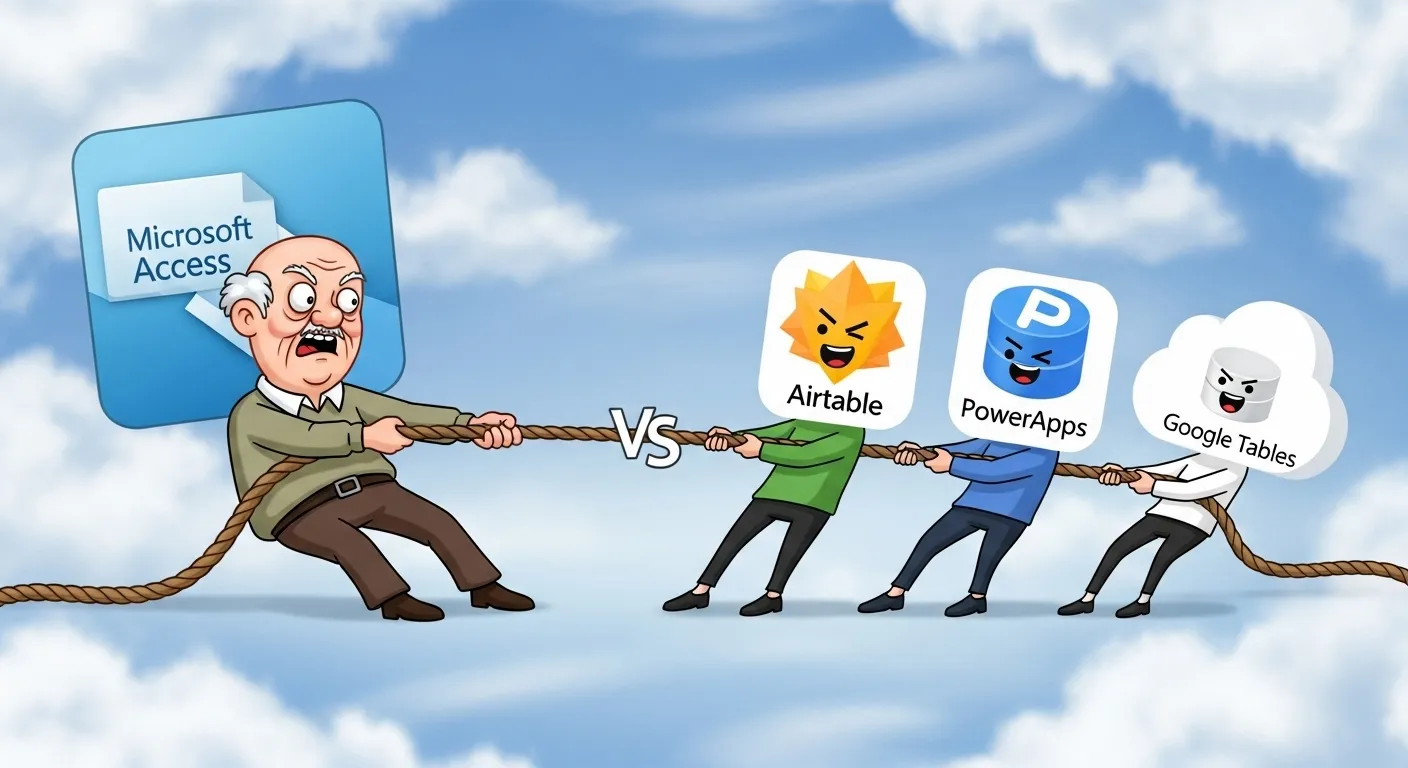
Welcome to the Cloud Era—where your files float above your head, your apps update while you sleep, and your team works from three different time zones and two coffee shops. Microsoft Access, unfortunately, wasn’t born for this world.
Let’s start with the obvious: cloud-native tools dominate 2025. Whether it’s SharePoint Lists, Dataverse, Power Apps, Airtable, Notion, or even Google Tables, modern platforms promise features that Access never quite nailed:
-
Real-time collaboration (yes, even with that one teammate who never hits “Save”)
-
Built-in version control
-
Device-agnostic access (desktop, browser, tablet, toaster—you name it)
-
No installs, no
.accdbnightmares
By contrast, Access still feels… grounded. Literally. Most of its power comes from being a local desktop database. Try using it on your phone and you’ll find out how quickly nostalgia can turn into frustration.
To be fair, Microsoft did try to cloudify Access. You can store Access files on OneDrive or SharePoint, and even link them to cloud databases. But you’ll still face sync issues, file locking, and performance hiccups.
Meanwhile, tools like Power Apps + Dataverse are built for the cloud from day one. Airtable offers drag-and-drop magic with collaboration that’s as smooth as your espresso shot. SharePoint Lists and Excel Online now do things that Access used to claim as its territory.
And let’s not forget the rise of low-code/no-code platforms that let you build full-blown apps without writing a single line of SQL or VBA.
In short, the bar has been raised, and Access struggles to clear it in its original form.
But that doesn’t mean it’s time to throw it out the window (yet). There are still some things only Access can do—especially for certain workflows. So before you pack its bags, let’s see where it still shines.
Section 3: What Access Still Does Really Well in 2025

Sure, Access may not run in the cloud like its hip new cousins—but on the desktop, it’s still a beast.
Here’s where Access pulls out its seasoned, no-nonsense database magic:
1. Blazing Fast Local Performance
Need to crunch through 100,000 records on a laptop from 2016? Access does it faster than most cloud tools can load your login screen. Local performance is its superpower.
2. Complex Queries Without Complex Code
Access lets you build multi-table queries, nested logic, and even joins using its Query Design grid. Don’t know SQL? No problem. The interface does most of the heavy lifting.
3. Professional-Grade Forms and Reports
With Access, you can build custom forms, menus, reports, and dashboards—complete with dropdowns, formatting, and button-based navigation. Most modern tools still can’t match its desktop UI polish for internal apps.
4. Deep Integration with VBA
Love automation? VBA in Access lets you build logic that’s way beyond drag-and-drop. From error handling to automated reporting to custom functions, Access can go full Frankenstein if you want it to.
5. Great for Standalone, Offline Workflows
In industries with low or no internet connectivity, Access remains a savior. Think air-gapped labs, government installations, or field data collection in remote areas.
Bonus: It’s Cheap (or Already Paid For)
Access is included with many Microsoft 365 subscriptions or available as a one-time license. For teams already in the Office ecosystem, there’s zero onboarding friction.
So no, Access isn’t just “still here” out of habit—it’s here because for certain use cases, it’s still the best tool for the job.
Section 4: Where Access Falls Short Today
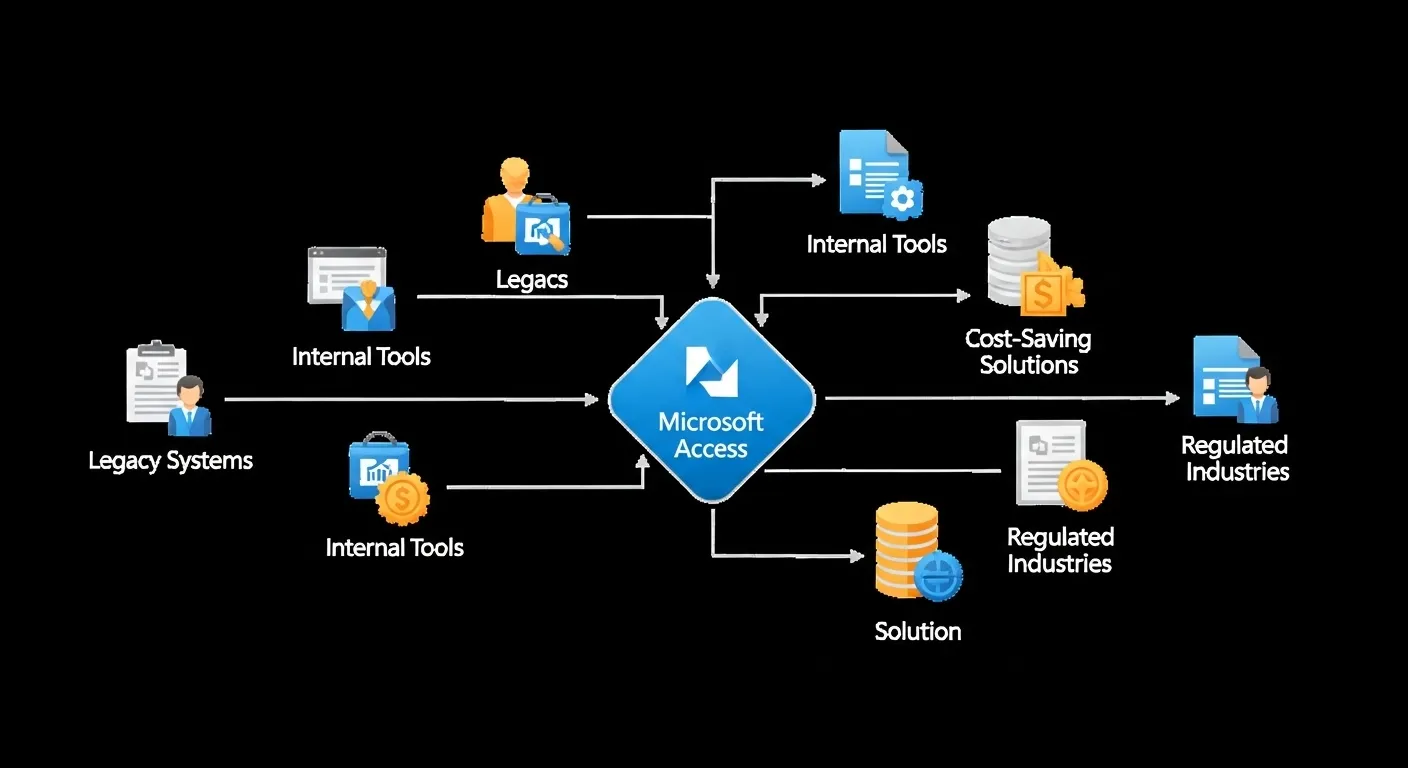
Okay, time for some tough love. Even the biggest Access fans (and yes, there are forums full of them) will admit: Access has limitations that are hard to ignore in 2025.
Let’s rip off the Band-Aid:
1. Not Built for Modern Collaboration
Access was designed in an age when people shared files via floppy disk. These days, collaborating on an .accdb file feels like a tech-induced trust fall—you never know when someone else might open it and lock you out. And simultaneous editing? Forget it. Your team will be waiting in line like it’s a club with one bouncer.
2. Poor Mobile and Browser Support
Need to check a report or update a record from your phone? Good luck. Access doesn’t play well with mobile devices, and the browser-based experience is either limited or non-existent. In 2025, that’s a dealbreaker for remote teams or hybrid workforces.
3. Cloud Integration Is Clunky
Yes, you can store Access files on OneDrive or SharePoint, but the sync is fragile. Network interruptions, version conflicts, and file corruption are all too common. And forget running heavy queries across a weak Wi-Fi signal—it’s like trying to stream Netflix on dial-up.
4. Scalability? Not Its Thing
Access works great with tens of thousands of records. Push it past a million rows, and things start to get sweaty. You’ll experience performance lags, query delays, and maybe a mild existential crisis. For large-scale operations, you’re better off with SQL Server, Dataverse, or even a modern cloud DB.
5. Security and Compliance Woes
Access files can be password protected, but they’re nowhere near enterprise-grade secure. Encryption, audit logs, role-based access—these features are either missing or require a hacky workaround. In regulated industries (healthcare, finance, legal), that’s a red flag.
6. Developer Lock-In with VBA
If you build complex workflows with VBA, congratulations—you now have a system that only Steve from IT knows how to fix. When Steve leaves or retires to open a taco truck, your entire workflow is toast.
TL;DR
Access is like a very smart but very stubborn roommate. It works amazingly well—if you stay within its boundaries. But try to take it on a cross-country road trip (or into the cloud), and it’s gonna break down somewhere in Nebraska.
Section 5: Should You Migrate to Power Apps, Dataverse, or SharePoint Lists?
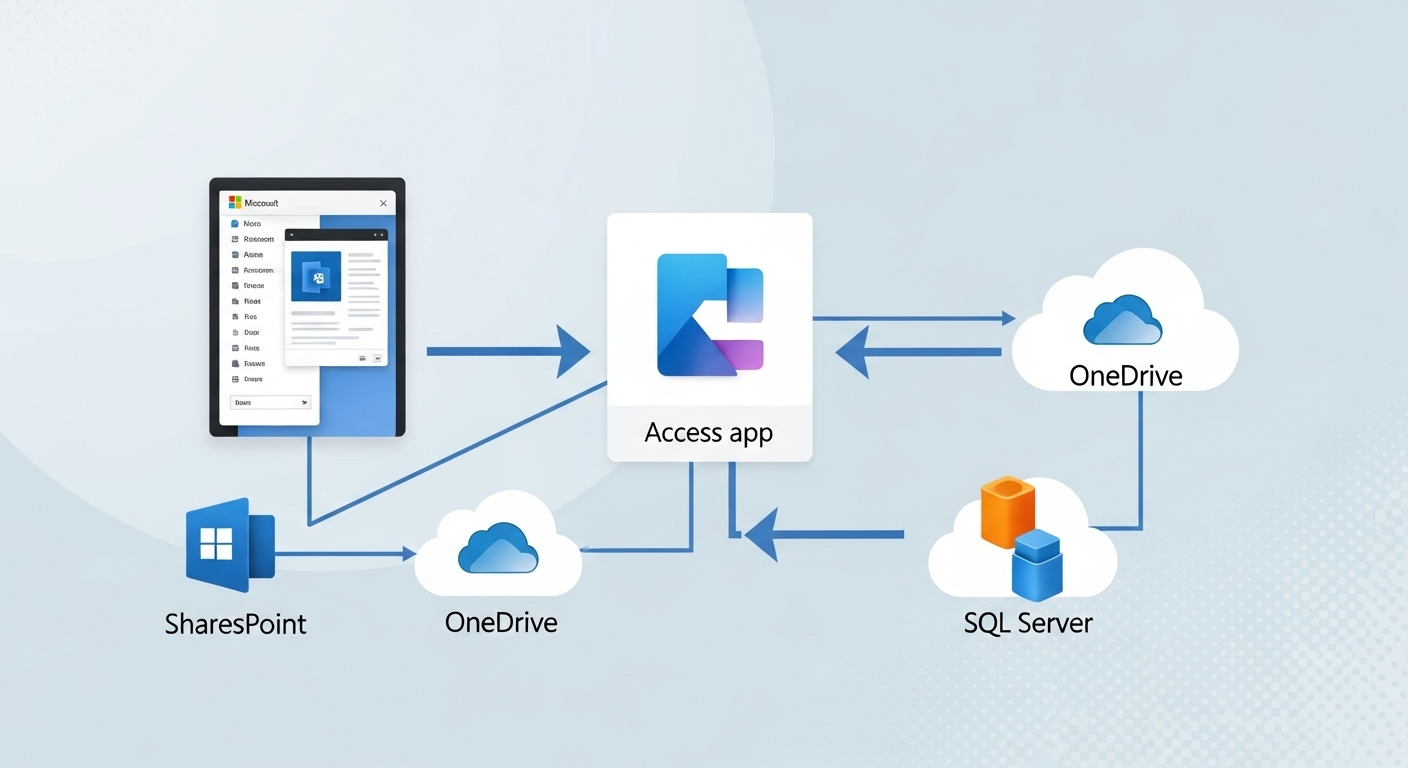
If you’ve hit the ceiling with Access, the good news is—Microsoft already built your upgrade path.
Here’s a breakdown of three key Microsoft 365 alternatives that play nice with modern workflows and don’t require abandoning your data in the desert.
1. Power Apps + Dataverse
Power Apps is Microsoft’s low-code app builder, and Dataverse is the scalable backend it rides on. Together, they let you create web and mobile apps without needing to be a dev.
-
Create mobile-ready forms, dashboards, and workflows.
-
Easily connect to Teams, Outlook, Excel, SharePoint, and more.
-
Dataverse handles relationships between tables just like Access (but better).
-
Role-based security and cloud storage are built-in.
🧠 Pro tip: There’s a tool to migrate Access tables directly to Dataverse, so your upgrade path is smoother than a fresh Excel chart.
2. SharePoint Lists
For simpler use cases—think contact lists, inventories, or checklists—SharePoint Lists might be all you need.
-
Easy to use, browser-based, and mobile-friendly.
-
Integrates with Power Automate, Power Apps, and Teams.
-
You can apply filters, views, and even custom rules without writing code.
It’s like Excel and Access had a baby… and it grew up in the cloud.
3. Excel Online + Power Query + Power BI
Okay, this combo isn’t a 1:1 replacement, but for data analysis and visualization, Excel Online + Power Query + Power BI is a killer team.
-
Clean and transform data with Power Query.
-
Analyze and build dashboards in Power BI.
-
Share and collaborate in real time from anywhere.
👀 Still want forms and app-like behavior? Add Power Apps into the mix and you’re golden.
Migration Considerations:
-
Data structure: How complex are your tables and relationships?
-
User needs: Do people just need to view data, or input and automate as well?
-
Budget: Power Platform tools are powerful, but some require premium licenses.
-
IT resources: Got someone to help with setup, or is it a solo adventure?
⚖️ Section 6: MS Access vs The Modern Stack
So here we are. The ultimate showdown.
Microsoft Access 2025 vs… the shiny new kids on the block.
Spoiler alert: this isn’t a WWE-style fight to the death. It’s more like speed dating—with spreadsheets, apps, and databases all trying to win your love (and your data).
Let’s break it down like a wise matchmaker.
👑 MS Access vs Power Apps + Dataverse
| Feature | Access | Power Apps + Dataverse |
|---|---|---|
| UI Building | Forms & reports (desktop only) | Web + mobile-friendly app builder |
| Data Storage | Local .accdb or split backend | Scalable cloud-native Dataverse |
| Multi-user Support | Tricky; locking issues | Built for collaboration |
| Security | Basic (password, limited roles) | Role-based, Azure AD integration |
| Custom Logic | VBA | Power Fx, connectors, AI builder |
| Learning Curve | Steep (VBA, relationships) | Steeper—but modern & growing |
💬 Verdict: If you want to build internal business apps with mobile access and future-proofing, Power Apps is your cloud-first pal. But for offline, logic-heavy systems? Access still wins.
📊 MS Access vs Excel + SharePoint Lists
| Feature | Access | Excel + SharePoint Lists |
|---|---|---|
| Data Handling | Relational DB, multiple tables | Flat lists or tabular data |
| Forms | Fully customizable forms | Basic forms (Power Apps adds more) |
| Automation | VBA, Macros | Power Automate flows |
| Collaboration | Difficult in real-time | Excellent—cloud-native |
| Security | Local file = vulnerable | SharePoint-level permissions |
💬 Verdict: For real-time collaboration and basic data entry, Excel + Lists + Power Automate is like a Swiss army knife. But don’t try to build a mini-ERP system with it—it’s not Access.
✨ MS Access vs Airtable / Notion / Google Tables
Let’s talk trendy. Airtable, Notion, and Google Tables are your “aesthetic” cloud tools—slick, simple, and mostly no-code.
| Feature | Access | Airtable / Notion / Tables |
|---|---|---|
| UI | Functional (some say “ugly”) | Sleek and modern |
| Web Access | Weak | Excellent |
| Forms | Advanced, customizable | Simple but elegant |
| Automations | VBA, Macros | Built-in (but basic) |
| Extensibility | Strong with VBA | Limited for complex logic |
💬 Verdict: For startups, creatives, or agile teams that want to move fast and don’t need complex logic, these tools are gold. But if you need serious data relationships, deep logic, or local speed, Access isn’t going down without a fight.
🤔 So, Which Tool Should You Use?
Here’s a handy cheat chart:
| You need… | Use this |
|---|---|
| Offline performance, custom logic, legacy support | Access |
| Scalable cloud apps, secure access, mobile UI | Power Apps + Dataverse |
| Simple collaboration and lists in Teams | SharePoint Lists + Excel |
| Something modern, pretty, and fast to learn | Airtable / Notion |
| Advanced data reporting, dashboards | Power BI with SQL backend |
Moral of the story: Access isn’t obsolete. It’s just not the only option anymore.
It’s the dad of database tools—still useful, a little grumpy, but surprisingly wise if you give it the right job.
📈 Section 7: Microsoft’s Current Strategy with Access
If you thought Microsoft quietly buried Access in the basement of Redmond HQ and forgot about it… not quite.
The truth? Microsoft is still showing Access some love—just not flashy TikTok-level love.
So what’s the plan?
Access is now positioned as a legacy tool with modern extensions. Microsoft knows millions of organizations still use it, especially in finance, manufacturing, healthcare, and small business admin.
In 2025, here’s what Microsoft’s doing:
-
Improved ODBC and connector support
You can now link Access to Azure SQL and other cloud sources more easily than ever before. -
Access Migration Toolkits
Microsoft released tools to migrate tables to Dataverse or SQL with minimal tears. -
Power Platform Integration
While Access isn’t officially part of the Power Platform, you can use Power Automate to create flows from Access data and integrate with other services. -
OneDrive/SharePoint Sync (Still Cautious)
You can save Access files in the cloud. But Microsoft is very clear: that’s for backup or non-simultaneous sharing only. Real-time editing? Not yet. -
Access Developer Roadmap
Though slow, updates still trickle in—especially around connectivity, performance, and compatibility.
So no—Access isn’t the flagship it once was. But it’s also not discontinued, and Microsoft seems committed to letting it coexist with the Power Platform.
In short: Access is the classic vinyl record of the Microsoft ecosystem. It’s not the newest tech, but it has a cult following and still gets updates… quietly.
🚀 Section 8: Future-Proofing Your Data Workflows
You’ve made it this far—now what?
Whether you’re team Access, team Power Apps, or team “Help, I still use Excel for everything,” here’s how to future-proof your data life.
🔁 Option 1: Modernize Your Access Setup
Still on Access? Cool. Let’s upgrade your setup so it doesn’t crumble like a stale spreadsheet.
-
Split your database: Front-end (forms, reports) on each user’s machine; back-end (tables) on a shared network or SQL Server.
-
Link to cloud data: Use ODBC to connect to Azure SQL or SharePoint Lists.
-
Automate with Power Automate: Trigger flows from Access records.
-
Train your team: Make sure more than one person knows what’s happening under the VBA hood.
🚚 Option 2: Gradual Migration to Power Platform
Think of this like going from flip phone to smartphone—you don’t need to leap, just upgrade smartly.
-
Start by migrating one Access app to Power Apps + Dataverse.
-
Use Microsoft’s migration tools to convert tables and forms.
-
Replace macros with Power Automate flows.
-
Use Power BI for dashboards you used to create in Access.
🎓 Bonus: Microsoft offers certifications for Power Apps and Dataverse. Train your team or hire someone fluent in both worlds.
🧠 Best Practices for Any Future
-
Backup everything—always.
-
Document your logic, tables, and automations.
-
Stay aware of Microsoft’s roadmap (yes, even the fine print).
-
Teach your next-gen devs: “This is Access. Respect it. But don’t live in it forever.”
❓ FAQ: MS Access in 2025 – You Asked, We Answered
Welcome to the grand finale! Whether you stumbled down a rabbit hole of database nostalgia or you’re just wondering what to do with that .accdb file your coworker sent, this FAQ is your all-access (pun intended) guide to Microsoft Access in the Cloud Era.
🧠 Is Microsoft Access still supported in 2025?
Yes. Contrary to all those “Access is dead” blog posts from 2012 (and 2017, and again in 2021…), Microsoft still supports Access in 2025 as part of Microsoft 365. It’s included in many enterprise and business-level Office plans.
It gets updates. It works with Windows 11. It even plays (somewhat) nicely with other modern tools. It’s the database equivalent of vinyl: classic, reliable, and beloved by those who know how to use it right.
☁️ Can I use MS Access in the cloud?
Yes… but let’s qualify that.
-
You can store your Access database on OneDrive or SharePoint.
-
You can’t have multiple users editing it simultaneously in real-time like a Google Sheet.
-
You can link Access to cloud data sources (like Azure SQL, Dataverse, SharePoint Lists).
-
You can’t expect full cloud-native behavior without migrating your backend.
In short: Access is cloud-compatible, but not fully cloud-native. Think: “cloud-adjacent with strong opinions.”
📱 Is there a web or mobile version of Access?
Sadly, no.
Access is still a Windows desktop app only. There was once an “Access Web Apps” experiment tied to SharePoint Online, but that was sunsetted in 2018. Today, there’s no Access for Mac, no browser-based version, and no mobile app.
If mobile or web access is what you need, Microsoft wants you to look at Power Apps, Dataverse, or custom apps using SQL + Power BI.
🛠️ What are alternatives to Access for small businesses?
Here’s a quick shortlist of 2025 favorites:
| Tool | Best for | Why |
|---|---|---|
| Power Apps + Dataverse | Secure, scalable apps | Microsoft’s preferred successor to Access |
| Airtable | Teams that love design and simplicity | Visual, collaborative, cloud-native |
| Notion | Note-centric projects & light databases | Great for wikis, OK for data |
| Google Tables / AppSheet | Lightweight automation | Cloud-based, friendly UI |
| Excel + Power Automate | Familiar users who want automation | Fast to learn, great for hybrid workflows |
If your Access setup works and you’ve tamed its quirks—great! But if you’re starting from scratch, it might be time to look elsewhere.
🧪 Is it worth learning MS Access in 2025?
Surprisingly… yes, in the right context.
Here’s when learning Access makes sense:
-
You work in healthcare, manufacturing, or finance with legacy systems.
-
Your company still relies on Access apps and no one knows how to maintain them.
-
You’re a data wrangler who wants to move beyond Excel and into relational databases.
-
You want to eventually graduate to SQL Server or Power Apps.
Access is still a solid foundation for understanding data modeling, form design, queries, and automation.
But if you’re 22 and building a startup? Learn SQL, Python, Power Platform, and Airtable instead.
🧙♂️ Can I automate tasks in Access like I can with Power Automate?
Yes—just differently.
Access uses:
-
Macros for basic task automation (open forms, filter data, etc.).
-
VBA (Visual Basic for Applications) for advanced logic and custom scripts.
Power Automate, on the other hand, is Microsoft’s cloud-first automation tool. The good news? You can combine the two!
✨ Example hybrid setup:
-
Use Access for data entry
-
Trigger a Power Automate flow to send emails or update SharePoint
That’s basically old-school wizardry meets modern magic.
🧱 Is Access a relational database?
Yes! It’s actually one of the easiest ways to learn relational database concepts:
-
Tables with primary keys
-
One-to-many relationships
-
Queries that join data
-
Forms for input
-
Reports for output
It’s like training wheels for SQL Server or PostgreSQL. If Excel is a table, Access is a tiny village of interconnected tables—with VBA villagers.
🔄 Can I move from Access to Power Apps?
Absolutely—and Microsoft wants you to.
There are now migration tools that let you:
-
Export Access tables to Dataverse
-
Recreate forms and logic using Power Apps + Power Fx
-
Replace macros with Power Automate flows
However, expect a learning curve. You’ll need to get used to Power Apps’ UI, its different form logic (no VBA!), and its connector-based architecture.
But it’s doable—and very future-proof.
📈 Can I use Access with Power BI?
Yes, and many do!
You can connect Power BI to an Access database like this:
-
Open Power BI Desktop
-
Click Get Data > Access Database
-
Choose your
.accdbfile -
Build your beautiful dashboard
⚠️ Just note: performance might struggle with very large Access files or poor database design. If you’re doing serious reporting, migrate your backend to SQL Server or Dataverse and connect Power BI to that instead.
🔐 Is Access secure?
It’s… better than leaving your data in an Excel file named “finalFINAL2_revised_V3.xls”.
But it’s not enterprise-grade secure on its own. Here’s the deal:
-
You can add password protection and restrict editing
-
You can split the database to isolate the front and back ends
-
You can store the backend on a network drive or SQL Server
But for role-based access, audit logs, or encryption at rest, you’ll want something like Dataverse or SQL Server.
🧠 What skills do I need to maintain an Access app?
Good question! Here’s your starter pack:
-
Solid grasp of tables, queries, forms, and reports
-
Basic relational database design
-
Familiarity with VBA and macros
-
Understanding of front-end/back-end splitting
-
Optional: ODBC, Power Automate, SQL Server integration
Basically, you’re part-developer, part-data-architect, part-troubleshooter. You’ll break things. You’ll fix them. You’ll get asked “Why is the report blank again?” And you’ll grow wiser with every error message.
🔄 Is Microsoft trying to phase Access out?
Not exactly. They’re just not pushing it anymore.
Think of Access like Windows Paint: it’s still there, still used, and still updated… but no one’s making a Super Bowl ad about it.
Microsoft is slowly nudging users toward Power Platform tools (Power Apps, Dataverse, Power BI, Power Automate). But until every legacy system is gone—and let’s be honest, that could take another decade—Access isn’t going anywhere.
🥇 So what’s the final verdict?
Access in 2025 is:
✅ Still useful
✅ Still supported
✅ Still mighty (in the right hands)
🚫 Not cloud-native
🚫 Not ideal for mobile
🚫 Not the future—but still part of it
Whether you stick with Access or move to the Power Platform, the important thing is this:
👉 Understand your data. Use the right tools. And never underestimate the power of a well-designed form.
Learn beautiful Animations in powerpoint – https://www.youtube.com/playlist?list=PLqx6PmnTc2qjX0JdZb1VTemUgelA4QPB3
Learn Excel Skills – https://www.youtube.com/playlist?list=PLqx6PmnTc2qhlSadfnpS65ZUqV8nueAHU
Learn Microsoft Word Skills – https://www.youtube.com/playlist?list=PLqx6PmnTc2qib1EkGMqFtVs5aV_gayTHN