
Let’s be honest: nothing kills your productivity vibe faster than seeing that dreaded red “X” or endless spinning sync icon in OneDrive or SharePoint. You’re in the zone, you need your files now, but instead you’re wrestling with “Conflicts”, “File Not Found”, or mysterious “Error Code 0x8004de40”.
If you’ve ever felt like tossing your laptop out the window because your Office files just won’t sync properly — take a breath. I’m here, like your tech-savvy buddy, to break down why these sync errors happen and exactly how to fix them — step-by-step, minus the jargon.
In this mega-guide, you’ll discover:
- 10 proven fixes for the most common OneDrive/SharePoint sync headaches
- Handy examples & practical tips
- Clear explanations that don’t assume you’re an IT pro
- Bonus FAQs to clear up confusion once and for all
Ready to move from sync frustration to sync flow? Let’s dive in!
1️⃣ Check If OneDrive/SharePoint Is Down
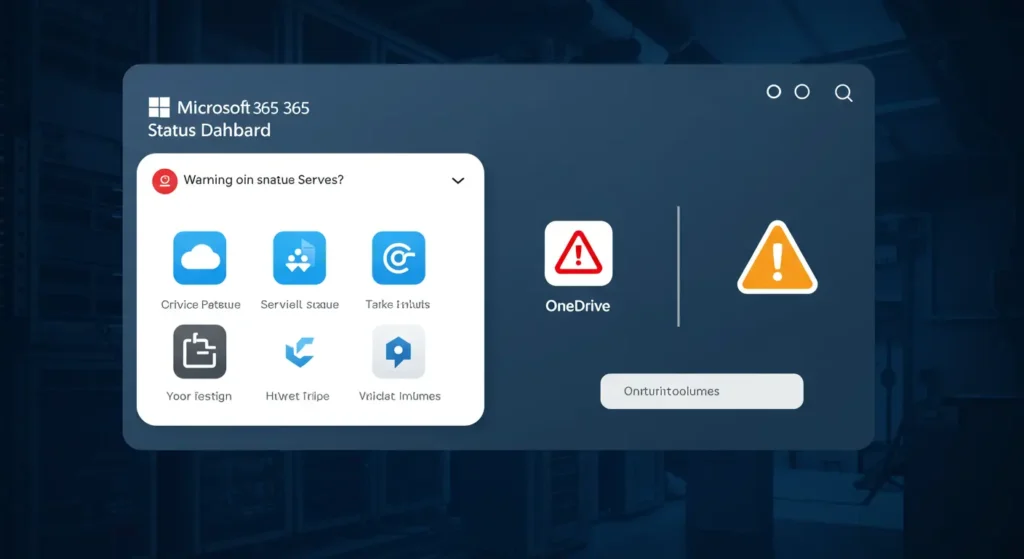
Before pulling your hair out — make sure the problem isn’t Microsoft’s fault.
Why this matters:
Sometimes, the servers are experiencing outages or maintenance. No amount of local troubleshooting will help until Microsoft resolves it.
✅ How to check:
- Visit the official Microsoft 365 Service Health Status.
- Or Google “OneDrive outage today”.
👉 Takeaway:
If there’s an outage, chill. Grab a coffee, work offline, and let Microsoft’s engineers do their thing.
2️⃣ Pause and Resume Your Sync
Sometimes OneDrive/SharePoint just needs a gentle nudge.
Why this works:
Pausing and resuming resets temporary glitches in the sync process.

✅ How to do it:
- Click the OneDrive cloud icon in your taskbar.
- Click Help & Settings → Pause syncing.
- Wait a few seconds, then Resume syncing.
👉 Pro Tip:
This works wonders when files seem stuck at “Processing changes”.
3️⃣ Check Your Internet Connection
This sounds obvious — but a flaky Wi-Fi is often the silent villain.
Why this matters:
Sync needs a steady connection. A weak signal can interrupt uploads/downloads.
✅ How to fix:
- Restart your router.
- Switch to a wired Ethernet if possible.
- Try tethering to your mobile data to test.

👉 Quick Check:
Speed-test your internet at speedtest.net.
4️⃣ Ensure You’re Signed In Correctly
OneDrive uses your Microsoft account to connect everything.
If you’re signed into the wrong account, chaos ensues.
✅ How to verify:
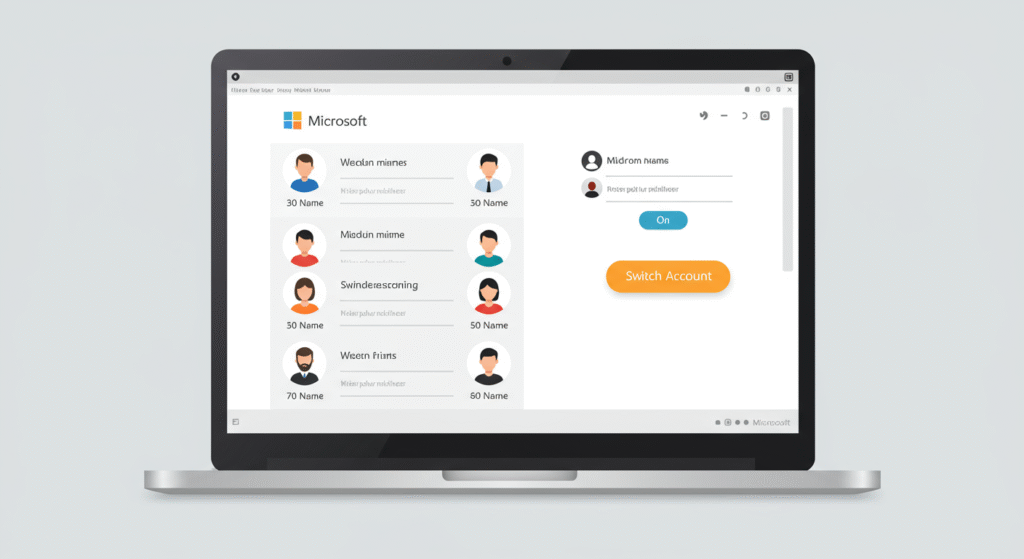
- Click the OneDrive icon → Help & Settings → Account.
- Make sure you’re signed in with your work or school account, not your personal one (unless that’s what you want).
👉 Example:
Your personal OneDrive won’t sync your SharePoint team files. Easy fix — switch to the correct account.
5️⃣ Resolve Conflicting Files
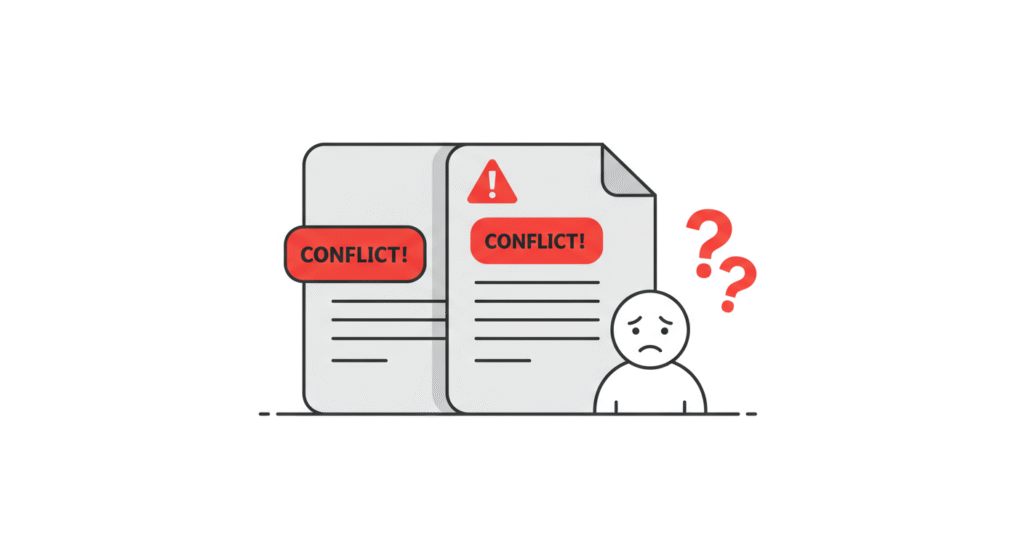
OneDrive is smart, but when two versions of a file change at once — you get conflicts.
What happens:
You might see files called “Filename-PCName.conflict”. Both copies need your attention.
✅ How to fix:
- Open both versions.
- Copy the changes you want to keep.
- Delete the duplicate or rename it.
👉 Pro Tip:
Communicate with your team! Use co-authoring in Office apps to avoid conflicts altogether.
6️⃣ Fix Path Length or Invalid Characters
Windows still hates super long file paths and weird symbols.
Common culprits:
- File paths over 400 characters.
- Characters like * : < > ? / \ |
✅ How to fix:

- Shorten folder names.
- Move files closer to the root directory (e.g., C:\Documents instead of C:\Users\Name\Documents\2025\Projects\Clients… you get it).
- Remove funky symbols.
👉 Example:
“Final_Report_2025:Version*2.docx” → Rename to “Final_Report_2025_v2.docx”.
7️⃣ Clear the OneDrive Cache
If OneDrive’s brain is clogged, it can’t sync properly.
✅ How to clear it (Windows):
- Click Start, search OneDrive, and open it.
- Click Help & Settings → Close OneDrive.
- Press Win + R, type
%localappdata%\Microsoft\OneDrive\onedrive.exe /resetand hit Enter. - Restart OneDrive.

👉 Note:
This doesn’t delete your files — it just refreshes the sync app.
8️⃣ Update OneDrive and Windows
An outdated OneDrive app or Windows version is a top cause of bugs.
✅ How to update:
- For OneDrive: Click the icon → Help & Settings → About → Version → Download latest from OneDrive Download.
- For Windows: Go to Settings → Update & Security → Windows Update.
👉 Takeaway:
Keep both up-to-date. Patches fix tons of hidden sync issues.
9️⃣ Check Storage Limits
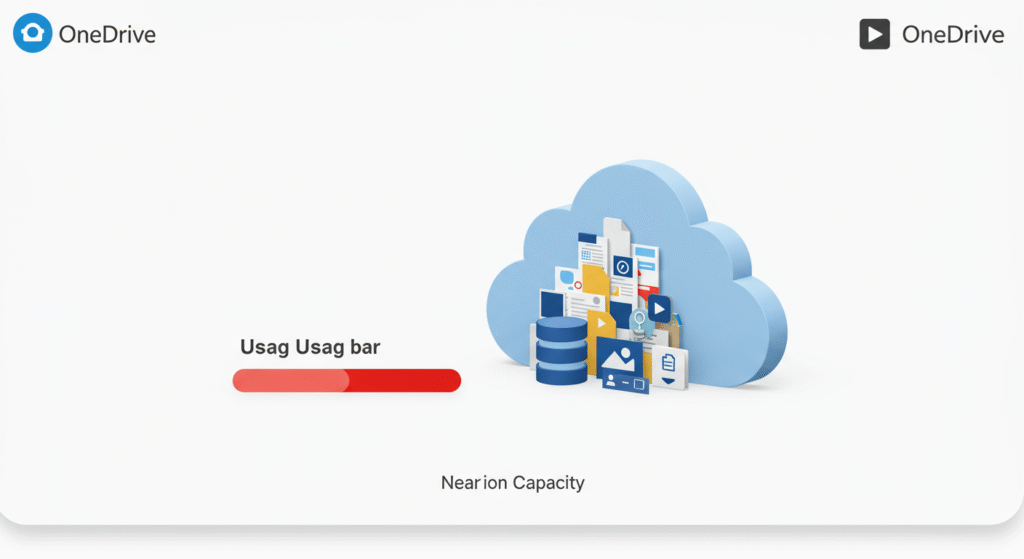
OneDrive and SharePoint both have storage quotas.
If you hit the limit — no more syncing!
✅ How to check:
- Right-click the OneDrive icon → Manage Storage.
- For SharePoint, check your site’s storage in the site settings.
👉 Solution:
Delete old or duplicate files, or ask your admin for more space.
🔟 Reconnect or Reinstall OneDrive
When all else fails — nuke it from orbit (the IT version).
✅ How to do it safely:
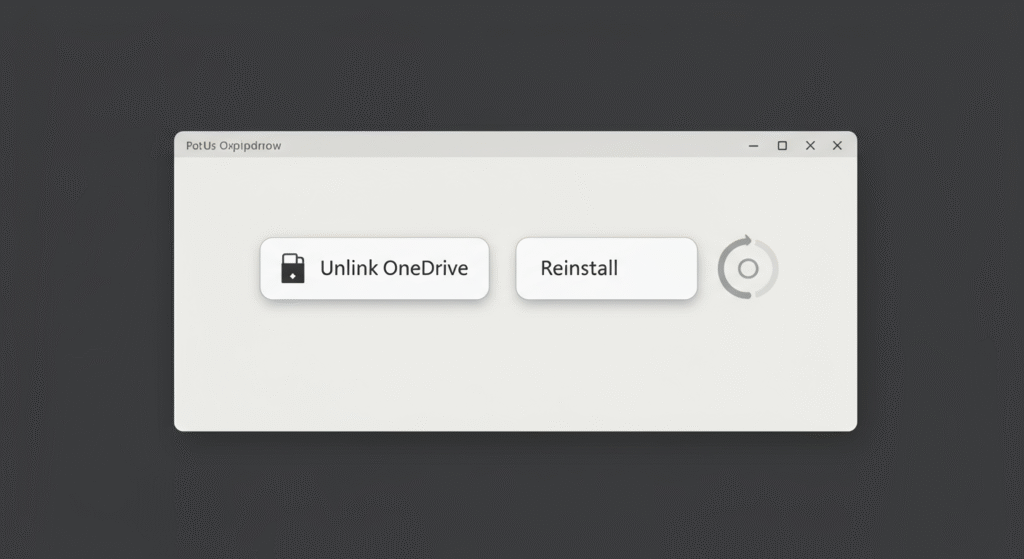
- Unlink your PC: OneDrive icon → Help & Settings → Settings → Account → Unlink this PC.
- Re-sign in and let it resync.
- If problems persist, uninstall OneDrive from Apps & Features and reinstall from Microsoft’s website.
👉 Why this works:
Sometimes a fresh install wipes out hidden corruption.
✅ Bonus: When to Call IT or Microsoft Support
If you’ve tried everything and syncing is still a nightmare:
- Contact your IT admin (for work/school accounts).
- Open a ticket with Microsoft Support.
They can check deeper server logs you can’t see.
Final Thoughts
OneDrive and SharePoint are brilliant tools — when they work. With these 10 smart fixes, you’ll spend less time fighting with sync errors and more time getting real work done.
Next time that pesky red X shows up, come back to this guide. Bookmark it, share it with your colleagues, and breathe easy knowing you’re now the office sync wizard.
💬 Over to you:
Got a weird sync error I didn’t cover? Or a genius fix of your own? Drop a comment below — let’s help each other out. And if you found this useful, share it with your team. Happy syncing!
🔍 FAQs About OneDrive & SharePoint Sync
Q1. Why does OneDrive keep asking me to sign in?
This usually happens if your password changed, your account expired, or your credentials got corrupted. Sign out and back in, or remove and re-add your account.
Q2. How do I force OneDrive to sync now?
Right-click the OneDrive icon → Help & Settings → Settings → Under the Account tab, click Choose folders, uncheck and recheck a folder to force a resync.
Q3. Is it safe to delete the OneDrive cache?
Yes! Resetting or clearing the cache won’t delete your actual files. It just refreshes the local sync engine.
Q4. Can I use OneDrive and SharePoint offline?
Absolutely. Files marked as “Always keep on this device” are available offline. Any changes will sync when you’re back online.
Q5. What’s the difference between OneDrive and SharePoint?
- OneDrive is your personal cloud storage for files.
- SharePoint is a shared library for teams, projects, and intranet sites. It uses OneDrive sync technology under the hood.
👉 Did you find this guide helpful?
If yes, please share it with your team — and drop your thoughts below. More sync sanity = happier workdays for everyone.