Introduction: Why C Still Rules Game Development (and Why You Should Care)
Ever wondered why some developers still swear by C for game development when there are game engines out there that practically make coffee for you? Spoiler alert: it’s not nostalgia—it’s raw power, baby! If you’ve ever wanted to write games in C, you’re about to embark on a journey that’s equal parts geeky, creative, and slightly masochistic (in a good way).
Learn beautiful Animations in PowerPoint – Click Here
Learn Excel Skills – Click Here
Learn Microsoft Word Skills – Click Here
1.1 Why C for Game Development?
Picture this: Unreal Engine, one of the giants of the gaming world, has its core in C and C++. Why? Because C offers low-level memory control and lightning speed, which is like having a turbocharged engine under your hood. You control the bits, the bytes, and everything in between. No unnecessary fluff—just pure, optimized performance.
For 2D games, C is a champ because it’s lightweight. No bulky layers slowing you down, just direct access to the machine’s raw horsepower.
1.2 What This Guide Covers
We’ll build a simple 2D paddle-and-ball game from scratch using C fundamentals plus the SDL2 graphics library. No heavy frameworks, no magic buttons—just you, C, and a sprinkle of SDL goodness.
1.3 Who This Guide Is For
-
Newbies who know their way around C basics (loops, conditionals, pointers).
-
Hobbyists who dream of writing a game in C just to flex on their friends.
-
Anyone curious about C programming for games and how it actually works.
2. Setting Up the Development Environment
Before we dive into writing code like caffeinated wizards, we need to set up a proper C game development environment. Don’t worry, it’s not as scary as it sounds. By the end of this section, you’ll have everything ready to start coding your very first SDL game tutorial.
2.1 Required Tools
Here’s your starter pack:
-
Compiler: GCC or Clang. These are battle-tested, open-source, and get the job done.
-
Text Editor or IDE:
-
VS Code (lightweight, tons of extensions).
-
CLion (for those who like fancy debugging tools).
-
Vim… if you enjoy suffering in style.
-
2.2 Installing SDL2 or Graphics Library (Minimal)
To actually draw things on the screen (unless you like text-based Pong), we need a C graphics library. Enter SDL2—it’s lightweight, powerful, and perfect for 2D game development in C.
Why SDL2?
-
Handles graphics, audio, and input.
-
Cross-platform.
-
Extremely beginner-friendly (for a C library, that is).
Installation:
-
Windows: Install via MSYS2 or vcpkg.
-
Linux:
-
Mac:
2.3 Project Structure
Keep your code organized:
game-project/

|-- src/

|-- main.c

|-- include/

|-- game.h

|-- assets/

|-- images, sounds
3. Game Development Basics in C
Before we start smashing keys to code, let’s talk about the beating heart of every game: the game loop, event handling, and why memory management in C is both your best friend and worst enemy.
3.1 How Games Work: The Main Loop
Imagine your game as a movie that never stops rolling. Every frame, it repeats three essential steps:
-
Handle Input (What’s the player doing? Pressing keys? Sneezing on the keyboard?)
-
Update Game State (Move the ball, update scores, apply physics).
-
Render Everything (Draw it all on the screen).
This cycle runs at lightning speed—usually 60 times per second—until the player quits.
Here’s a simplified C game loop:
Keyword drop: game loop in C.
3.2 Essential Game Components
-
Initialization: Fire up SDL, create a window, and a renderer.
-
Event Handling: SDL helps capture input like keyboard presses using
SDL_PollEvent(). -
Game State Update: Move your paddle, update ball position, check for collisions.
-
Rendering Graphics: Draw rectangles, images, and text to create that retro magic.
Keyword drop: event handling in C.
3.3 Memory Management in C for Games
Unlike those cushy modern languages, C makes you handle your own memory. Forget to free() something? Congrats, you’ve got a memory leak—and maybe a headache.
Tips:
-
Use
malloc()andfree()wisely. -
Always clean up SDL resources before exiting.
Keyword drop: memory management in C games.
4. Designing Our 2D Game: The Plan
Before writing a single line of code, let’s put on our game designer hats (don’t worry, they’re virtual and stylish). Planning is like a cheat code for fewer headaches later.
4.1 Game Concept
We’re building a simple 2D paddle-and-ball game. Think Pong, but with your own spin. It’s easy enough for beginners and still teaches you the core principles of C programming for games.
4.2 Core Features
Here’s what our game will do:
-
Player Paddle Movement: Move left and right using arrow keys.
-
Ball Physics: The ball bounces around like it had too much caffeine.
-
Collision Detection: When the ball hits the paddle, it stays in play; miss it, and it’s game over.
-
Score Tracking: Because bragging rights matter.
4.3 Game Flow
-
Start Screen: A simple “Press Enter to Play” vibe.
-
Gameplay: Move paddle, keep the ball in play, rack up points.
-
Game Over: Ball misses paddle? Boom. Show score and restart option.
This minimalistic design makes sure you learn game logic without drowning in complexity. Later, you can add sound, fancy textures, even power-ups!
5. Writing the Code Step-by-Step
Here comes 5.1:
5.1 Initializing SDL and Creating a Window
(~150 words + code snippet)
First things first: we need a game window. This is where all the magic happens. In C, we use SDL2 to create our canvas for rendering graphics.
Steps:
-
Initialize SDL.
-
Create a window and renderer.
-
Check for errors (because SDL likes to scream if you mess up).
Here’s the code:
Run this, and you should see a glorious blank window. Exciting, right? (Don’t worry, the fun stuff comes soon.)
5.2 Handling User Input
What’s a game without user interaction? Boring. Let’s make the paddle move when the player presses the arrow keys. In SDL, event handling is done using SDL_PollEvent().
We’ll:
-
Capture SDL_KEYDOWN and SDL_KEYUP events.
-
Update paddle direction based on input.
Here’s the snippet to add inside our main game loop (right after creating the window and renderer):
Now run it—you’ll see your paddle sliding across the screen. 🎉
5.3 Drawing Graphics (Paddle, Ball, Background)
So far, we’ve got a paddle on a black screen—a minimalist masterpiece, but let’s spice it up with a ball and maybe a background color that doesn’t scream “early 90s.”
In SDL, drawing is done with rectangles and colors for now (we’ll keep it simple before we dive into textures later).
Here’s how we:
-
Define and render the ball.
-
Keep rendering the paddle and background.
Add this inside the game loop, after handling input:
Run it now, and you’ll see a paddle and a red ball chilling in the center. Next step? Make the ball move and bounce like it’s alive.
5.4 Implementing the Game Loop
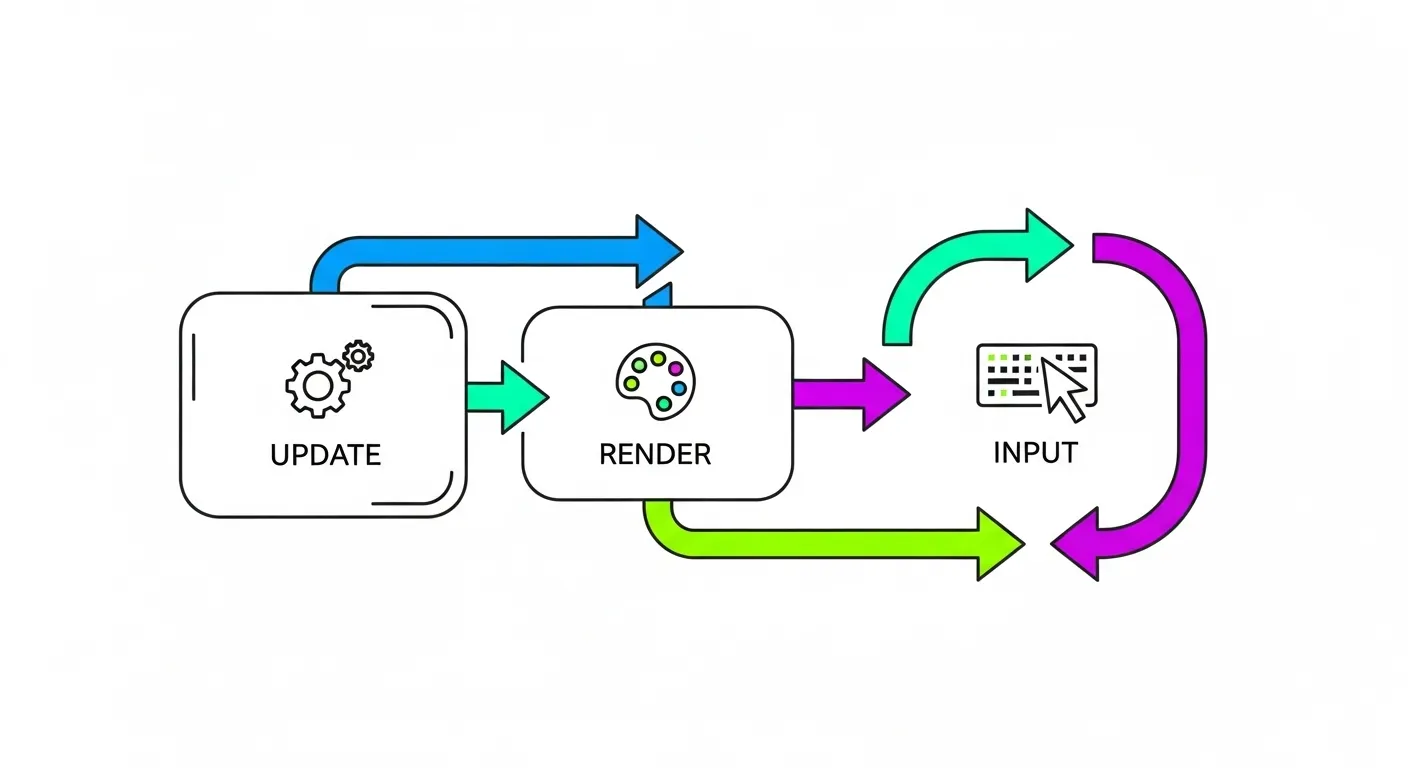
Now that we have input handling and basic rendering, it’s time to structure our game loop properly. This loop will:
-
Handle events (quit, movement).
-
Update game state (ball position, paddle limits).
-
Render everything (background, paddle, ball).
Let’s combine the pieces we wrote earlier into a single loop:
Run this now—the ball doesn’t bounce yet, but it moves! Next, we add collision detection and scoring.
5.5 Adding Ball Movement and Collision Detection
Right now, the ball moves like it’s on an endless road trip. Let’s give it some boundaries and interaction rules:
-
Bounce off walls (reverse X or Y direction when hitting edges).
-
Bounce off the paddle (when the ball touches the paddle, reverse Y direction).
-
Game Over when the ball falls below the paddle.
Here’s the code to add inside the game loop after updating the ball’s position:
Now, run it! The ball bounces around like a caffeinated squirrel. Miss it, and the game ends (with a sad console message).
Next up, we make it more rewarding by adding a scoring system and displaying it on the screen.
5.6 Adding Scoring and Game Over Conditions
Games are pointless without points, right? Let’s add a score counter that increments every time the ball hits the paddle. We’ll also display “Game Over” on the screen when you miss the ball.
For this, we’ll need SDL_ttf (a font rendering library for SDL).
Step 1: Install SDL_ttf
-
Linux:
-
Mac:
Step 2: Initialize SDL_ttf and Load Font
At the top, include:
Before the game loop:
Step 3: Add Score Logic and Render
Initialize int score = 0;. Inside paddle collision:
Render the score inside the game loop:
For Game Over, you can print a message or render text before quitting:
Now the game tracks your score and taunts you when you fail.
5.7 Final Touches and Clean-up
Congrats! You’ve built a functional 2D game in C. Before you pop the confetti, let’s make sure we exit gracefully. Why? Because SDL hates being ghosted (and memory leaks are evil).
What to Clean Up?
-
Destroy textures, surfaces, fonts.
-
Destroy renderer and window.
-
Quit SDL subsystems.
Here’s what you add before return 0; in main():
💡 Pro Tip: If you add music (via SDL_mixer) or more textures later, make sure you Mix_FreeMusic() and SDL_DestroyTexture() accordingly.
Boom! You’ve got a playable Paddle-and-Ball game made with C and SDL. It handles input, collision, scoring, and ends properly without turning your PC into a leaky faucet of RAM.
6. Compiling and Running the Game
You’ve written a masterpiece of C programming for games. Now it’s time to bring it to life!
6.1 Compiling with GCC or Clang
Here’s how to compile your SDL game:
Linux / macOS:
Windows (with MSYS2):
Make sure your SDL2 and SDL_ttf libraries are installed and linked properly.
6.2 Common Errors and Fixes
-
Error:
SDL.h: No such file or directory
→ Install SDL development headers and set-Iinclude path. -
Undefined reference to
SDL_Init
→ You forgot-lSDL2in your compile command. -
Fonts not loading
→ Ensure your.ttffile is in the correct directory or use an absolute path.
7. Optimizing and Expanding the Game

You’ve got a working 2D game in C, but why stop at “just works” when you can make it awesome? Let’s add some extra polish and talk about where you can take this game next.
7.1 Improving Graphics
Right now, everything looks like it escaped from a monochrome prison. Upgrade by:
-
Using textures instead of rectangles with
SDL_CreateTextureFromSurface(). -
Loading images via SDL_image (
IMG_Load()). -
Adding a background image for more flair.
7.2 Sound Effects and Music
Games without sound feel lifeless. Enter SDL_mixer:
-
Install it:
-
Load and play sounds with:
7.3 Adding More Levels or Power-ups
Increase the fun factor:
-
Multiple ball speeds per level.
-
Random power-ups: “Shrink Paddle”, “Double Points”.
-
Maybe add an AI paddle for a Pong battle mode.
💡 Pro Tip: If your game starts to grow big, refactor your code into separate modules for rendering, input, and game logic to keep things clean.
✅ Keywords used: optimize C game, add sound in C game, expand 2D game.
8. Common Mistakes in C Game Development
Coding games in C is fun… until your game crashes harder than your first bike ride. Let’s look at some classic rookie mistakes and how to avoid them.
1. Forgetting to Free Memory
Every malloc() needs a free(). Every SDL resource you create (textures, fonts, music) should be destroyed with the appropriate SDL function. Otherwise, congratulations—you’ve created a memory leak monster.
2. Blocking the Main Thread
Never put heavy calculations or delays in your main loop. Why? Because the game loop needs to stay smooth. If you block it, you’ll have a slideshow instead of a game. Use SDL_Delay(16) for ~60 FPS.
3. Ignoring Frame Rate Control
Running your loop at unlimited speed might sound cool, but it’ll cook CPUs and cause weird physics. Always control your frame rate with a delay or time-based movement.
4. Not Checking SDL Errors
If something breaks, SDL usually knows why. Always check SDL_GetError() after an SDL function fails.
9. Alternatives and When to Use C
So, now that you’ve built a 2D game in C, you might be wondering:
“Should I keep using C forever, or switch to something else?”
Great question! Let’s break it down.
When C is Perfect
-
Lightweight 2D Games: If you love full control and want your game to run on a potato, C is king.
-
Embedded Systems or Retro Consoles: C shines in environments where resources are limited.
-
Learning How Games Work Under the Hood: Nothing beats understanding memory management and game loops at the metal level.
When to Consider C++ or Others
-
Big 3D Projects: If you’re dreaming of the next Skyrim, C++ is better because of object-oriented features and libraries like Unreal Engine.
-
Faster Prototyping: Python or Lua with game frameworks can speed things up for quick projects.
-
Mobile or Web Games: Languages like JavaScript (with HTML5) or C# (Unity) rule here.
TL;DR: Use C for lightweight, performance-critical 2D games or when you want to flex low-level skills. For massive projects or modern engines, step up to C++.
10. Conclusion & Next Steps
Congratulations! You’ve just built a 2D paddle-and-ball game in C from scratch. You learned about game loops, event handling, collision detection, scoring, and even memory management like a pro. That’s huge!
But this is just the beginning. Here’s what you can do next:
-
Polish Your Game: Add textures, sound effects, and animations.
-
Experiment: Create multiple levels, add power-ups, or turn it into a full Pong clone.
-
Level Up: Move into OpenGL for graphics or switch to C++ to leverage object-oriented programming and game engines like Unreal.
The skills you picked up—manual memory handling, performance optimization, and SDL basics—are gold for any aspiring game developer.
👉 Your Challenge: Download the full code (put it on GitHub!), tweak it, and share it with friends. Nothing feels better than saying, “I wrote this game in pure C.”